
Enhanced Payment Links on WhatsApp
PayU supports multiple ways to accept payments on WhatsApp in partnership with Meta. Merchants integrate with PayU; PayU handles the Meta side—you do not need a separate commercial or technical integration with Meta for these flows.
Enhanced Payment Links (EPL) is the simplest option: you send an approved WhatsApp template message with a Pay Now call-to-action, the customer taps it, and completes payment on PayU’s Hosted Checkout page on the browser (outside WhatsApp) and on WhatsApp app itself for UPI payments. If you already use PayU payment links, link generation and webhooks work the same as today. For more information, refer to Payment Links.
Prerequisites for integrationAfter you ensure that the list of items listed under Prerequisites to go live on EPL, the integration with PayU is complete and not other steps are required.
What EPL is and how it fits alongside other WhatsApp payment options.
WABA, template approval, allowlisting, and PayU account needs.
Catalog, cart, identity, address, and order placement before payment.
End-to-end EPL steps from link creation to webhook notification.
In-chat payment experience with accordions and training visuals.
Why EPL is often the best starting point and typical industries.
Overview
EPL uses Meta’s Enhanced Payment Links pattern: PayU generates a payment link for the order, your system sends a WhatsApp Cloud API template whose CTA URL carries the PayU link (with the PayU-specific URL suffix Meta requires), WhatsApp shows an enhanced card with Pay Now, and the customer pays on PayU checkout using UPI, cards, net banking, wallets, EMI, and other methods your PayU setup supports.
Meta defines three WhatsApp commerce payment flavours; EPL sits at the lowest complexity end (typically 1–2 weeks to go live), with no PG-to-WhatsApp OAuth linking in Business Manager.
Prerequisites to go live
Integrate with MetaRefer to the following to integrating with Meta before proceeding with PayU. For more information, refer to Meta > Enhanced Payment Links
Prerequisites to Go Live on EPL
The following table describes other prerequisites:
| Requirement | Detail |
|---|---|
| WhatsApp Business Account (WABA) | Enterprise WABA, verified with Meta. |
| Approved message template | Template with a CTA button; URL must follow Meta’s PayU-specific link suffix rules. Submitted and approved by Meta. |
| PayU account | Standard PayU merchant account. |
| EPL allowlisting | WABA must be added to Meta’s EPL gating list, which will be done by PayU Key Account Manager (KAM). Contact your PayU KAM. |
| Webhooks | Keep your existing PayU webhook; no new WhatsApp payment webhook is required for EPL. |
Gating list or allowlist (also known as GK biglist)GK biglist is Meta's authorization mechanism for WhatsApp EPL.
Contact PayU KAMFor WABA verification, EPL allowlisting, and commercial enablement, work with your PayU Key Account Manager (KAM) or your BSP so the correct Meta and PayU steps complete in order.
How commerce works on WhatsApp
WhatsApp Commerce is not a full e-commerce website inside the chat. It is usually a conversation-led journey: the customer talks to the business (or a bot), the business helps them choose what to buy, then payment is triggered using one of Meta’s flavours—EPL, UPI Intent, or PG Deep Integration (P2M). PayU integrates at the payment step; catalogue, cart, login, and address are handled by Meta’s messaging features plus your website, app, CRM, or order system.
What happens before payment
| Commerce step | What typically happens on WhatsApp | Who builds it |
|---|---|---|
| Discovery & chat | Customer opens a thread with the business; agent or chatbot answers questions. | Merchant / BSP (Cloud API, flows, CRM) |
| Login / identity | There is no separate “sign up” in most native flows—the customer is already on WhatsApp; the phone number and chat thread identify them. Your backend maps that number to a customer record if needed. | Merchant CRM / OMS |
| Browse & catalog | Business shares a WhatsApp Catalog, product messages, or links to the website / app. | Meta Catalog + merchant systems |
| Add to cart / build order | For retail: items are added via catalog UX or your bot records line items. For collections / BFSI: the “order” is often already created in your core system (policy, EMI, invoice) before any WhatsApp pay message. | Merchant OMS / billing |
| Address & delivery | Shipping or billing address may be collected in chat, in an order_details payload (UPI Intent / P2M), or on PayU Hosted Checkout / your site when the customer pays (common for EPL). | Merchant + flavour chosen |
| Order placement | You confirm the order in your system, then send the right WhatsApp message (template with pay link, or native order message). | Merchant backend + Cloud API |
Where EPL fits in the commerce journey
EPL is a payment channel, not a full in-chat storefront:
- Commerce before pay usually happens outside the pay template—on your website, app, call centre, or agent chat—or the payable amount is system-generated (renewal, EMI, invoice).
- Your system creates the order or payable in your OMS / billing stack, then calls PayU for a payment link, then sends an approved template with Pay Now.
- Login, address, and line-item UX are not provided by EPL itself; if you need them at pay time, they appear on PayU Hosted Checkout (browser / in-app WebView) or were captured earlier in your journey.
Use UPI Intent or PG Deep Integration when the customer must review a structured order in chat and pay with a native order bubble (utilities, multi-item retail, in-chat checkout). For more information on those journeys, refer to WhatsApp Payments Integration.
Commerce capability by payment flavour
| Commerce need | EPL | UPI Intent | PG Deep Integration (P2M) |
|---|---|---|---|
| Pay an invoice / renewal / EMI link | Yes — primary use case | Possible | Overkill |
| WhatsApp Catalog → pay in chat | Pay link after order is built elsewhere | Order bubble + UPI | Full catalog → Review & Pay in chat |
| Multi-item cart with shipping in chat | Limited — checkout on PayU page | Partial — order bubble, UPI-first | Yes — native sheet, order status |
| Address at checkout | On PayU Hosted Checkout or pre-collected | In order_details or prior chat | In order_details + in-chat pay |
| Real-time order status in WhatsApp | No | Limited | Yes |
How the payment flow works
- Your backend calls PayU to generate a payment link (same as existing payment-link flows).
- Your backend calls the WhatsApp Cloud API with an approved template; the template’s CTA includes the PayU link URL pattern Meta expects.
- The customer sees the template card in WhatsApp and taps Pay Now.
- The browser opens PayU hosted checkout; the customer pays with any supported method.
- PayU processes the payment and sends your existing PG webhook (same payload and reconciliation patterns as today).
The following sequence diagram matches the steps above (same styling as other PayU Developer Guide sequence diagrams such as the refunds workflow).
%%{init: {
  "theme": "base",
  "sequence": {
    "mirrorActors": false,
    "rightAngles": true,
    "messageAlign": "left",
    "fontSize": 12,
    "actorFontSize": 12,
    "noteFontSize": 11,
    "actorMargin": 90,
    "width": 170,
    "boxMargin": 10,
    "messageMargin": 38,
    "diagramMarginX": 60,
    "diagramMarginY": 18
  },
  "themeVariables": {
    "fontFamily": "Arial, Helvetica, sans-serif",
    "fontSize": "12px",
    "background": "#FFFFFF",
    "primaryColor": "#A6C307",
    "primaryTextColor": "#002843",
    "primaryBorderColor": "#002843",
    "secondaryColor": "#F4F9E0",
    "lineColor": "#002843",
    "textColor": "#002843",
    "actorBkg": "#A6C307",
    "actorBorder": "#002843",
    "actorTextColor": "#002843",
    "actorLineColor": "#002843",
    "signalColor": "#002843",
    "signalTextColor": "#002843",
    "labelBoxBkgColor": "#F4F9E0",
    "labelBoxBorderColor": "#A6C307",
    "noteBkgColor": "#F4F9E0",
    "noteTextColor": "#002843",
    "noteBorderColor": "#A6C307",
    "activationBkgColor": "#E8F0C4",
    "activationBorderColor": "#002843"
  }
}}%%
sequenceDiagram
    box Merchant
        participant MS as Merchant system
    end
    box PayU
        participant PU as PayU
    end
    box WhatsApp
        participant WA as Cloud API
    end
    participant C as Customer

    MS->>PU: Create payment link
    PU-->>MS: Payment link URL
    MS->>WA: Send approved template (CTA includes PayU link suffix)
    WA->>C: Template card with Pay Now
    Note over C: Tap Pay Now — opens browser
    C->>PU: Hosted checkout (browser)
    C->>PU: Complete payment
    PU->>MS: PG webhook (same as payment links)
Customer journey
Step 1: Payment request appears in the chat
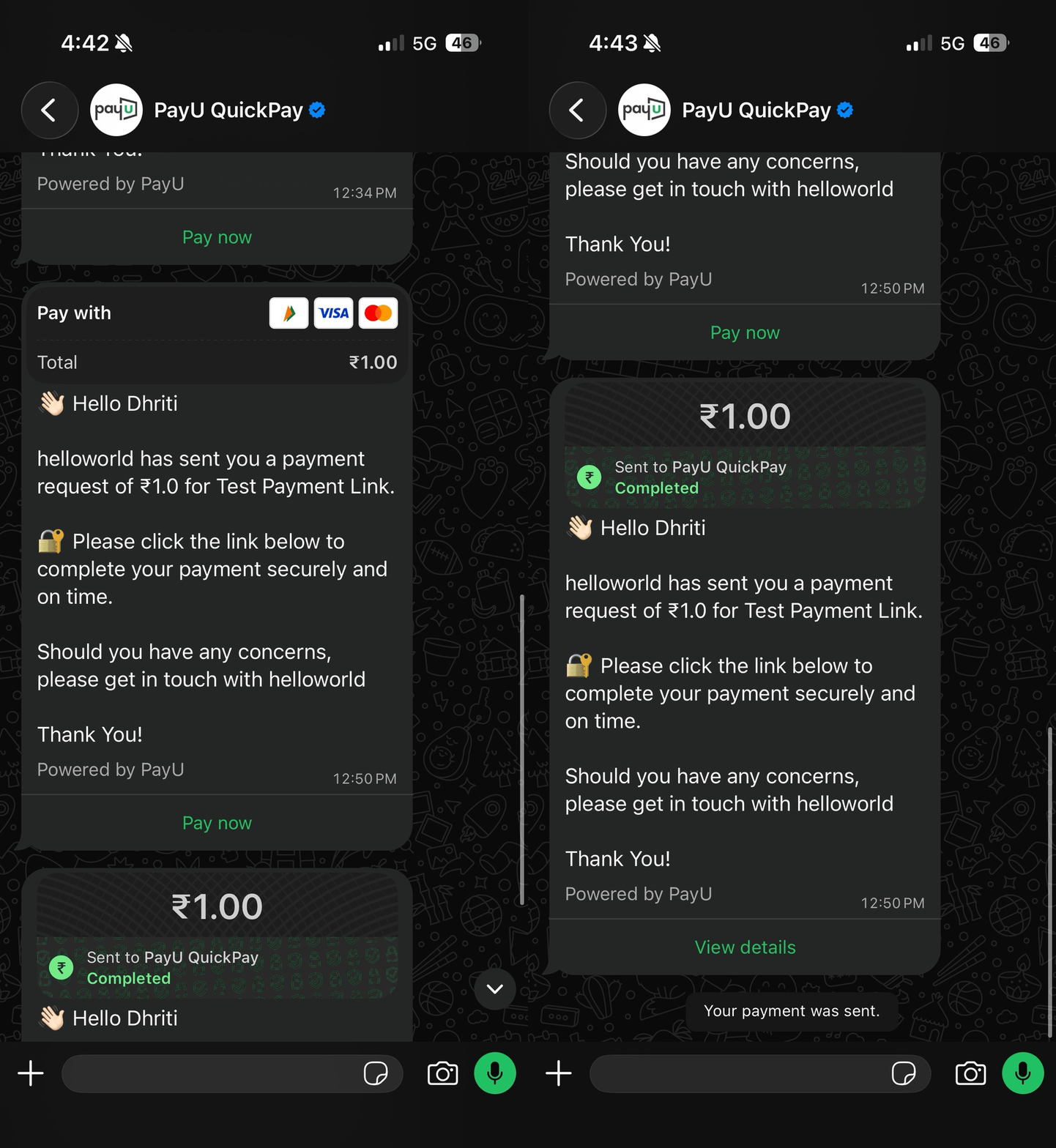
The business sends an approved template message. The customer sees a structured payment card: amount (for example ₹100.00), short instructions (“Please make the payment…”), optional Pay with hints (card brands), and a primary Pay now CTA on the card.
Step 2: Customer taps Pay now
Tapping Pay now follows the dynamic URL on the CTA (your PayU payment link with the Meta-required suffix). WhatsApp then opens the next payment UI, in other setups it can be PayU checkout in the in-app browser.
There is no separate still between frames 01 and 02; the animated GIF below shows the transition.
Step 3: Choose payment method
The customer sees Choose payment method (sheet header with close X):
- Pay on WhatsApp — linked bank account (for example ICICI Bank ••1234) as Default, plus links to view balance or Add payment method.
- More payment methods — Google Pay, PhonePe, More UPI apps, and Other payment methods (debit card, net banking, and more).
The customer selects an option and taps Continue (green). Footer shows POWERED BY UPI.
Step 4: Review and confirm payment
The sheet moves to Confirm payment (back arrow to change method). The customer checks:
- Payee — business name / logo and payee identifier (in the demo, a UPI ID such as
merchant@wabank). - Pay from — selected bank or instrument (for example ICICI Bank ••5256, Default).
- Total — e.g. ₹100.00.
When satisfied, the customer taps Send payment (green).
Step 5: Authenticate
For the UPI on WhatsApp path, the bank/UPI step shows ENTER UPI PIN, amount and merchant name, numeric keypad, and submit (checkmark). For card / net banking (if the customer chose Other payment methods earlier), authentication is OTP or the bank’s page instead—those paths are not shown in these stills.
Step 6: Success in chat and webhook to merchant
The conversation updates with a completed payment line (green outbound bubble: amount, Send to merchant, Completed with read receipts). The payment card in-thread may show a post-pay state (for example View details). Your PayU PG webhook fires on success with the same contract as for standard payment links (no separate EPL webhook type).
Benefits for your business
- Minimal backend change if you already use PayU payment links—reuse link APIs and webhooks.
- No OAuth linking of your PayU account inside WhatsApp Business Manager for EPL.
- Full checkout breadth on PayU hosted pages (EMI, auto-debit, etc.), not limited to in-chat UPI-only flows.
- Fastest path to WhatsApp collections compared with deeper native integrations.
Real-world examples cited in product materials include PolicyBazaar (reported 17% conversion uplift after EPL) and Piramal Finance for recurring EMI collection via links.
When you must use EPL?
- Insurance — premium renewals and policyholder collections.
- Lending / NBFCs — EMI and recurring collection links.
- Bulk collections and reminders with a pay link in each template message.
- Merchants who already run PayU payment links and want WhatsApp as an additional channel.
- Teams that need go-live in roughly 1–2 weeks (often dominated by Meta template approval, typically 3–7 business days).
When to consider another flavour instead?
-
EPL can still offer a native payment experience for some customers (for example UPI via WhatsApp’s in-app payment surface), but EPL is link-first: you send a template with Pay Now after the amount and purpose are already fixed. It does not, by itself, run a full browse → cart → address → pay journey in chat.
-
You want a conversational commerce flow—not only dropping a payment link in WhatsApp, but walking the customer through catalogue, cart, address, and order placement in the conversation → a complete commerce experience on WhatsApp typically needs PG Deep Integration (P2M). Use UPI Intent if a structured order bubble with UPI-only pay is enough. See WhatsApp Payments Integration.
-
You need rich multi-line-item orders and real-time order status purely in chat (for example food delivery or quick commerce) → PG Deep Integration (P2M) is usually required. See Integrate WhatsApp Payments.
Updated 2 days ago
