
Bagisto
This section describes how to configure the PayU payment method in Bagisto for accepting payments through credit cards, debit cards, net banking, UPI, and wallets.
Prerequisites
Before you begin the configuration, ensure you have:
- Active PayU merchant account
- PayU Merchant Key
- PayU Merchant Salt
How PayU Integration Works with Merchants
The PayU integration for Bagisto uses a simple key-based authentication method. Merchants only need two credentials to enable secure payment processing:
- Merchant Key: A unique API key that identifies your merchant account with PayU and is used for all payment requests.
- Merchant Salt: A secret key used to generate the secure hash for transaction verification and authentication.
This straightforward integration approach maintains PCI-DSS compliance while keeping configuration simple, as all sensitive payment data is processed securely on PayU's servers.
Generate Merchant Key and Salt
To obtain your Merchant Key and Salt from the PayU Dashboard:
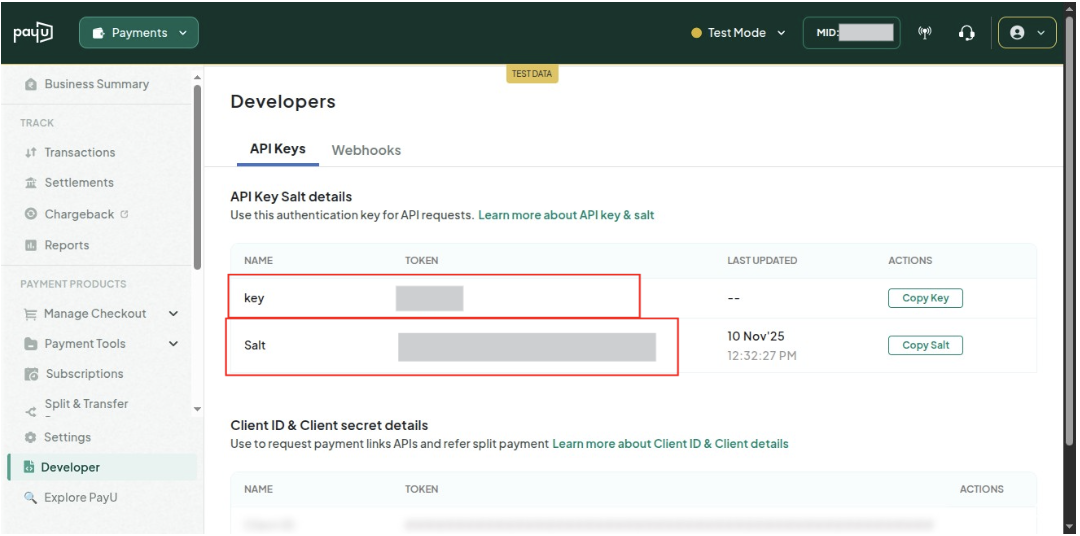
- Navigate to PayU Merchant Dashboard and log in.
- Select Developer from the left menu.
- Your credentials are displayed automatically under API Keys Tab:
- Merchant Key: Your unique API key for payment requests.
- Merchant Salt (Version 1): 16-character string for hash generation.
Configuration in Bagisto
PayU payment method comes built-in with Bagisto core. To configure it:
- Log in to your Bagisto Admin panel.
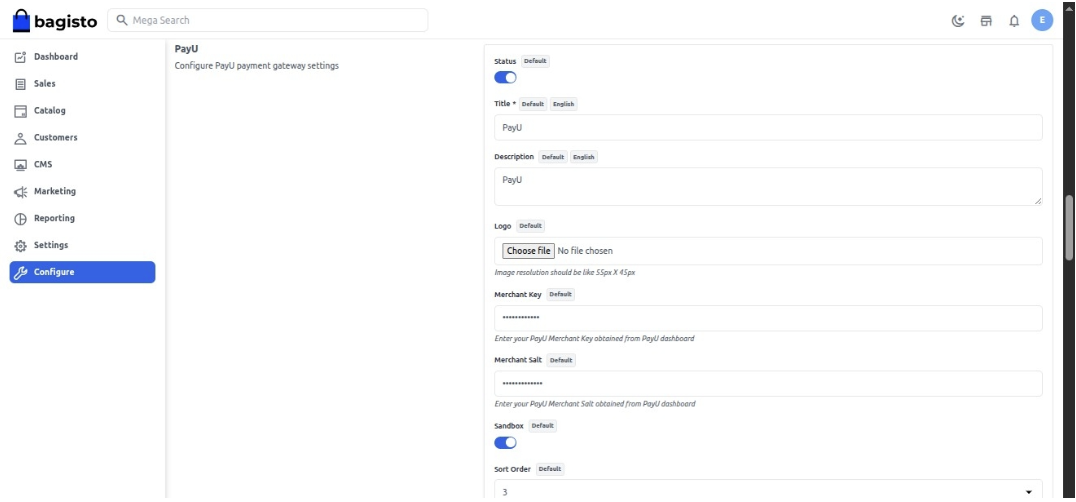
- Navigate to Configuration > Payment Methods.
- Locate and expand the PayU payment option.
- Enter your Merchant Key in the designated field.
- Enter your Merchant Salt in the designated field.
- Select the Environment (Test/Production).
- Set the Payment Title as it should appear to customers at checkout.
- Enable the payment method.
- Save the configuration.
Testing the Integration
Before going live, test your integration using PayU's test environment:
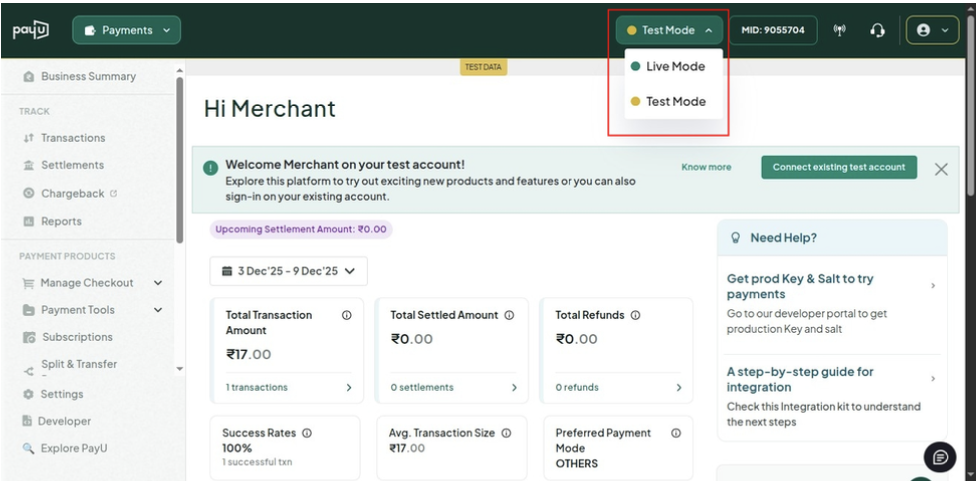
- Use Test Mode with PayU's test credentials.
- Complete test transactions using test card details.
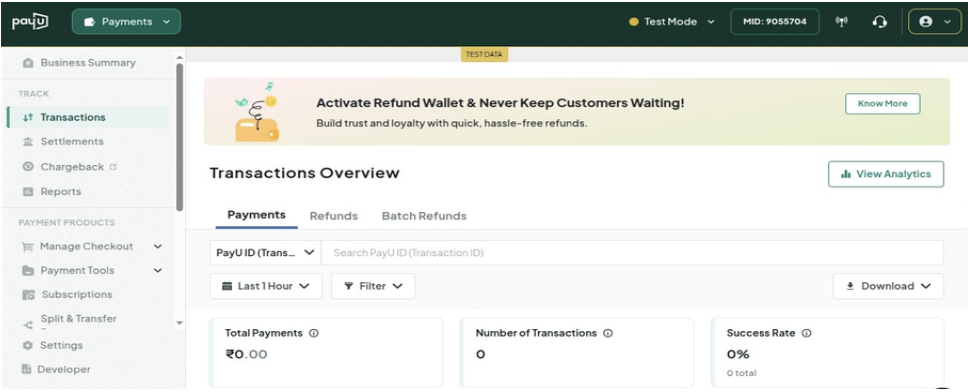
- Verify transaction status in both the Bagisto order management and PayU dashboard.
For additional support, refer to PayU's technical documentation or contact their support team.
Updated 2 months ago
