
Create a Milestone Offer
Milestone offers are strategic promotional incentives designed to reward customers for achieving specific transactional or behavioral targets. These offers encourage customer loyalty by providing rewards when users reach certain milestones such as:
- Completing a specific number of transactions
- Reaching a cumulative transaction value
- Using particular payment methods
- Making purchases within defined timeframes
The primary purpose is to boost engagement and increase transaction frequency by offering attractive, goal-driven rewards that motivate customers to continue shopping with your business.
Advantages
Increased Customer Engagement & Loyalty
- Encourages repeat purchases as customers work toward milestone goals
- Creates a compelling reason for customers to return to your platform
- Builds long-term relationships with customers through progressive rewards
Enhanced Revenue Generation
- Motivates customers to make additional purchases to reach milestones
- Increases average order value as customers aim to meet spending thresholds
- Drives higher transaction volumes over time
Flexible Implementation Options
- Create offers based on transaction numbers (e.g., "10% off on your 5th purchase")
- Design rewards around spending thresholds (e.g., "Cashback after spending ₹5,000")
- Set time-bound challenges (e.g., "Complete 3 purchases this month for a special discount")
Payment Method Promotion
- Encourage customers to use specific payment methods by linking them to milestone rewards
- Drive adoption of preferred payment options that may have lower transaction costs
- Partner with payment providers for co-funded incentives
Data-Driven Marketing Opportunities
- Collect valuable insights on customer purchasing patterns
- Enable personalized marketing based on customer progress toward milestones
- Create targeted campaigns based on milestone achievement data
Implementation Considerations
- Milestone tracking works through backend data aggregation using parameters like card information, phone numbers, email IDs, and transaction values
- Offers work most effectively when customer traffic is consistently routed through your payment gateway
- The system allows for both transaction-led offers and non-transactional offers (like birthday rewards or signup bonuses)
Would you like me to provide more specific information about how to set up and manage Milestone offers in the PayU India Merchant Dashboard?
Implementation considerations
-
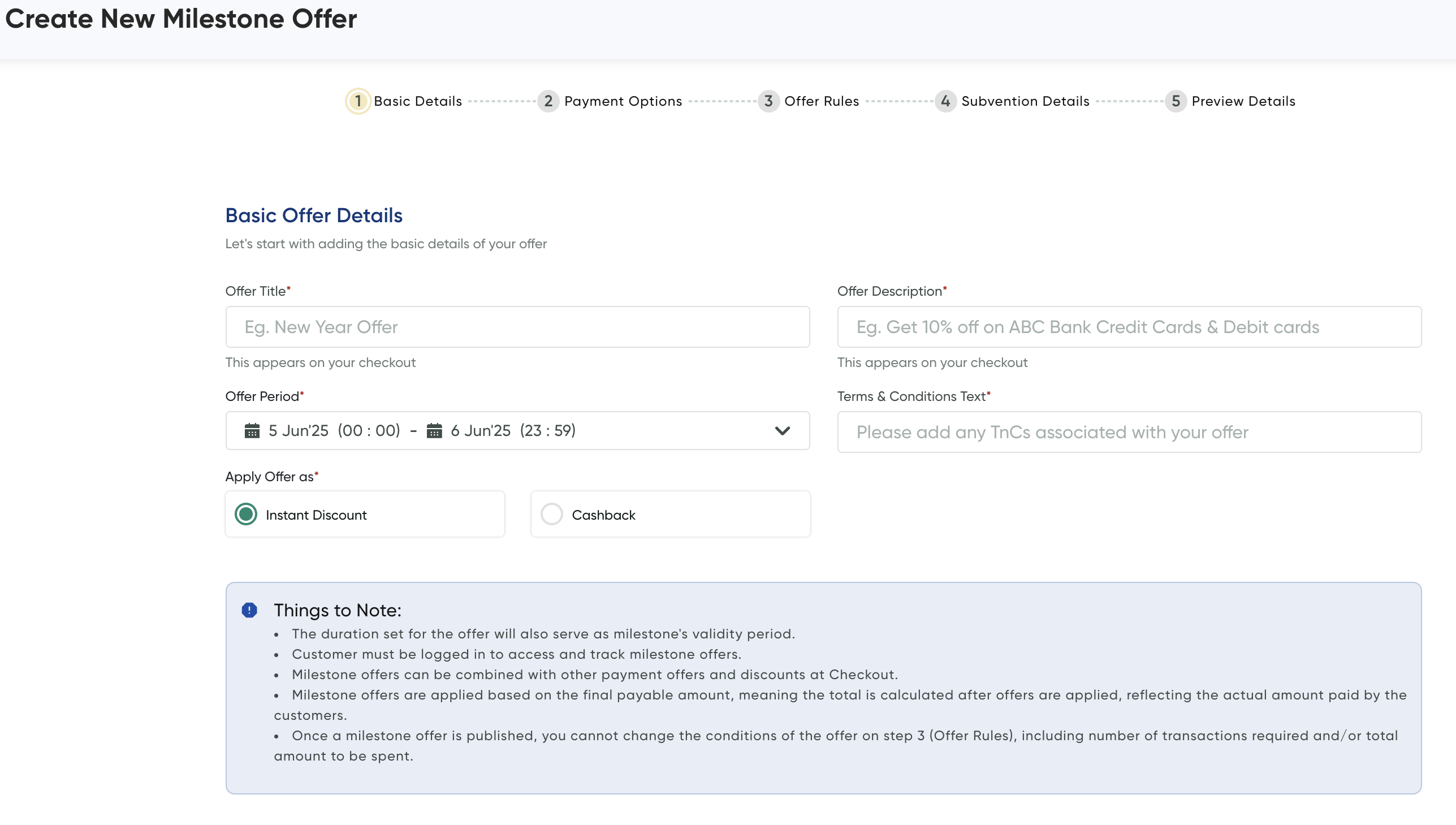
Customer Login Requirement: Customers must be logged on to their accounts to view and monitor their progress toward milestone offers.
-
Offer Compatibility: Milestone offers are designed to work alongside other payment offers and discounts during the checkout process.
-
Calculation Method: Milestone offers are calculated based on the final payable amount—this means the total is determined after all applicable offers have been applied, accurately reflecting the actual amount customers pay.
-
Post-Publication Restrictions: After publishing a milestone offer, the core conditions in step 3 (Offer Rules) cannot be modified, including both the required number of transactions and the total spending amount.
Steps to Create a No-Cost EMI Offer
- Add the basic details
- Configure payment modes
- Include the Offer rules
- Configure Offer Subvention Details
- Review of the Offer
Step 1: Add the basic details
-
Navigate to .Offers Dashboard.
-
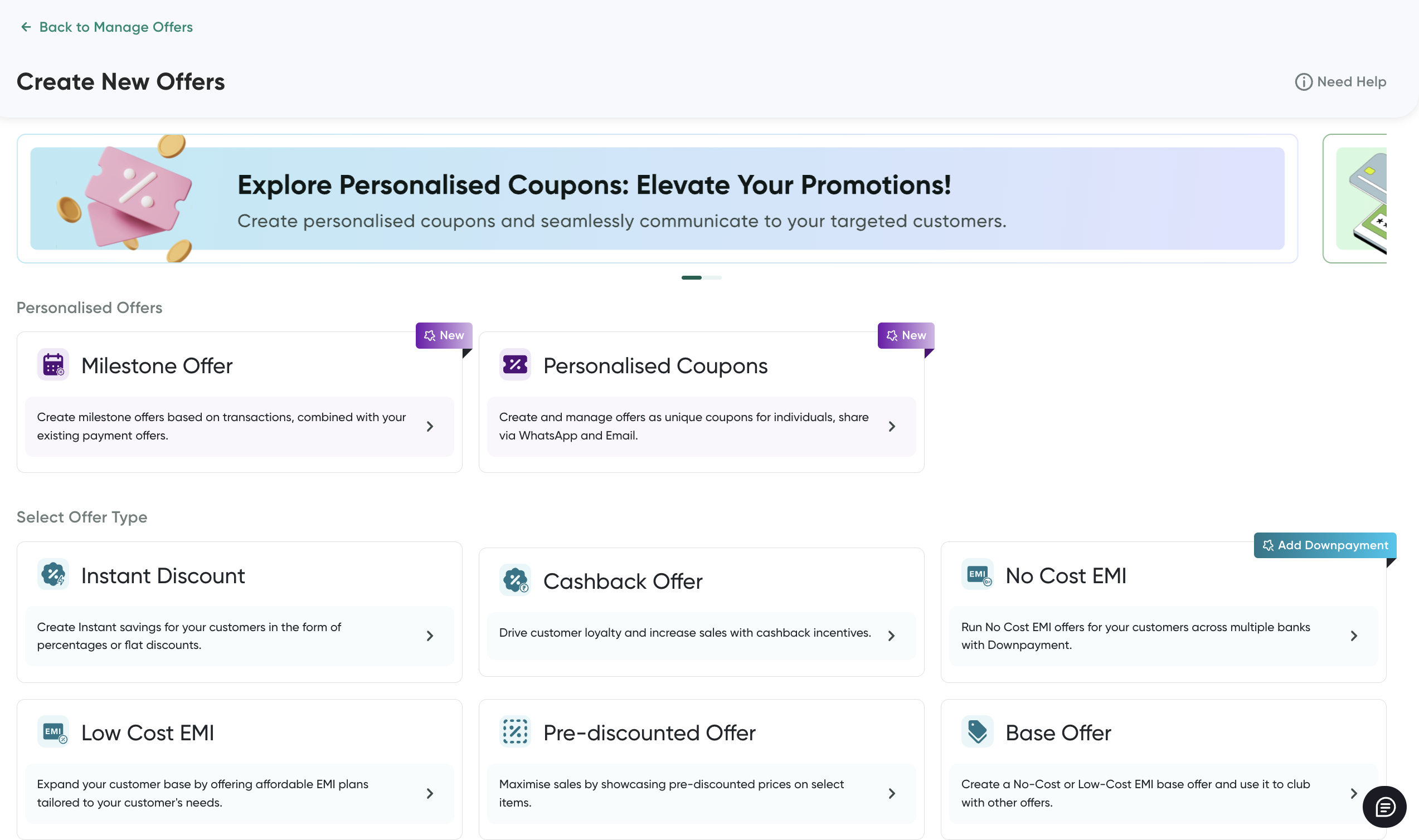
Click Create an Offer at the top-right corner.
The Create New Offer page is displayed.
-
Select the discount type as Milestone Offer.
The Basic Offer Details page is displayed.
-
Add the basic details. For more information, refer to Create an Instant Discount or Cashback Offer.
-
Select Instant Discount or Cashback from the Apply Offer as field so the offer is applied accordingly.
-
After you complete the above details and click Next.
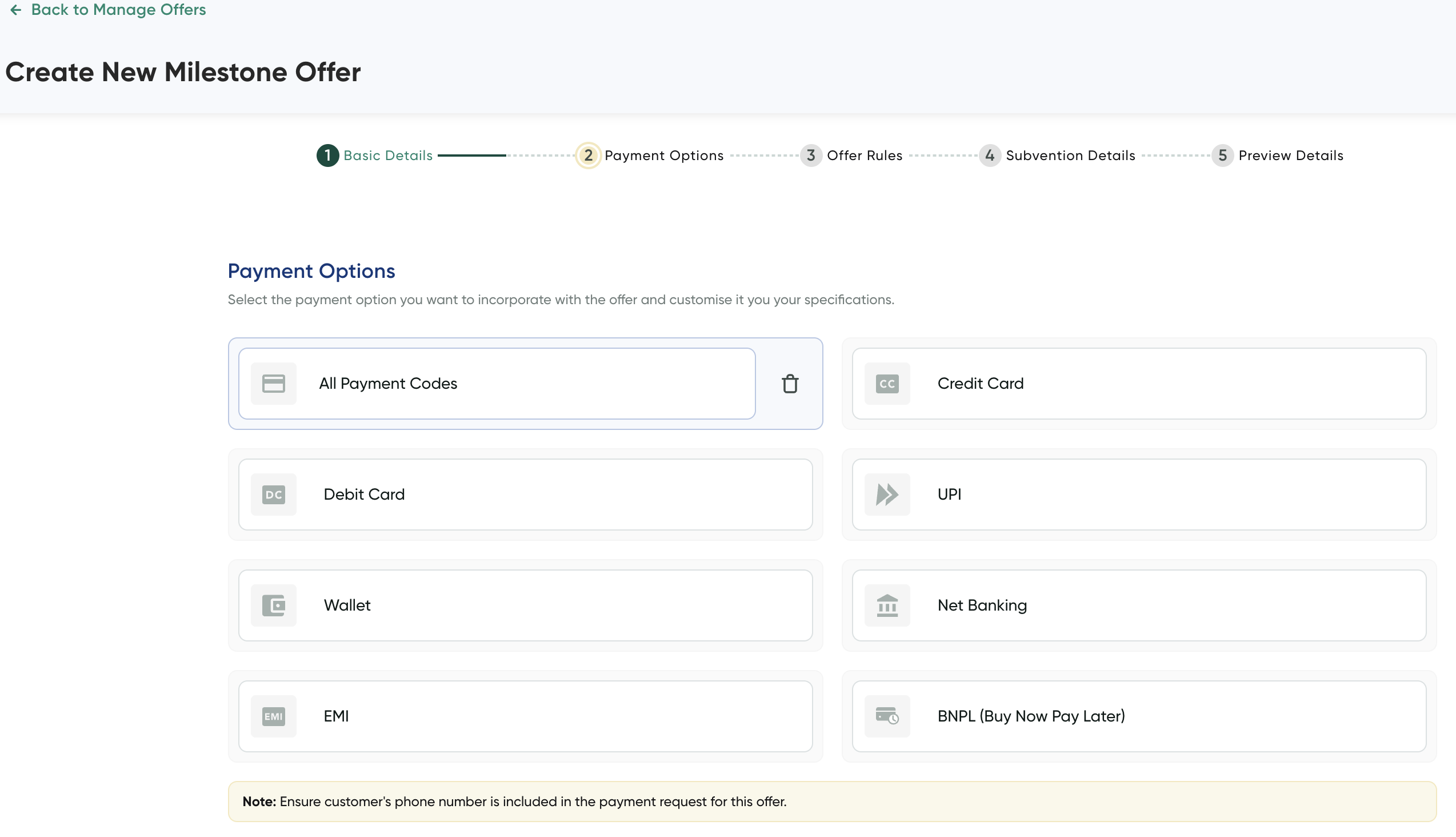
The Payment Options page is displayed.
NoteWhen you are creating an offer, you can choose to save the incomplete offer details in the Draft state using the Save as Draft & Exit button at the top-right corner and publish it later.
Step 2: Configure payment modes
- Configure the payment modes. For more information, refer to Create an Instant Discount or Cashback Offer.
Note:For this offer, ensure that the customer's phone number is included in the Collect Payment (_payment) API request for this offer.
- Click Next.
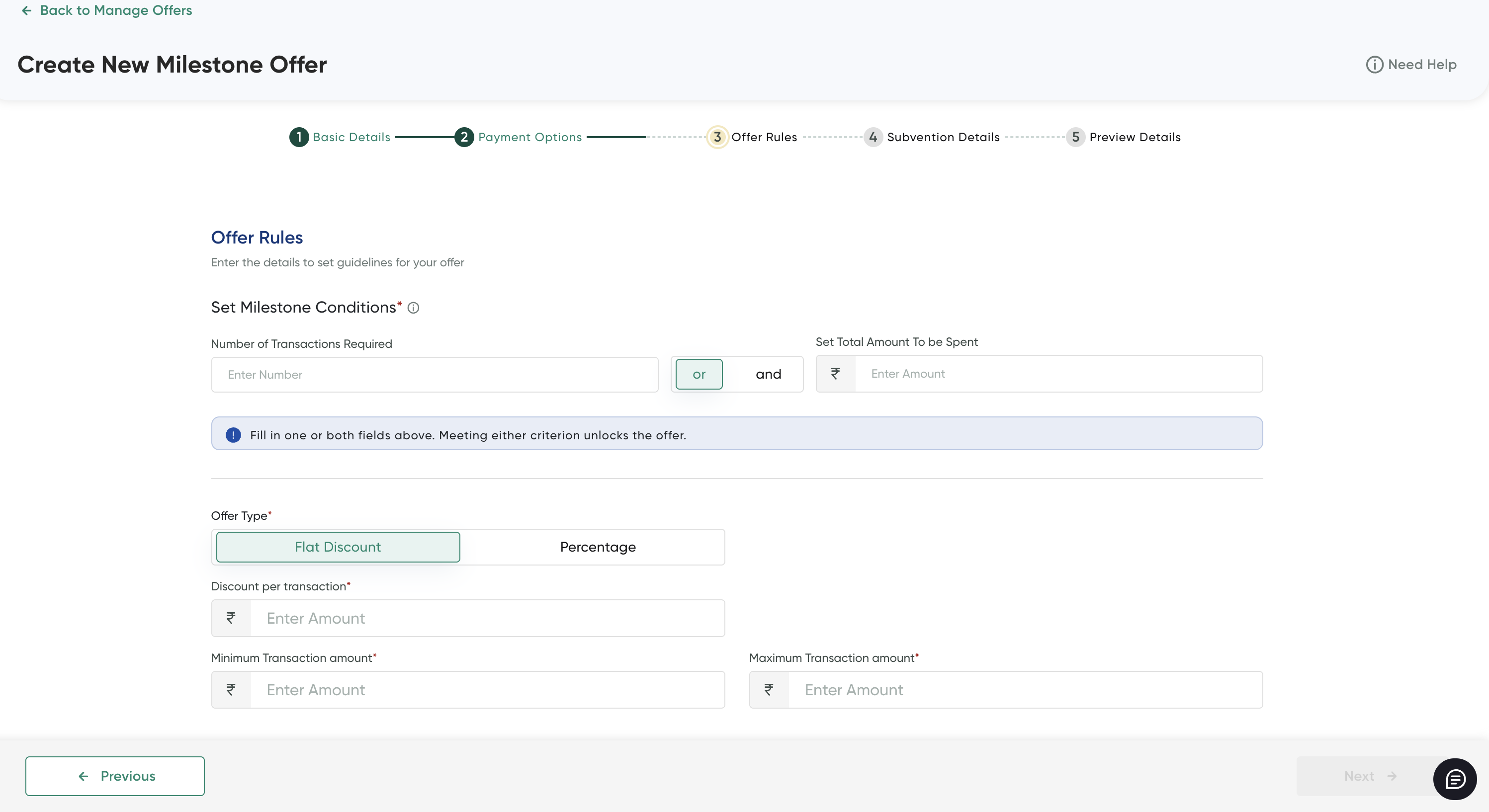
The Offer Rules page is displayed.
Step 3: Include the Offer rules
-
Click or button or and button and accordingly enter the following details to configure the milestone conditions in the Set Milestone Conditions section:
- Enter the number of transactions required from the customer in the Number of Transactions Required field.
- Configure the total amount to spent by a customer in the Set Total Amount to be Spent field
-
Select the Flat Discount or Percentage tab in the Offer Type section to specify the discount is in terms of a flat discount or percentage of the transaction amount.
-
Enter the following details on the Set Offer Rules page.
Field Description Discount per transaction/Offer Percentage Specify the value that has to be applied in in terms of discount or discount in flat. Minimum transaction amount & Maximum transaction amount Specify the threshold or range for a transaction to be applicable for the offer. Offer Usage GuidelinesField Description User Limits Set the frequency for your customers to use this offer Select any of the following options from the drop-down list to specify the maximum number of transactions the user can avail this offer: - Set unlimited: Users can avail the offer for unlimited transactions.
- Custom: Specify the custom limit up to which the users can avail the offer.
Set Budget per user Click this toggle button (if required) and then enter the budget amount per user. Reset User Limits Select any of the following options from the drop-down list to reset the user limit for specified frequency: - Every Day: Reset the user limit everyday
- Every Week: Reset the user limit every week
- Every Month: Reset the user limit every month
- Custom: Specify the custom frequency after which the user limit is reset
-
After you complete the above details and click Next.
The Set Offer Subvention Details page is displayed.
Step 4: Configure Offer Subvention Details
- Enter the subvention details in the Subvention Details page. For more information, refer to Create an Instant Discount or Cashback Offer.
- After you complete the above details and click Next.
The Preview Details page is displayed.
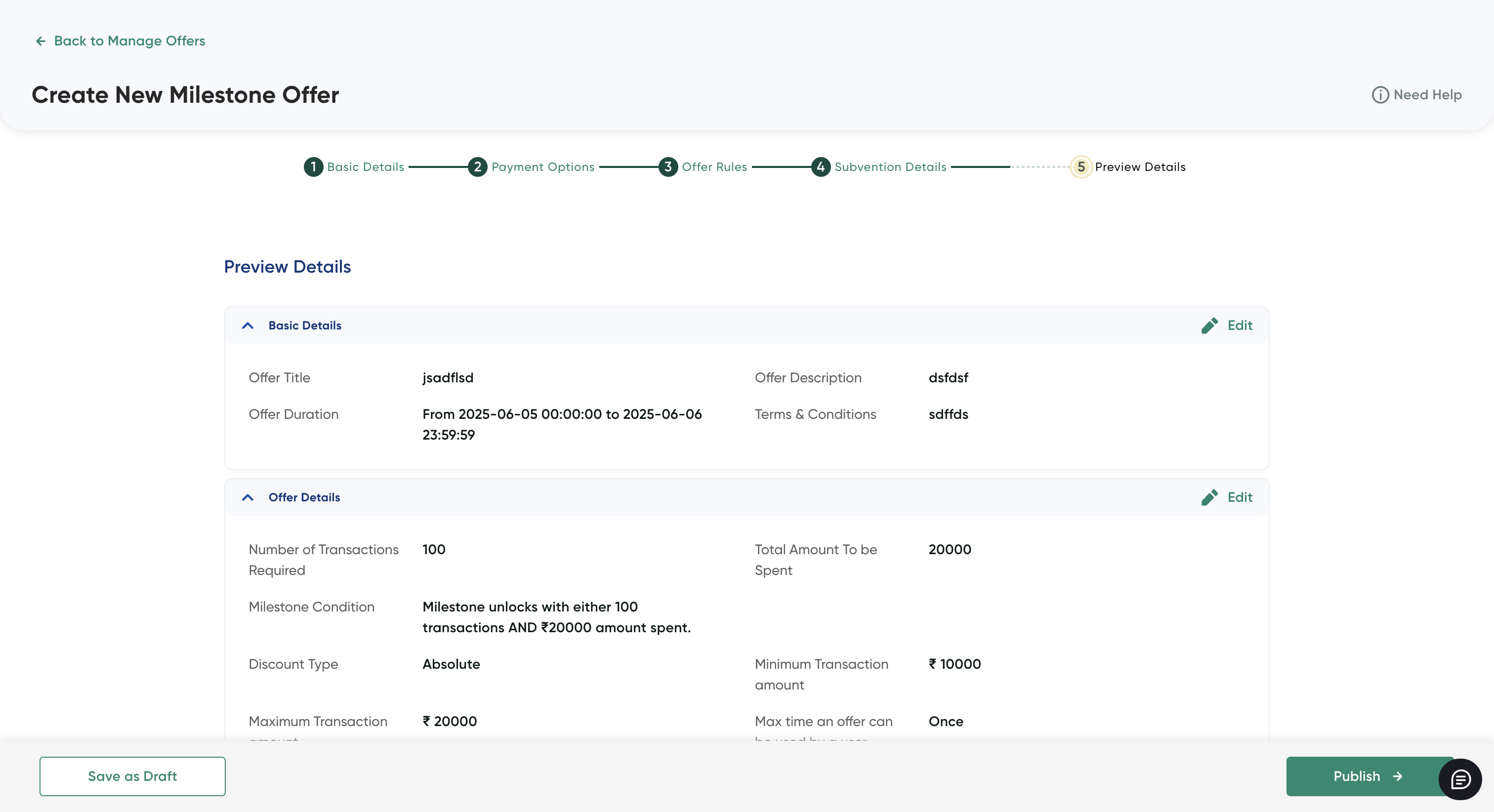
Step 5: Review of the Offer
The Preview Details page summarizes the details you provided in Step 2 to Step 4.
- Review all the configurations added before you make the offer available to your customers.
- Click the Edit button to return back to the corresponding page and update the configuration.
- Click Publish to make it available to customers.
Updated 3 months ago
