
Refund Wallet Dashboard
The Refund Wallet allows you to manage, recharge, and configure your refund funds for faster and more transparent refund processing. This sections is on activating, configuring, recharging, and monitoring refunds your Refund Wallet.
Funds cannot be withdrawn: Pre‑funding withdrawals are not permitted under RBI PA‑PG guidelines (refer to RBI circular no. RBI/DPSS/2025-26/141CO.DPSS.POLC.No.S-633/02-14-008/2025-26).The transferred funds must be used only for their intended purpose or for future refunds.
Notes:
- Refund Wallet is currently available to all normal merchants (excluding split settlement merchants and MCC merchants).
- You must only use your Settlement-linked account for adding funds.
- PayU suggests you regularly monitor your wallet balance and set up notifications to avoid refund delays.
Activate Refund Wallet
To activate your refund wallet if not already activated:
- Navigate to Settings > Preferences > Refund Wallet tab.
- Click Activate Now.
OR
Click Know More in the ad similar to following screenshot and then click Activate Now.

Note: After the refund wallet is activated, you can set the refund wallet priority. For more information, refer to Configure Refund Wallet.
Add Funds to Refund Wallet
To add funds to your refund wallet:
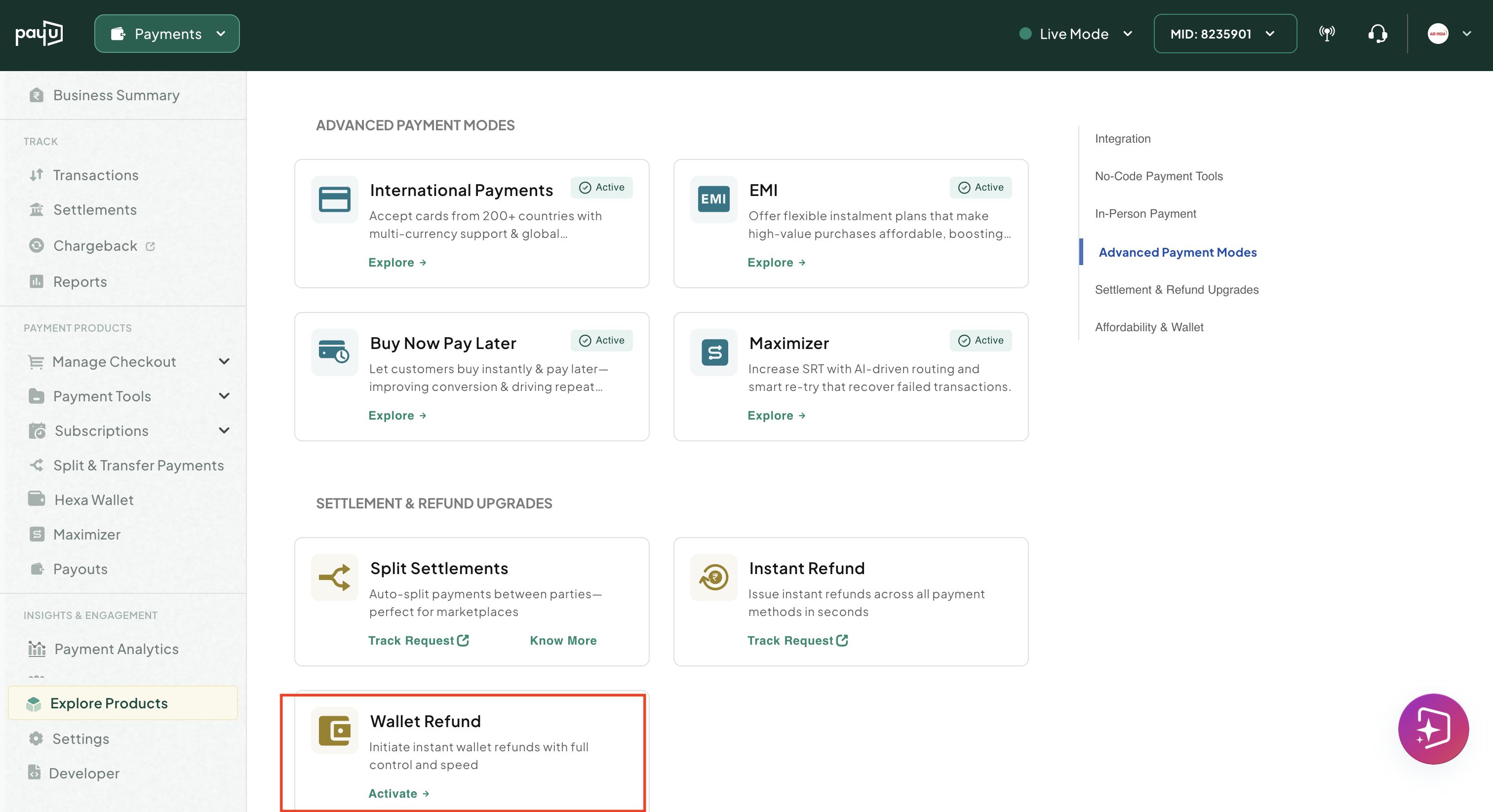
- Navigate to Explore Products and navigate to Settlement & Refund Upgradessection.
-
Select the Refund Wallet tile.
-
Click the Add Funds button.
A popup page is displayed listing the VA, IFSC, and beneficiary details.
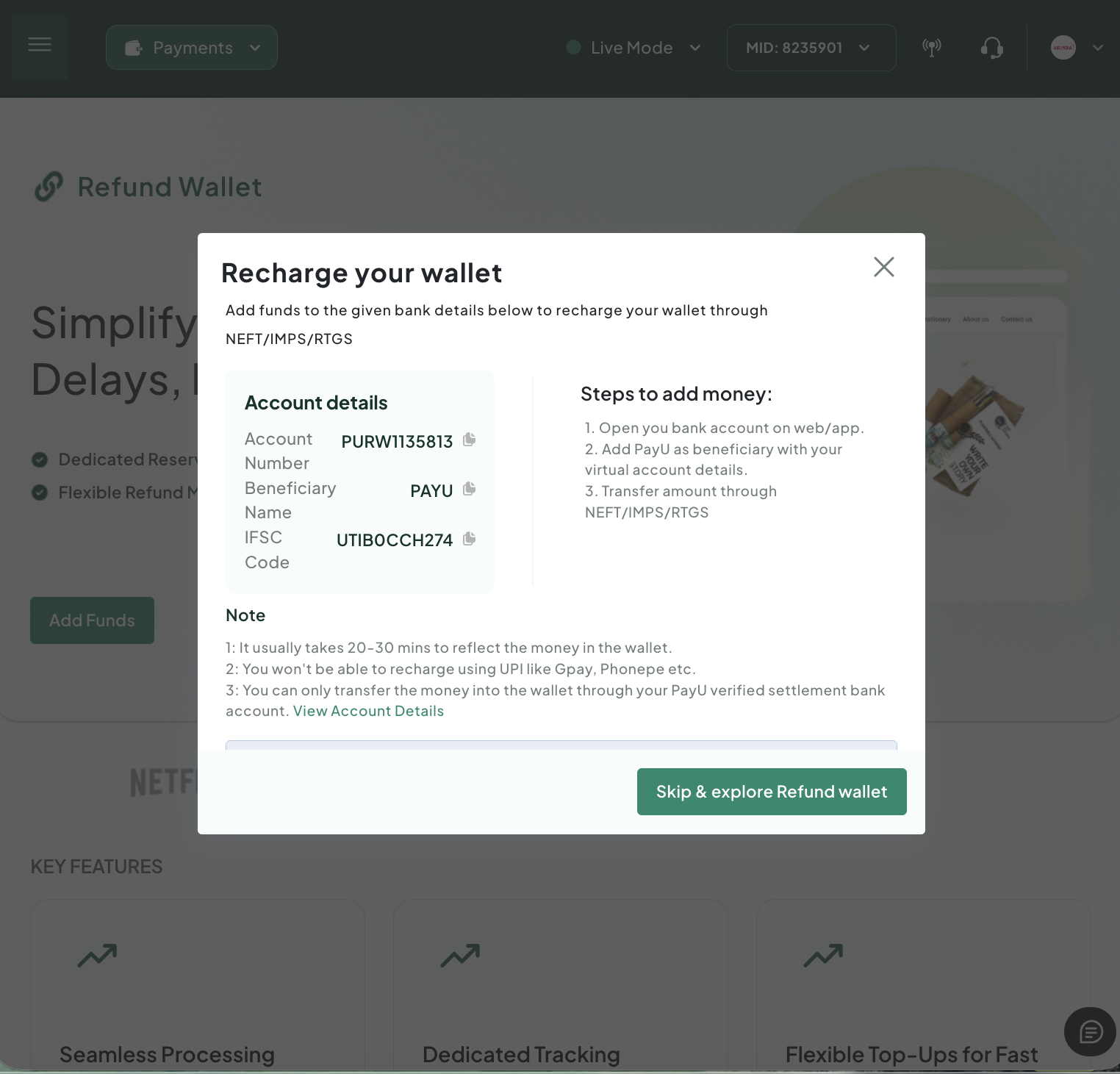
- Transfer funds from your Settlement-linked account.
Notes:
- Funds added to the Refund Wallet cannot be withdrawn from PayU Escrow and are used only for processing refunds.
- Transfer funds from your Settlement-linked account only. Amounts transferred from other accounts will be rejected.
Configure Refund Wallet
After activation, to configure your wallet:
- Navigate to Settings > Preferences > Refund Wallet tab.
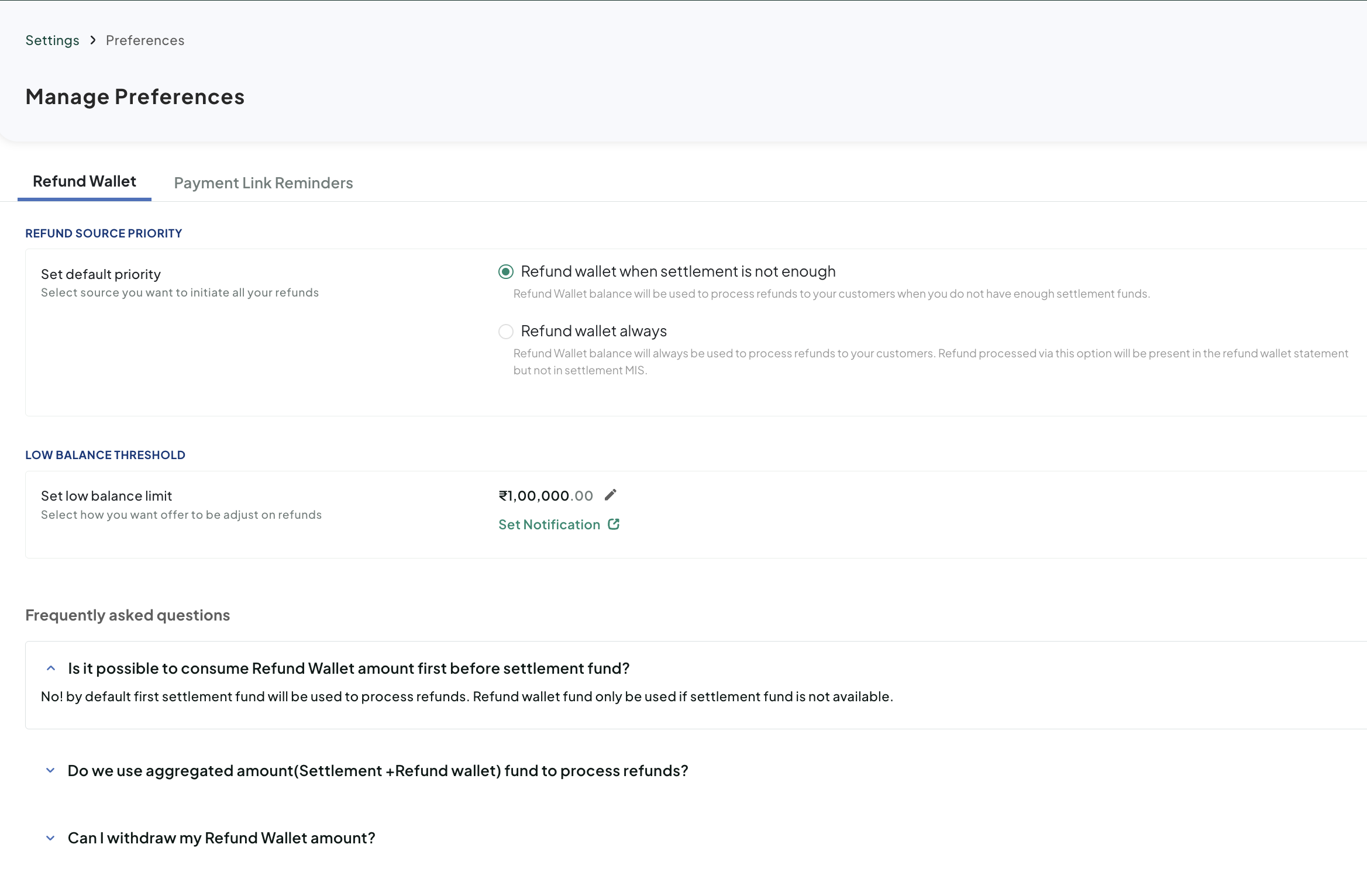
- Perform any of the following:
- Threshold Limit: Set a threshold limit for minimum balance. For more information, refer to Configure Thresholds and Notifications.
- Email Notifications: Enable email notifications for low balance alerts. For more information, refer to Configure Thresholds and Notifications.
Configure Thresholds and Notifications
To configure wallet threshold amount and email notifications:
- In the Set default priority field, select any of the following:
- Refund wallet when settlement is not enough: Refund Wallet balance will be used to process refunds to your customers when you do not have enough settlement funds.
- Refund wallet always: Refund Wallet balance will always be used to process refunds to your customers. Refund processed via this option will be present in the refund wallet statement but not in settlement MIS.
- Enter the threshold limit amount in the Set low balance limit field to get notified when your wallet balance is low.
- Click Set Notification.
- Select the Refund Wallet tab.
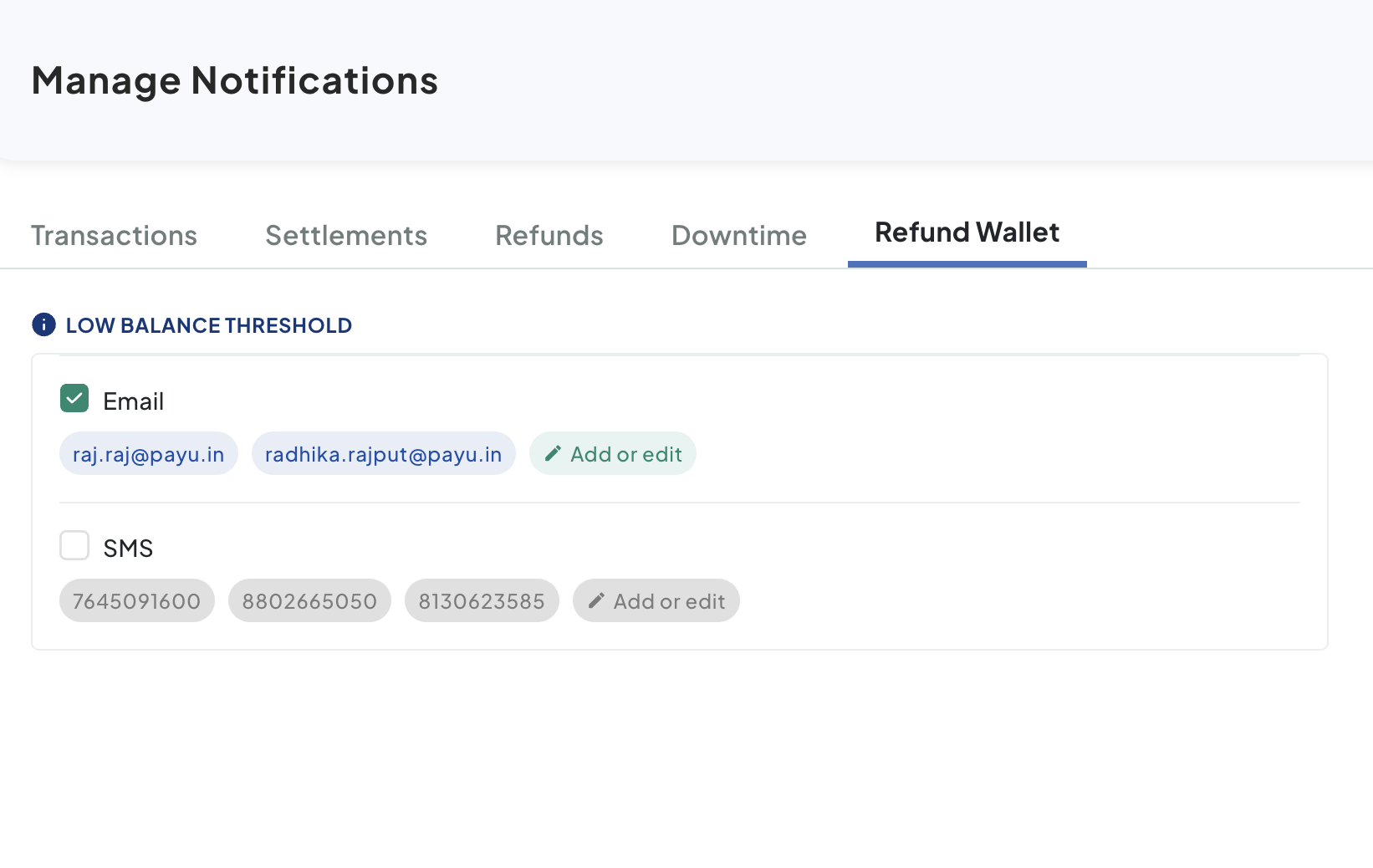
- Click Add or edit in Email section.
The Add Recipient page is displayed.
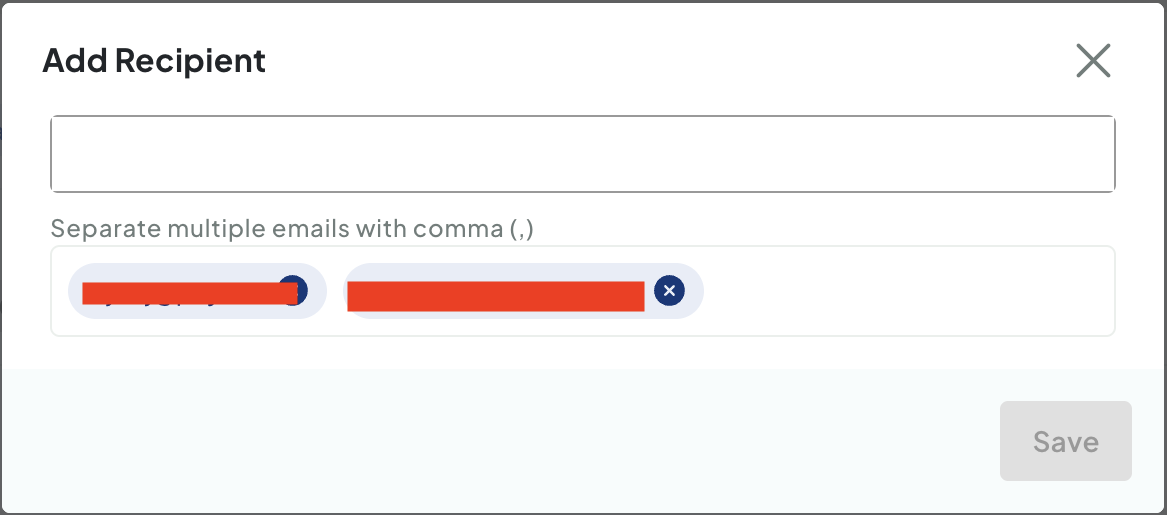
- Type the email in the field on the Add Recipient page.
- Click Save.
View Refund Wallet Ledger
The Refund Wallet Ledger offers:
- View available balance.
- See count of refunds processed in a selected date range.
- Full ledger (debit/credit) with PayuID and UTR numbers.
- Download ledger as CSV/Excel.
- Filter ledger by Credit/Debit and Source.
- Refund tab includes a source column for refund debit source.
- Download reports:
- Successful refunds via wallet
- Failed refunds due to insufficient balance
- Refunds stuck due to insufficient balance
- Dashboard alerts for refunds stuck due to insufficient balance.
Updated 6 months ago
