
Manage Payment Links
View link details and transactions, edit, filter, duplicate, share, deactivate, activte and export your Payment Links, all from the PayU Dashboard.
You can manage payment links from the PayU Dashboard after they are created and live.
How Do I Access My Payment Links?
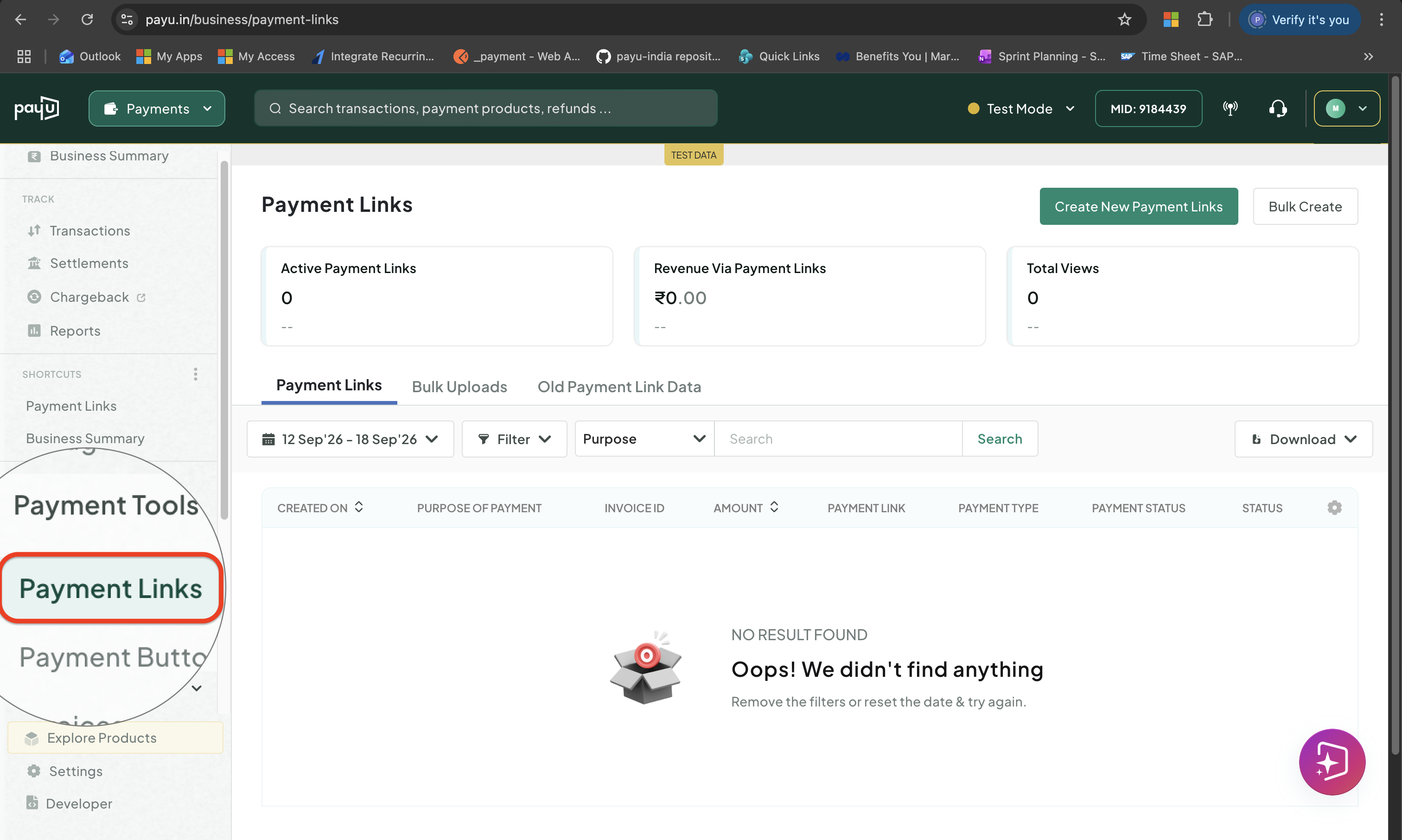
To open your links: log in to PayU Dashboard and click Payment Links under Payment Tools.
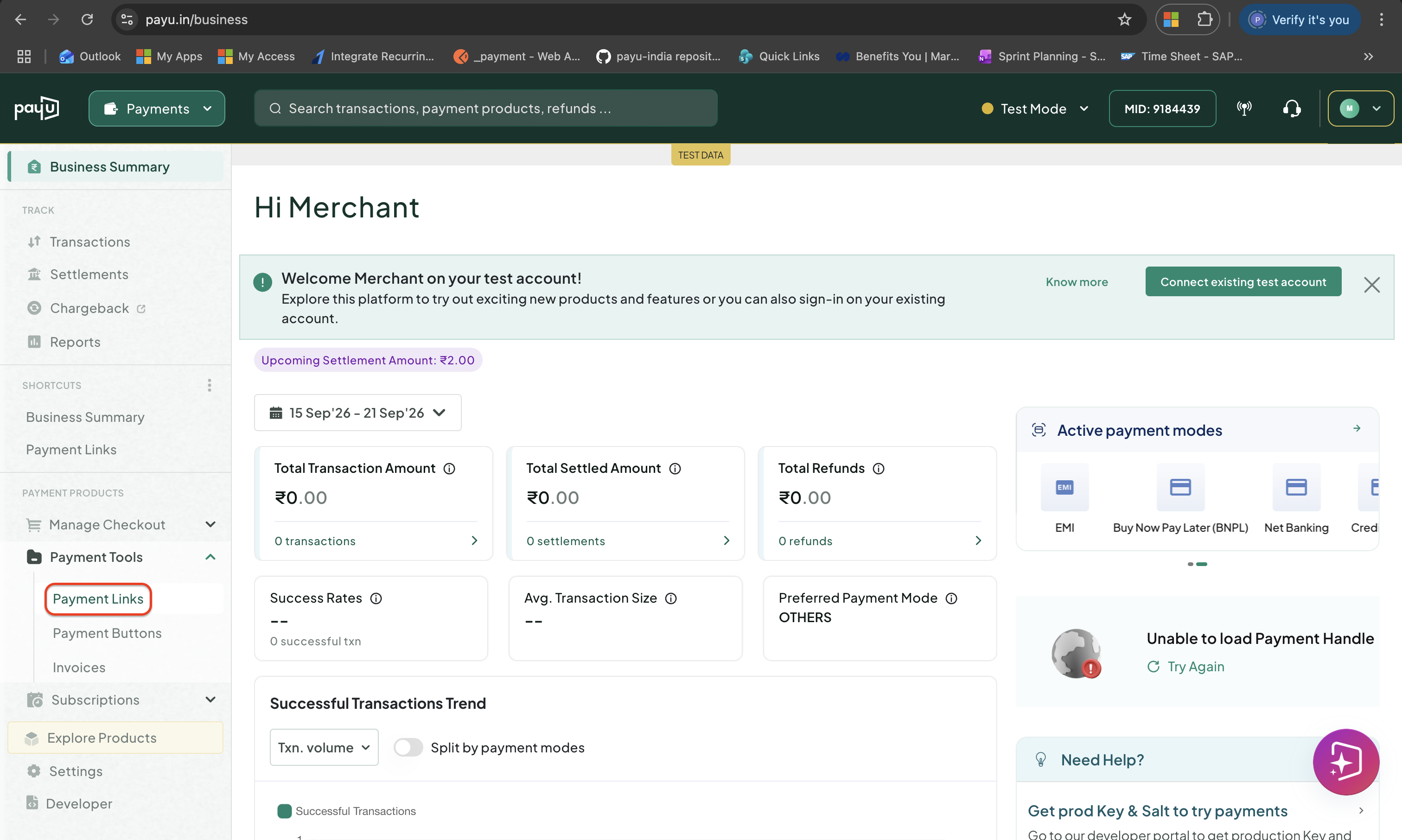
Access Payment Links
What Can I Do With a Payment Link After It Is Created?
You can perform the following actions after a payment link is created:
- View Payment Link Details
- Share or Resend a Payment Link
- Duplicate a Payment Link
- Edit Payment Link Details
- Deactivate a Payment Link
- Reactivate a Payment Link
View Payment Link Details
Steps to View Payment Link Details
To see payment link details:
-
Log in to the PayU dashboard and go to Payment Links under Payment Tools.
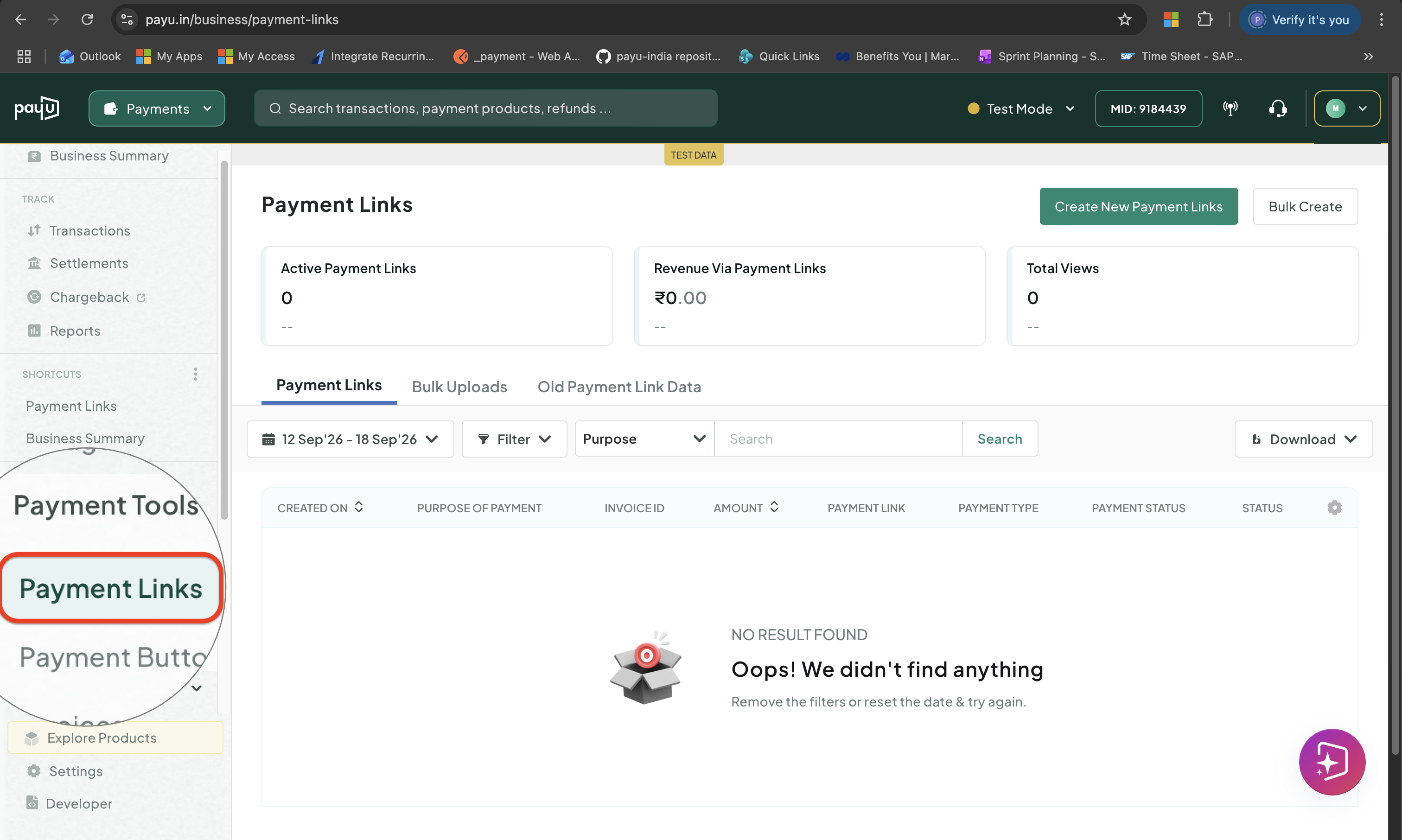
Access Payment Links
A list of created payment links is displayed with the following information:
- Created On
- Purpose of Payment
- Invoice ID
- Amount
- Payment Link
- Payment Type
- Payment Status
- Status
-
Click the Payment Link you want to view the details.
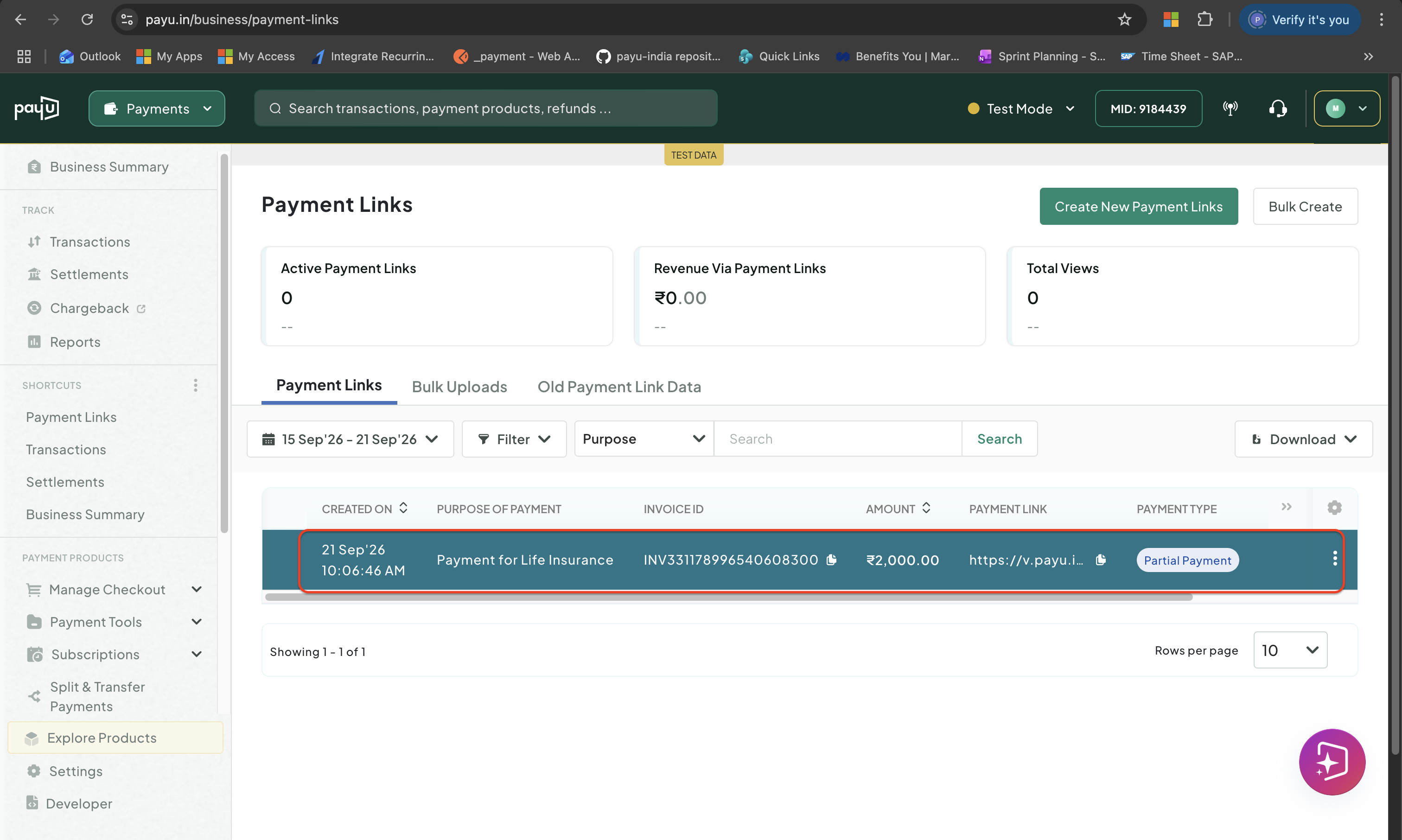
Click to view details
The link details are divided in to the following sections:
Link Details
The link and customer details are displayed in two sub-sections.
-
Name: Name of the Payment Link you entered during creation.
-
Status: Status of the payment link. Refer to the Payment Link statuses for more information.
-
Link: The payment with options to copy and share via WhatsApp and Facebook.
-
Invoice ID: The auto generated invoice ID. For example, INV331178996540608300.
-
Total Amount: The total amount for which the link is created.
-
Type: The payment type. The value can be either Partial or Full.
-
Share: Options to copy the link or share via WhatsApp, Facebook or to any other mobile number or email ID.
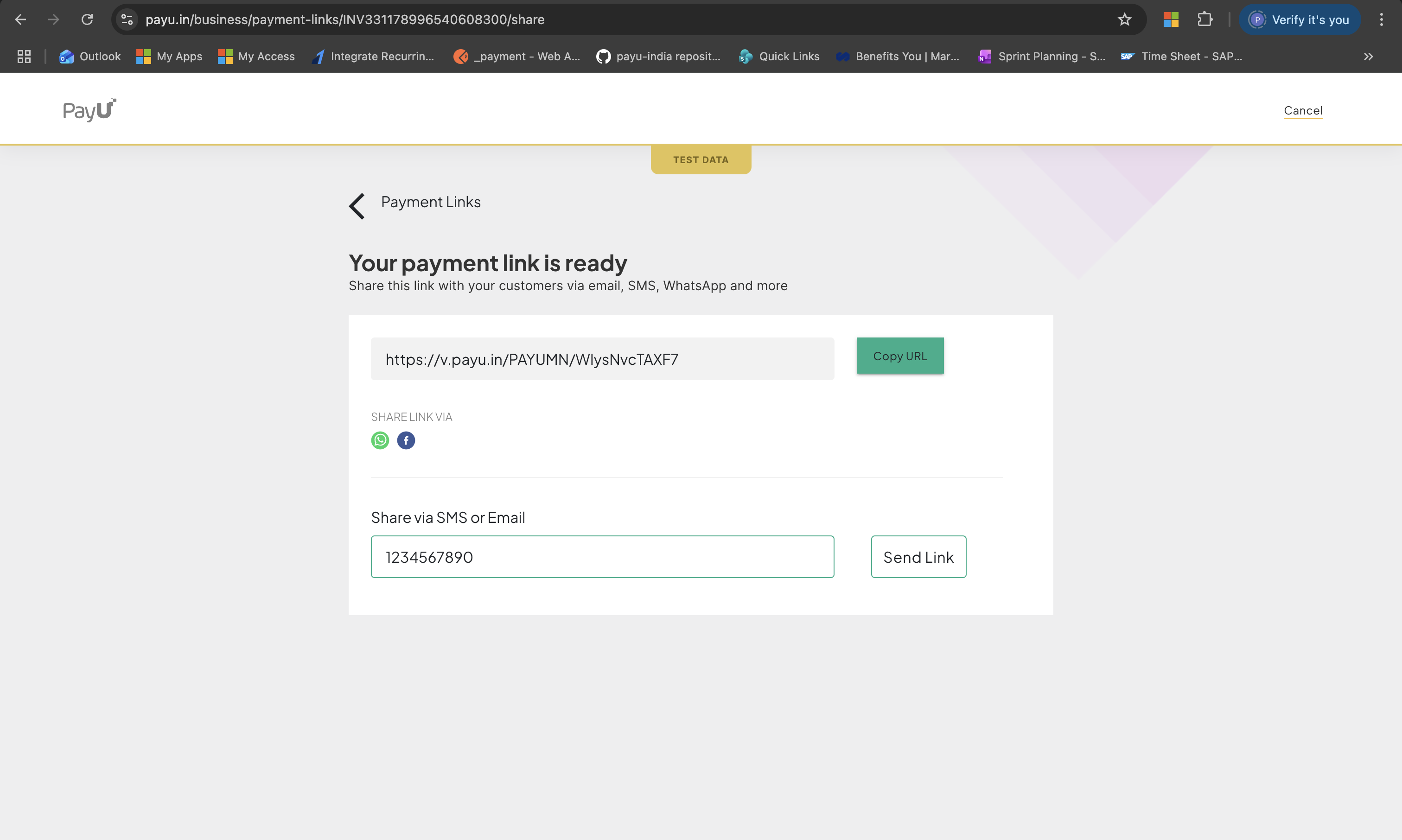
- Phone Number
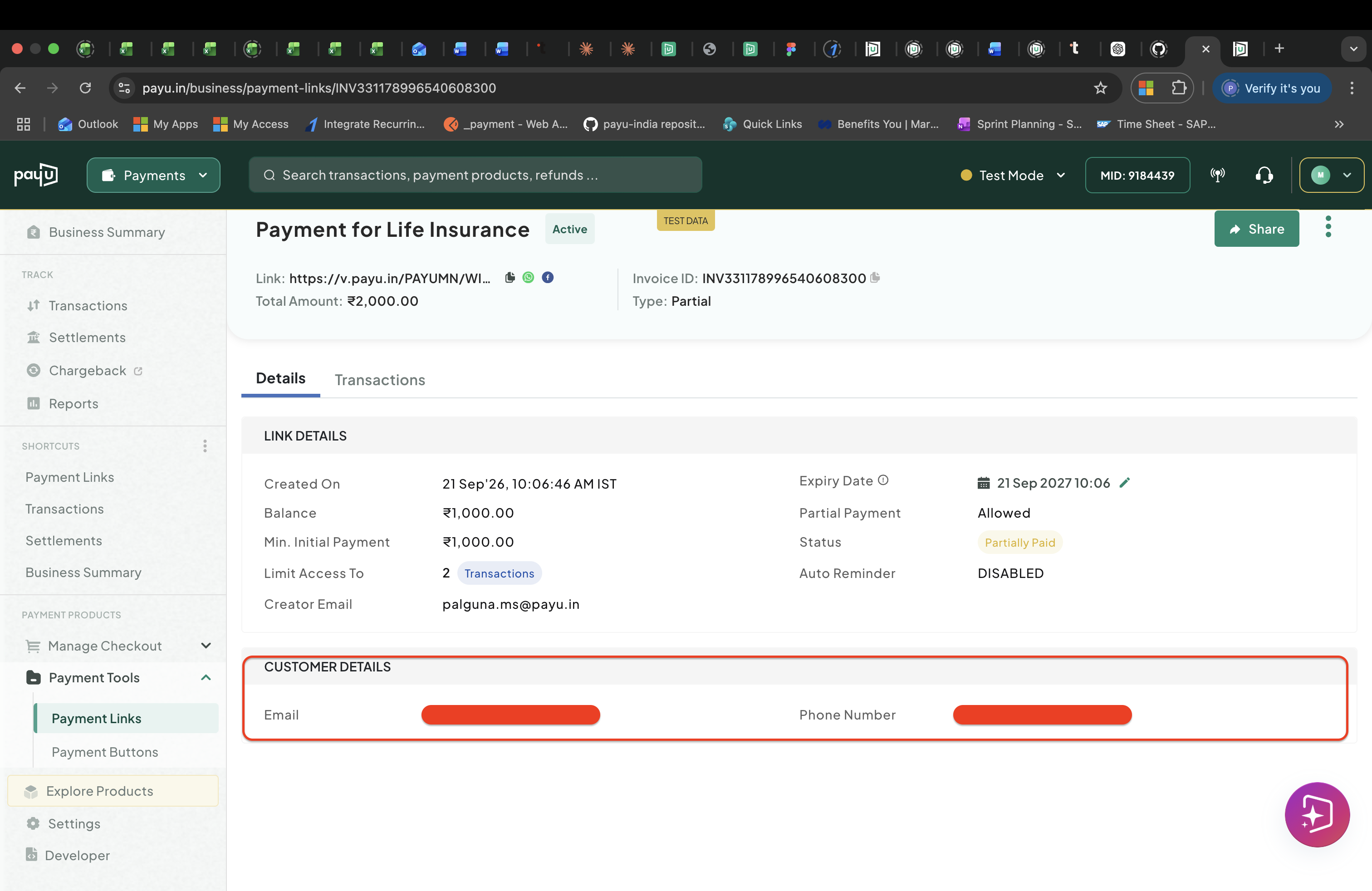
Customer Details
Details and Transactions
This section has two different tabs:
The Details tab displays the following link information:
- Created On: The date and time at which the link was created.
- Balance: The balance amount to be paid (only if the partial payment is enabled).
- Min. Initial Payment: The minimum amount allowed to pay.
- Limit Access To: The number of transactions allowed.
- Creator Email
- Expiry Date: The link expiry date and time beyond which the link will be deactivated.
- Partial Payment
- Status: Status of the payment.
- Auto Reminder
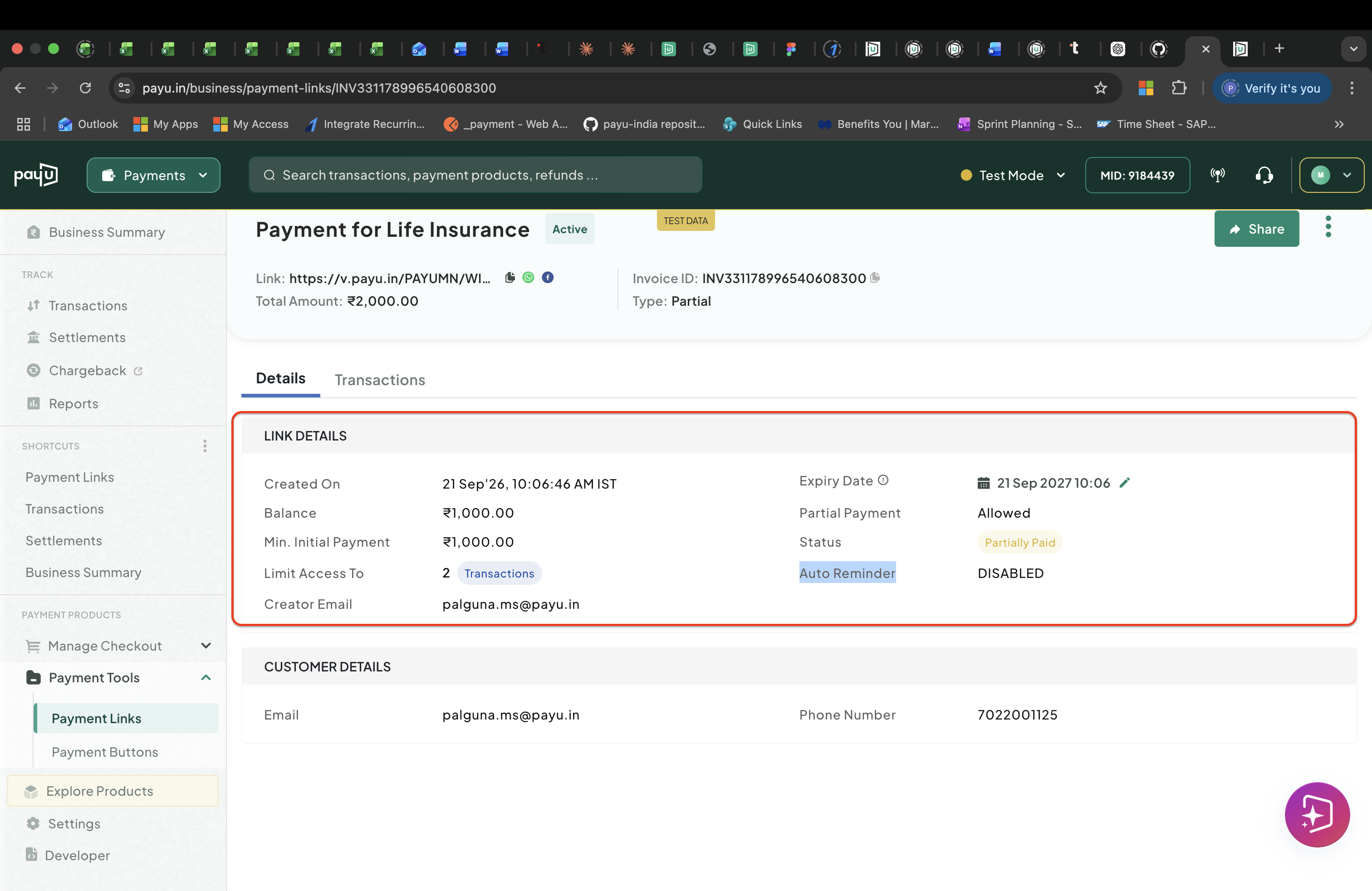
Link Details
This tab displays the following transaction information of the link:
- Date: Date and time at which the payment was made.
- Payu ID (Transaction ID): A unique transaction ID. You have an option to copy it.
- Customer Email
- Amount: The amount of the transaction.
- Status: The status of the transaction.
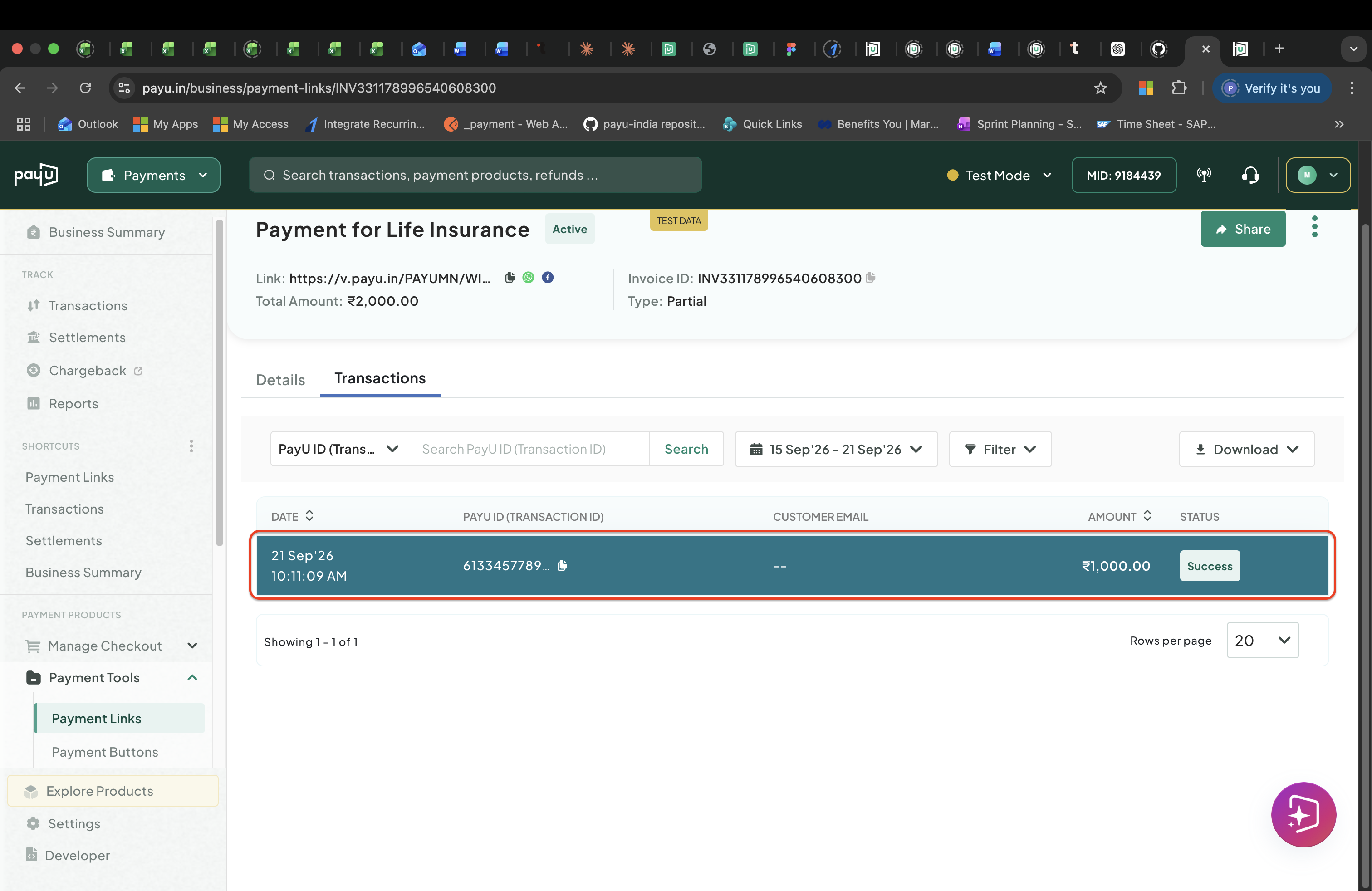
Transaction Details
Share or Resend a Payment Link
Steps to Share or Resend a Payment Link
You can send the link to a customer at any time as long as it is still Active.
To share or resend a link:
-
Log in to the PayU dashboard and go to Payment Links under Payment Tools.
Access Payment Links
-
Click the menu icon against a required payment link and click Share.
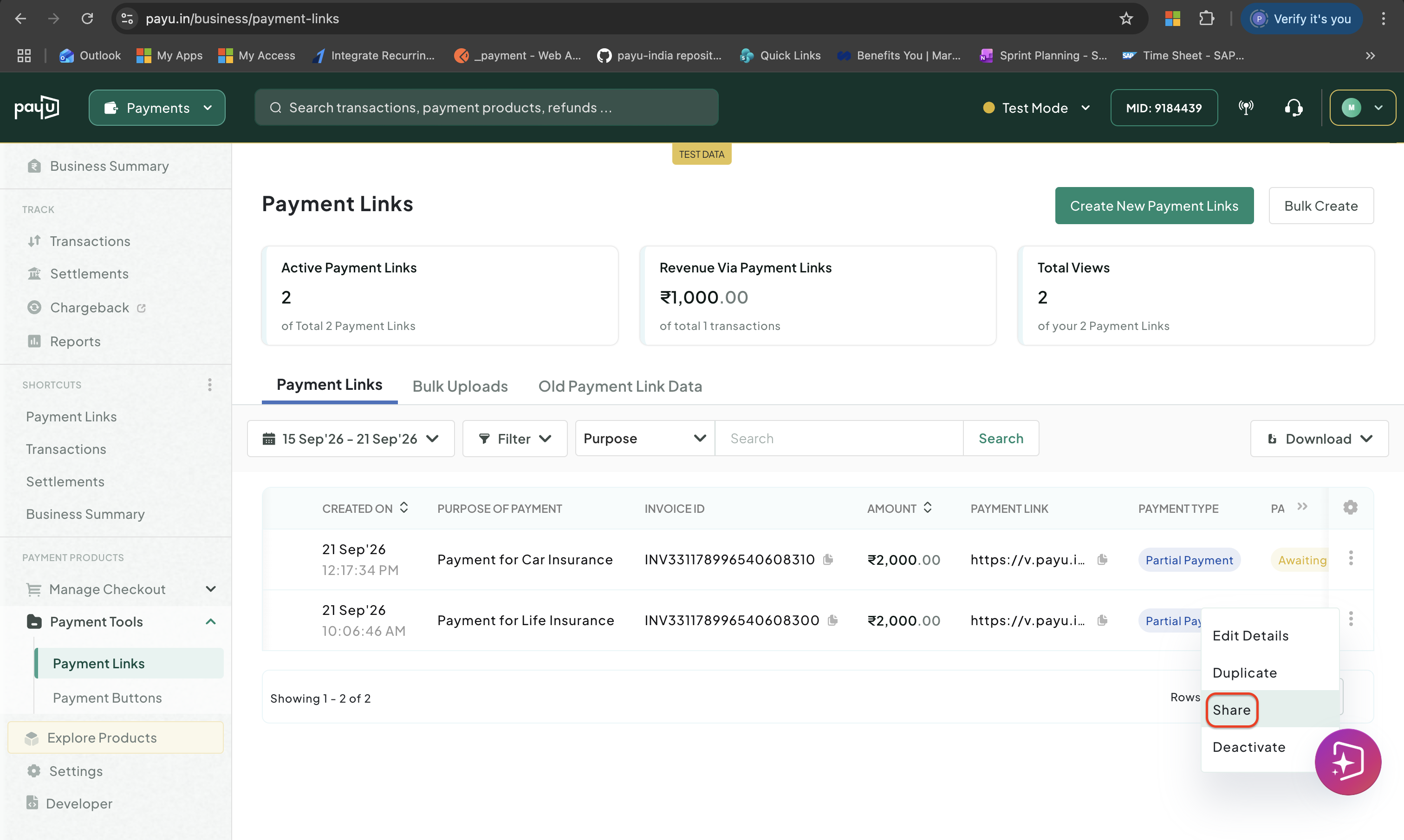
Click Share
-
Copy the link or share via WhatsApp, Facebook or to any other mobile number or email ID as required.
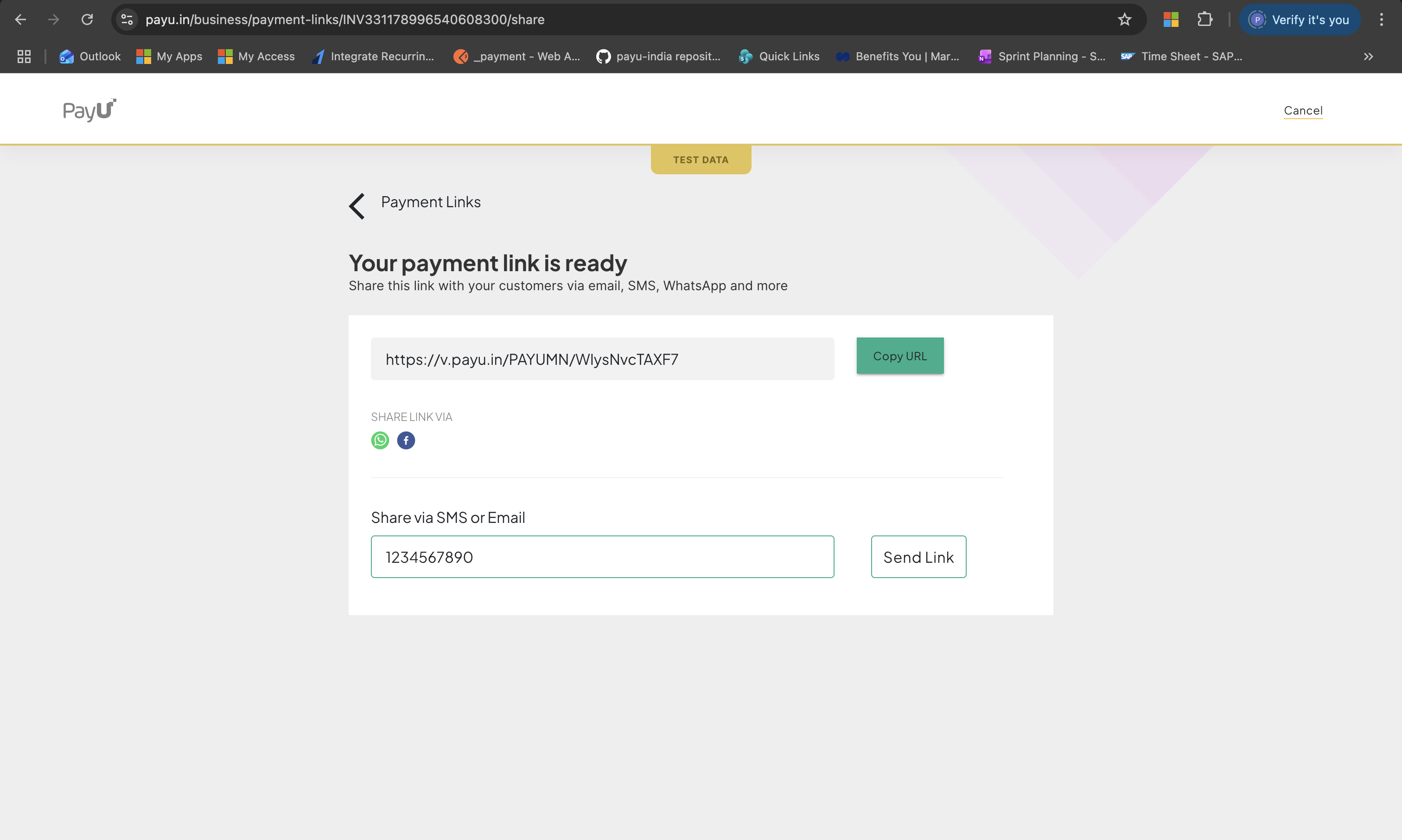
Share or Resend the Link.
There is no limit on how many times you can share a link. Each share just sends the same URL again.
Duplicate a Payment Link
Steps to Duplicate a Payment Link
Duplicating creates a brand-new link pre-filled with the same details such as amount, purpose, and options so that you do not have to fill everything in again. Use it to reuse a configuration, correct a mistake on an existing link, or run the same payment request for a different customer.
To duplicate a link:
-
Log in to the PayU dashboard and go to Payment Links under Payment Tools.
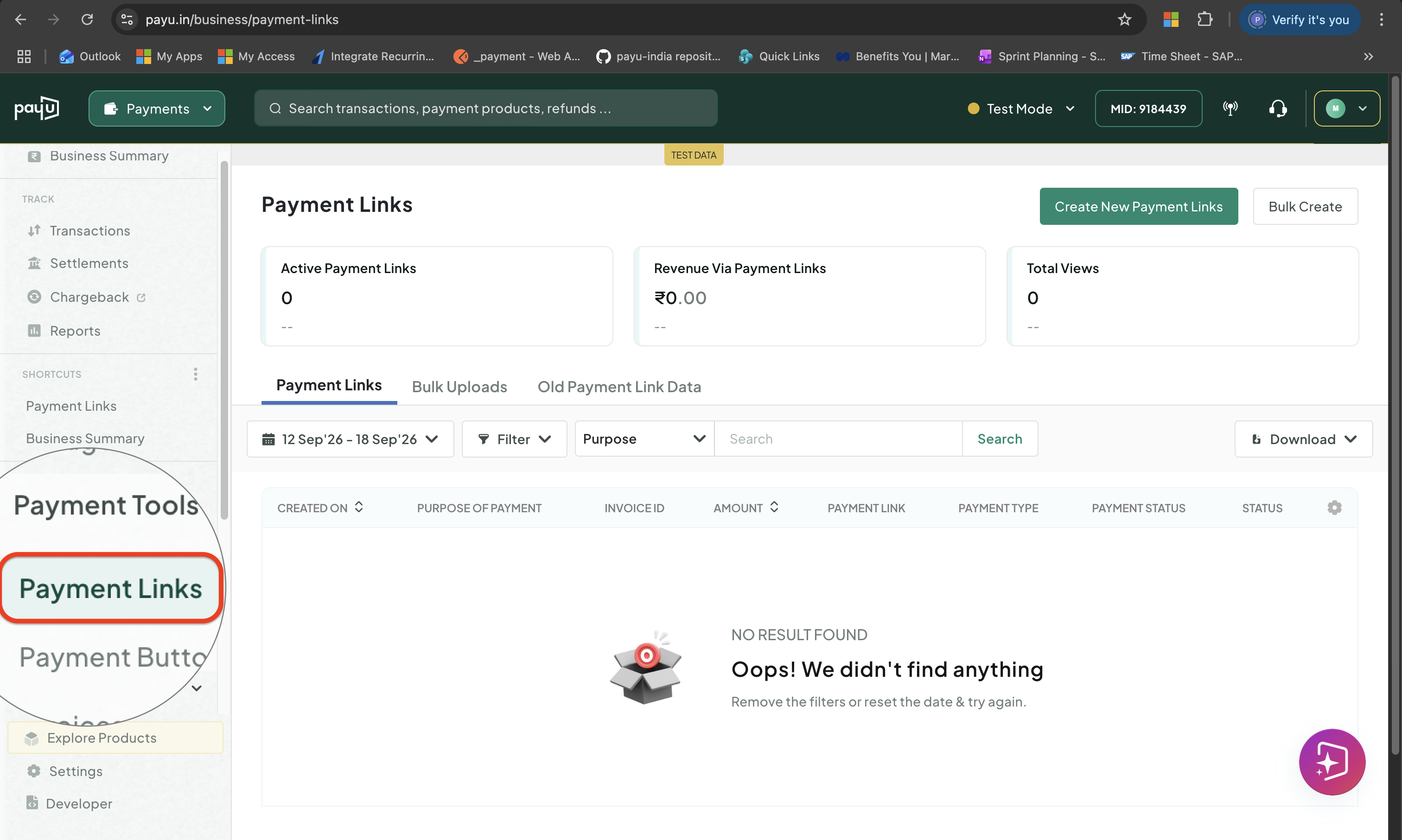
Access Payment Links
-
Click the menu icon against a required payment link and click Duplicate.
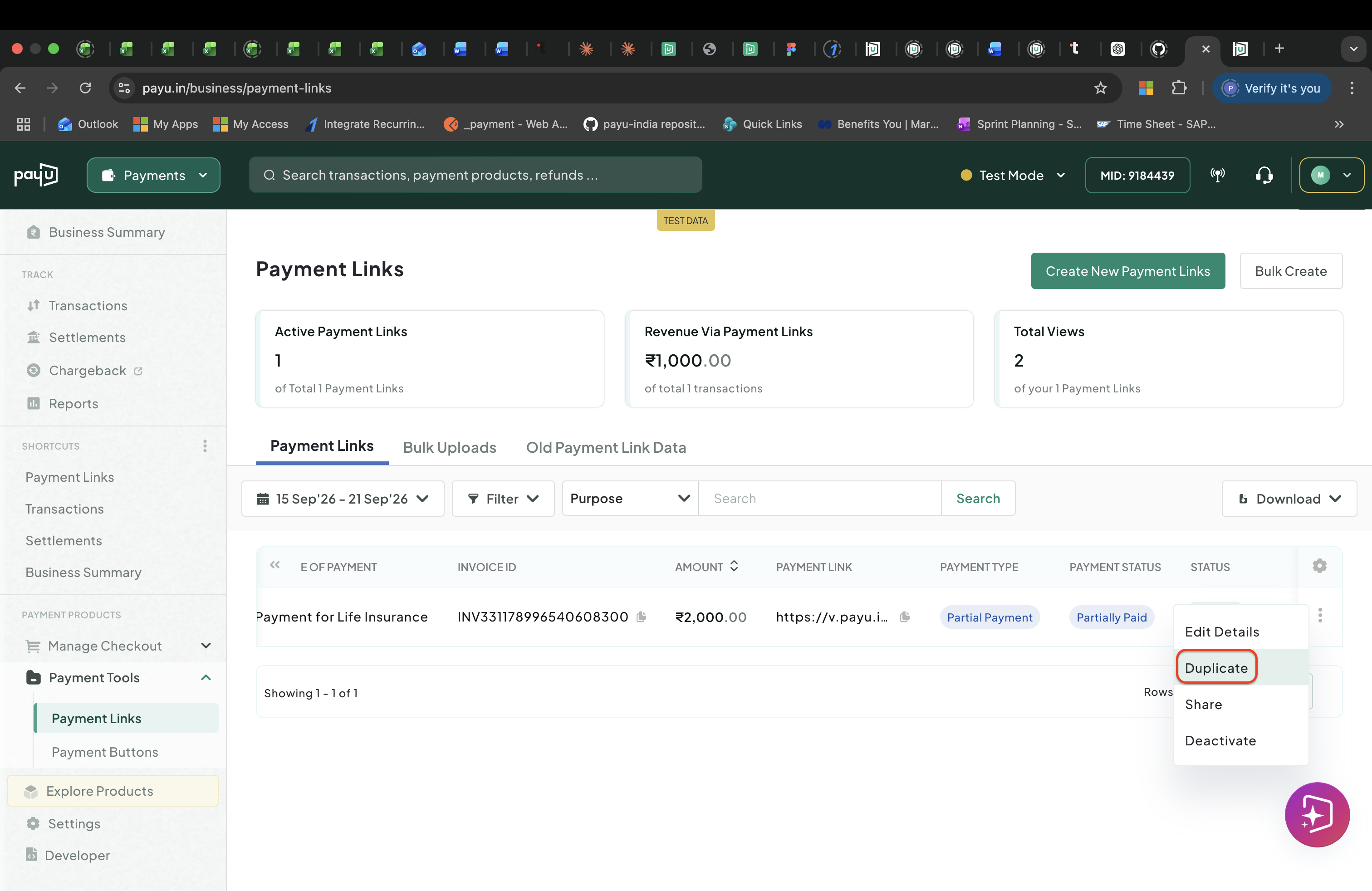
Click Duplicate
-
The Create new payment link page opens with the existing link's details pre-filled.
-
Edit any fields you need to change. For example, the expiry date or customer details.
-
Click Create and Send Payment link.
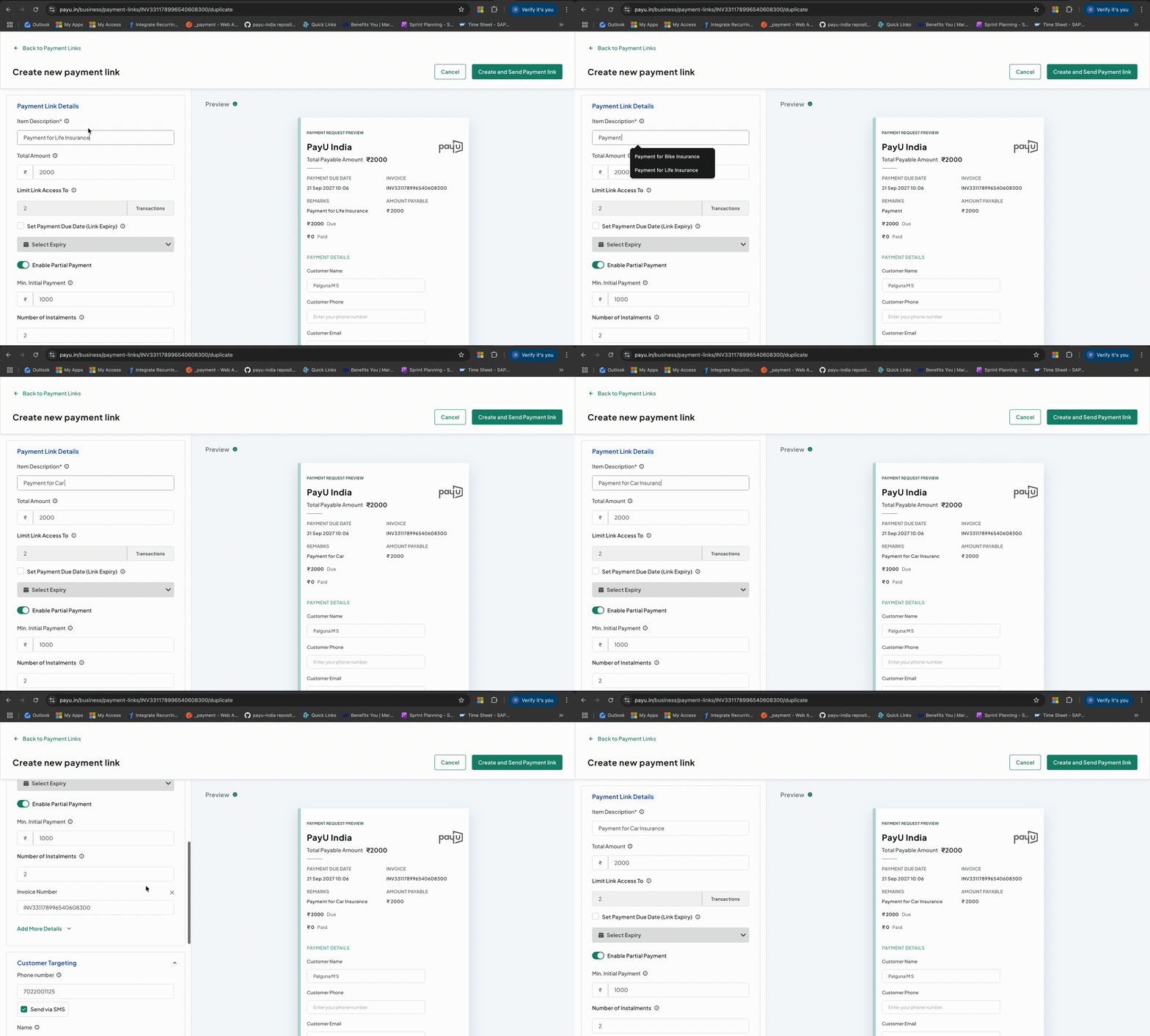
Duplicate a Payment Link
Note:Duplicating does not deactivate the original link. If you want to replace a link (e.g., wrong amount was set), duplicate it with the correct details first, then deactivate the original.
The link is created and sent to the customer. You can see it in the Payment Links page.
Edit Payment Link Details
Steps to Edit Payment Link Details
You can edit certain details such as the expiry date, amount, and status of a payment link after it is created.
To edit the details:
-
Log in to the PayU dashboard and go to Payment Links under Payment Tools.
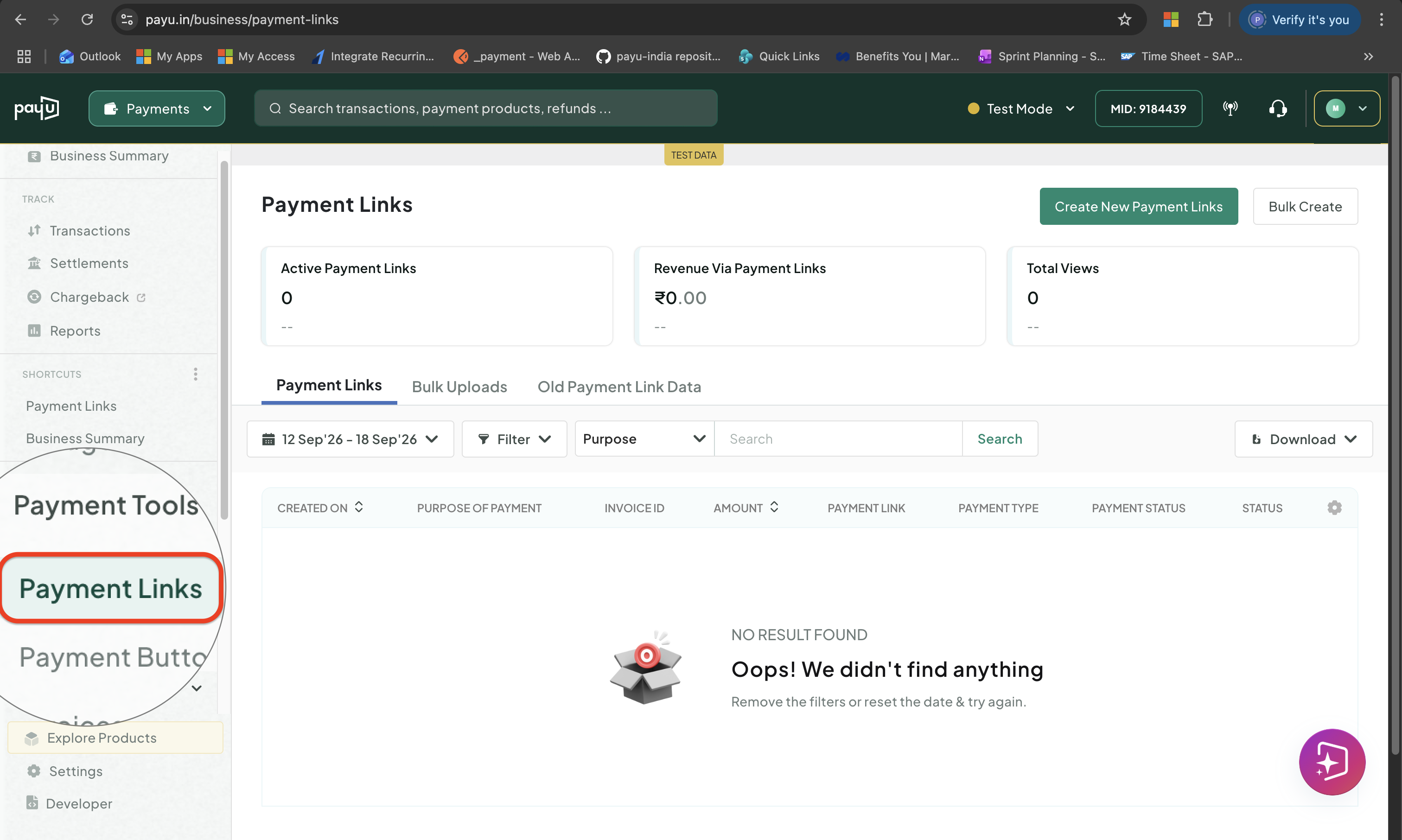
Access Payment Links
-
Click the menu icon against a required payment link and click Edit Details.
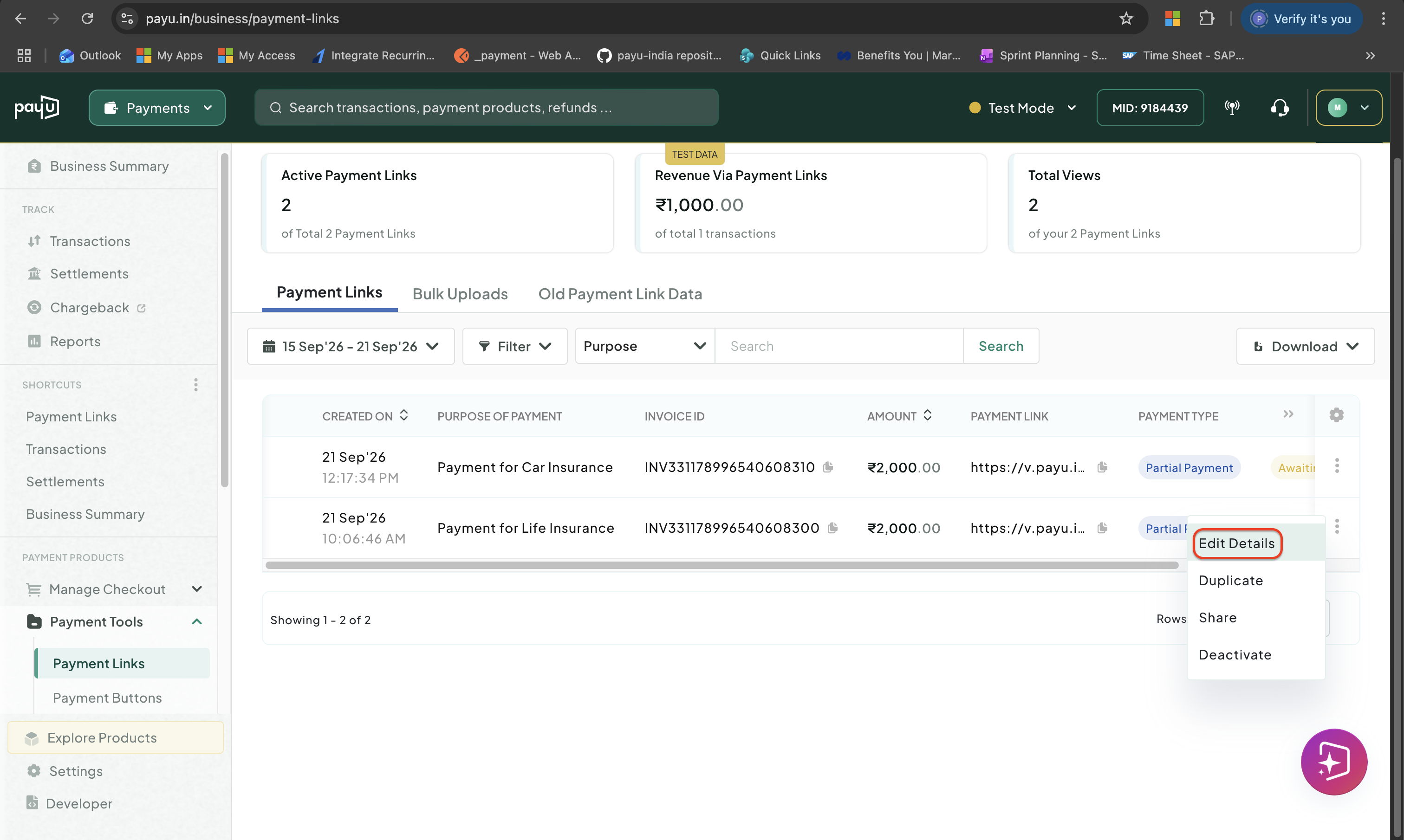
Click Edit Details
-
Make changes to the required details. You can edit only the following details.
- Item Description
- Set Payment Due Date (Link Expiry): Set or remove the link expiry
- Enable Partial Payment: Enable or disable the partial payment
- Number of Instalments
- Add More Details
- Add Address Details
- Add UDF Details
- Phone number
- Name
-
Click Edit Payment Link to save the changes.
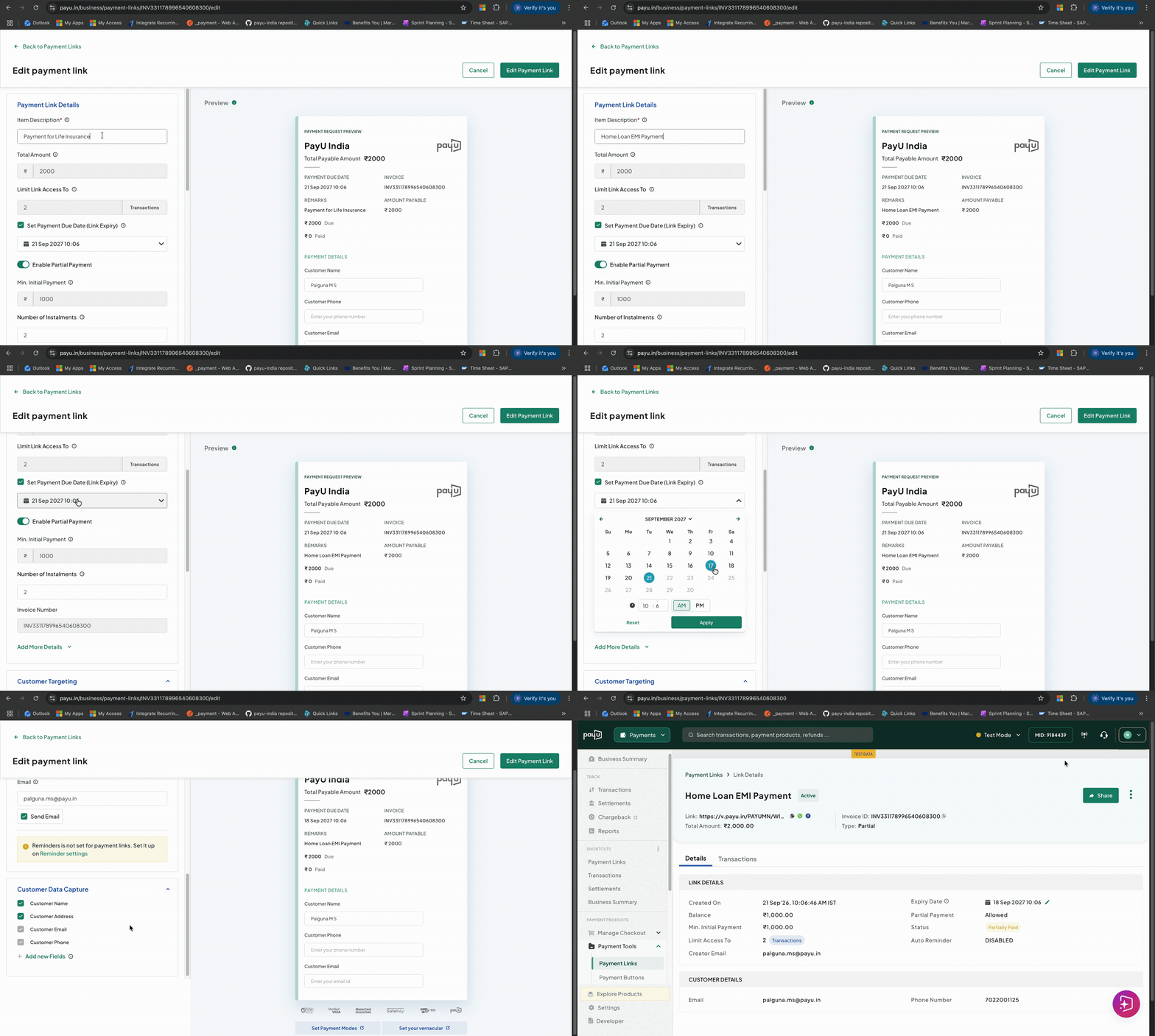
Edit Payment Link Details
Watch Out!Not all fields can be edited after creation. If you need to change the purpose or customer details, duplicate the link with the correct settings and deactivate the original. To update fields programmatically, use the Cancel / Update Status API.
Deactivate a Payment Link
Steps to Deactivate a Payment Link
Deactivating stops any further payments on the link. Customers who click it will see a message that it is no longer active.
To deactivate a link:
-
Log in to the PayU dashboard and go to Payment Links under Payment Tools.
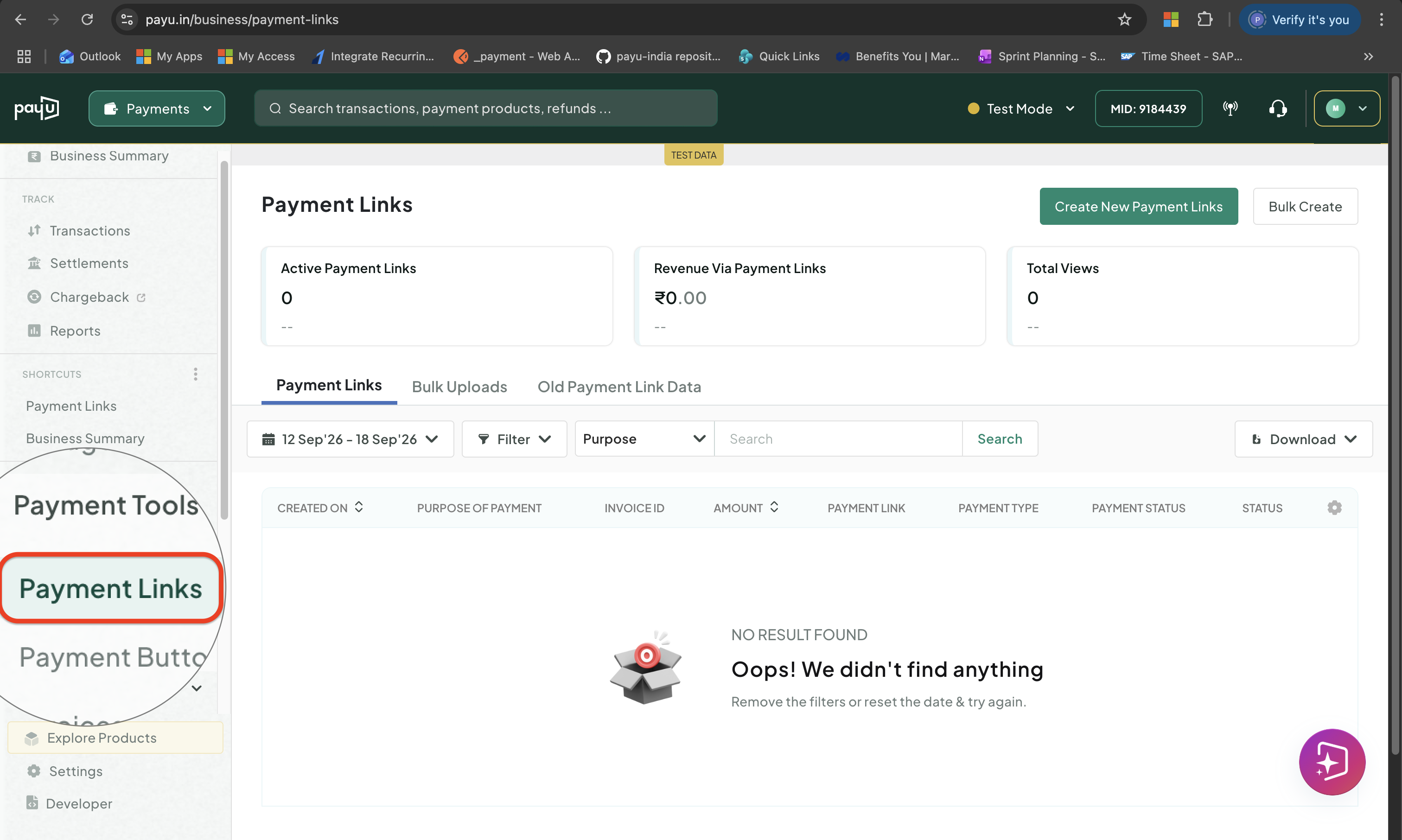
Access Payment Links
-
Click the menu icon against a required payment link and click Deactivate.
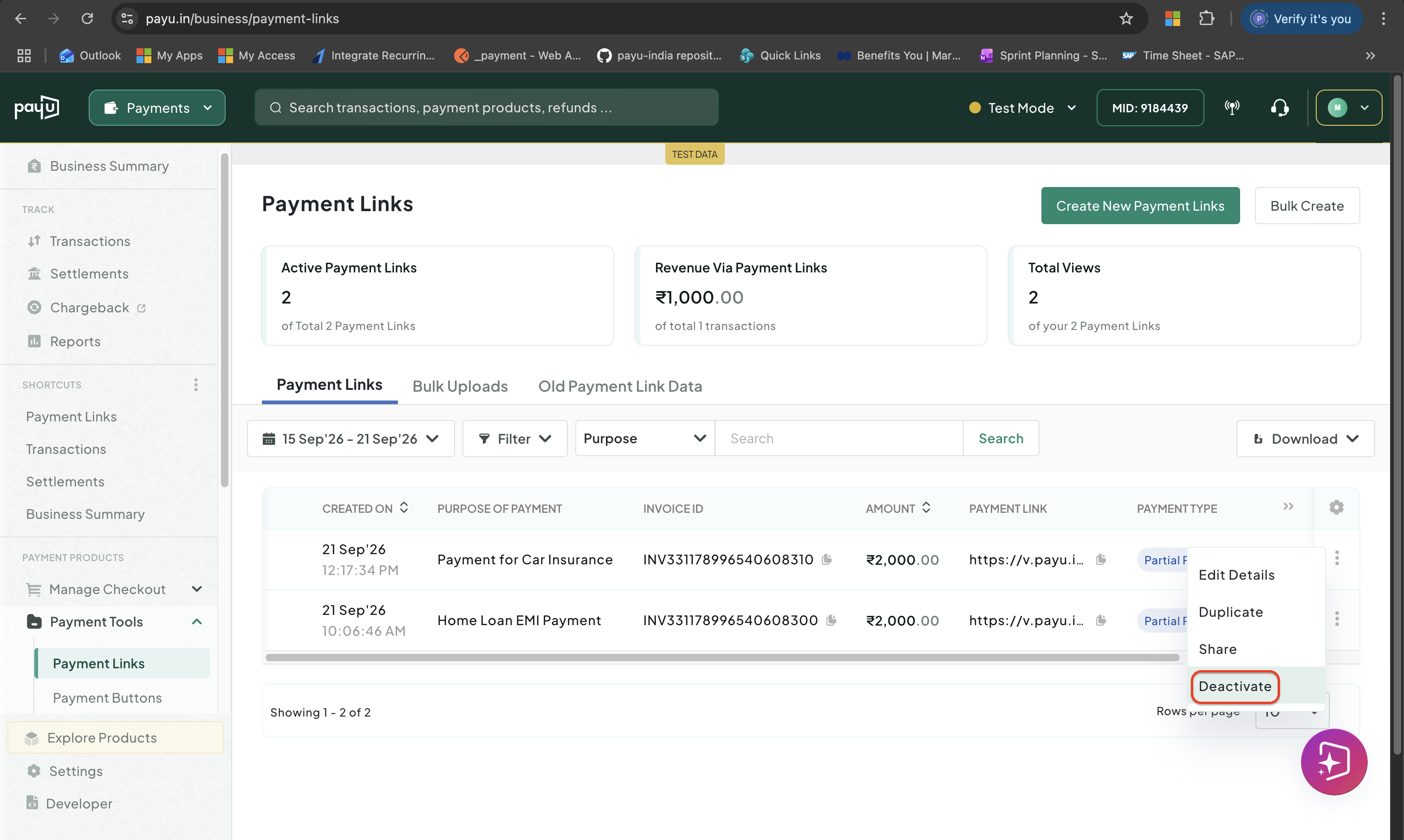
Click Deactivate
-
Click Yes in the confirmation window.
The link status changes to Deactivated.
Reactivate a Payment Link
Steps to Reactivate a Payment Link
You can reactivate a deactivated link from the dashboard:
To reactivate a link:
-
Log in to the PayU dashboard and go to Payment Links under Payment Tools.
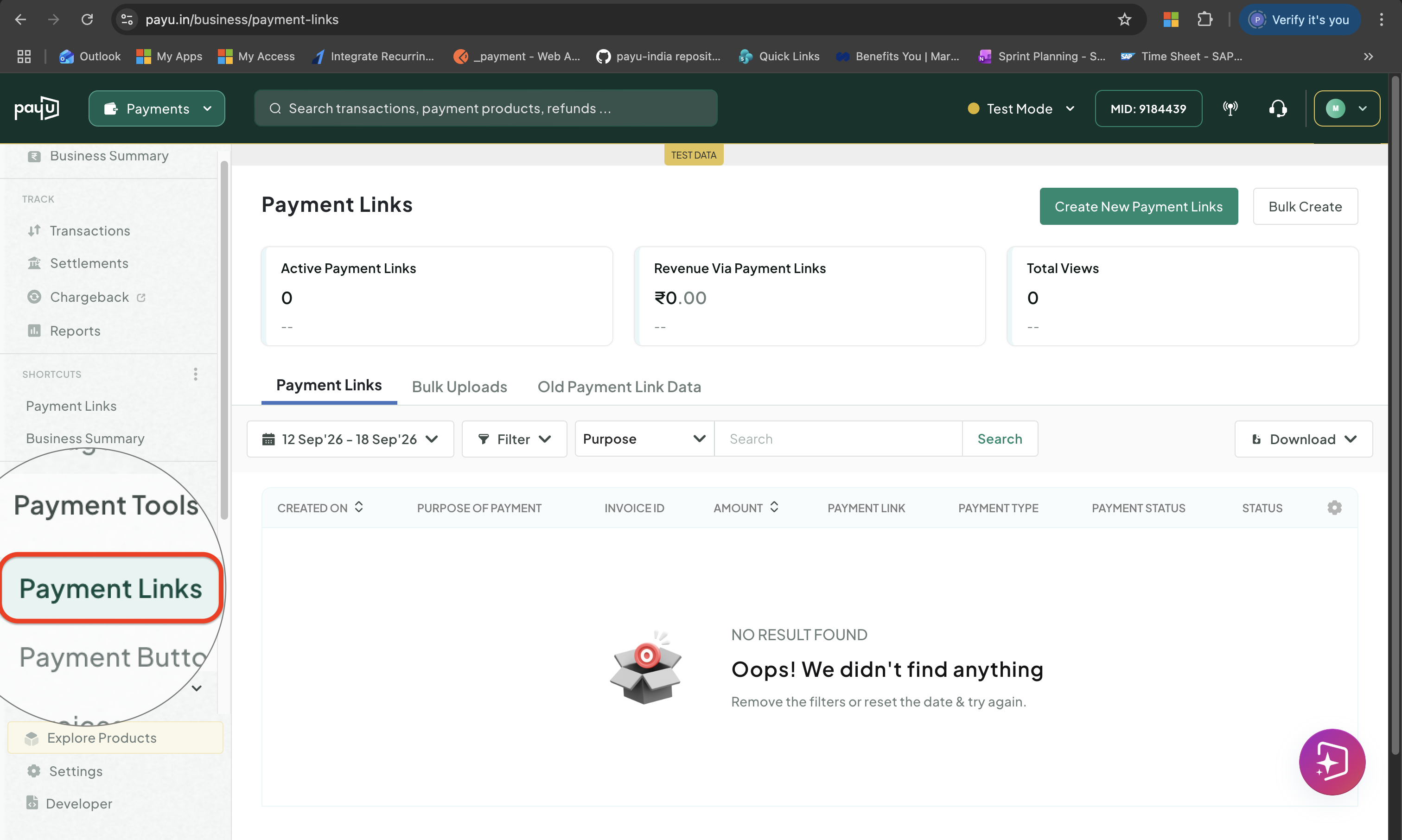
Access Payment Links
-
Click the menu icon against a deactivated payment link and click Activate.
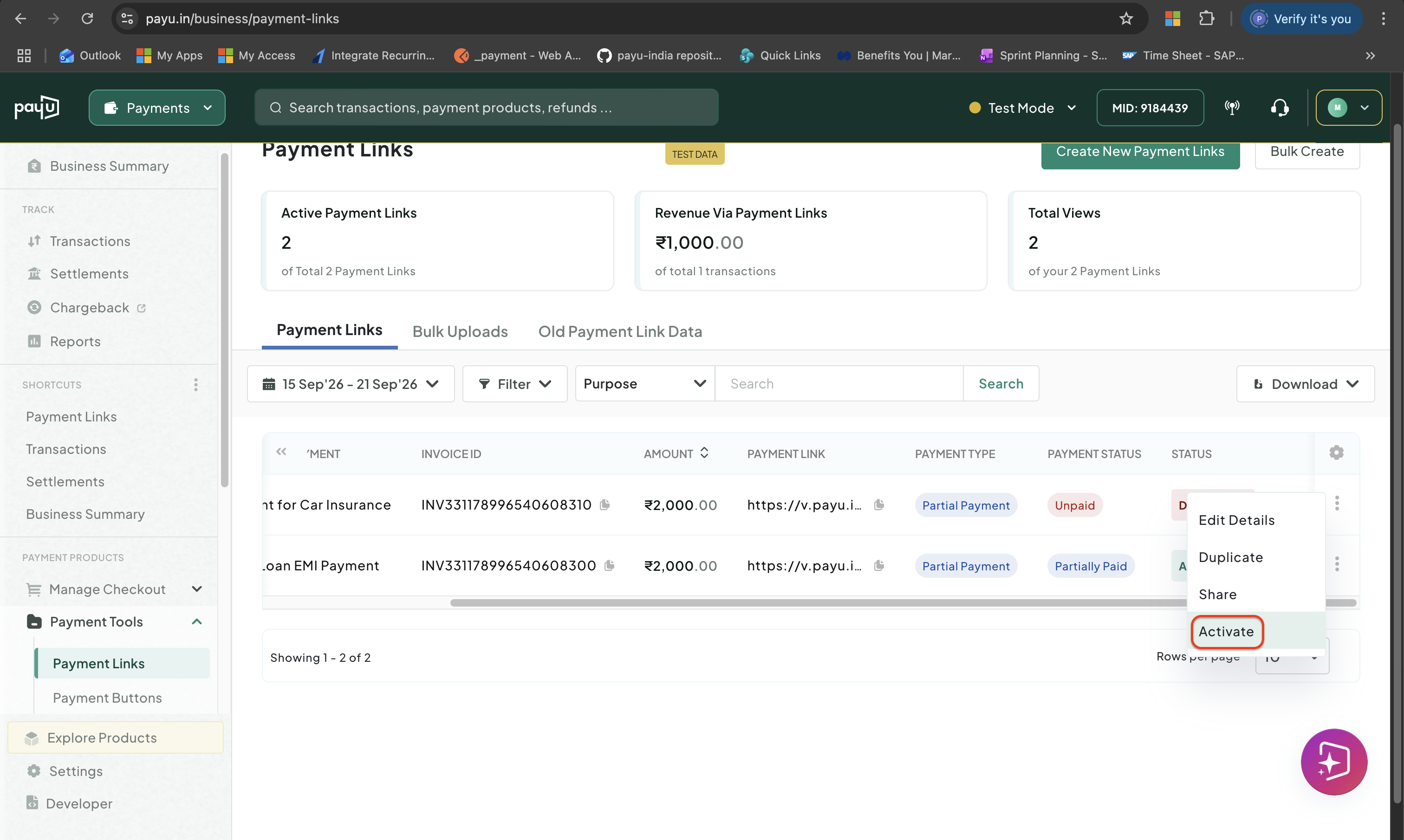
Click Activate
-
Click Yes in the confirmation window to activate.
The link status changes to Active.
How Do I Search for a Payment Link?
You can filter the payment links list using the following options:
Filter by Status and Payment Type
To filter the list by status:
-
Log in to the PayU dashboard and go to Payment Links under Payment Tools.
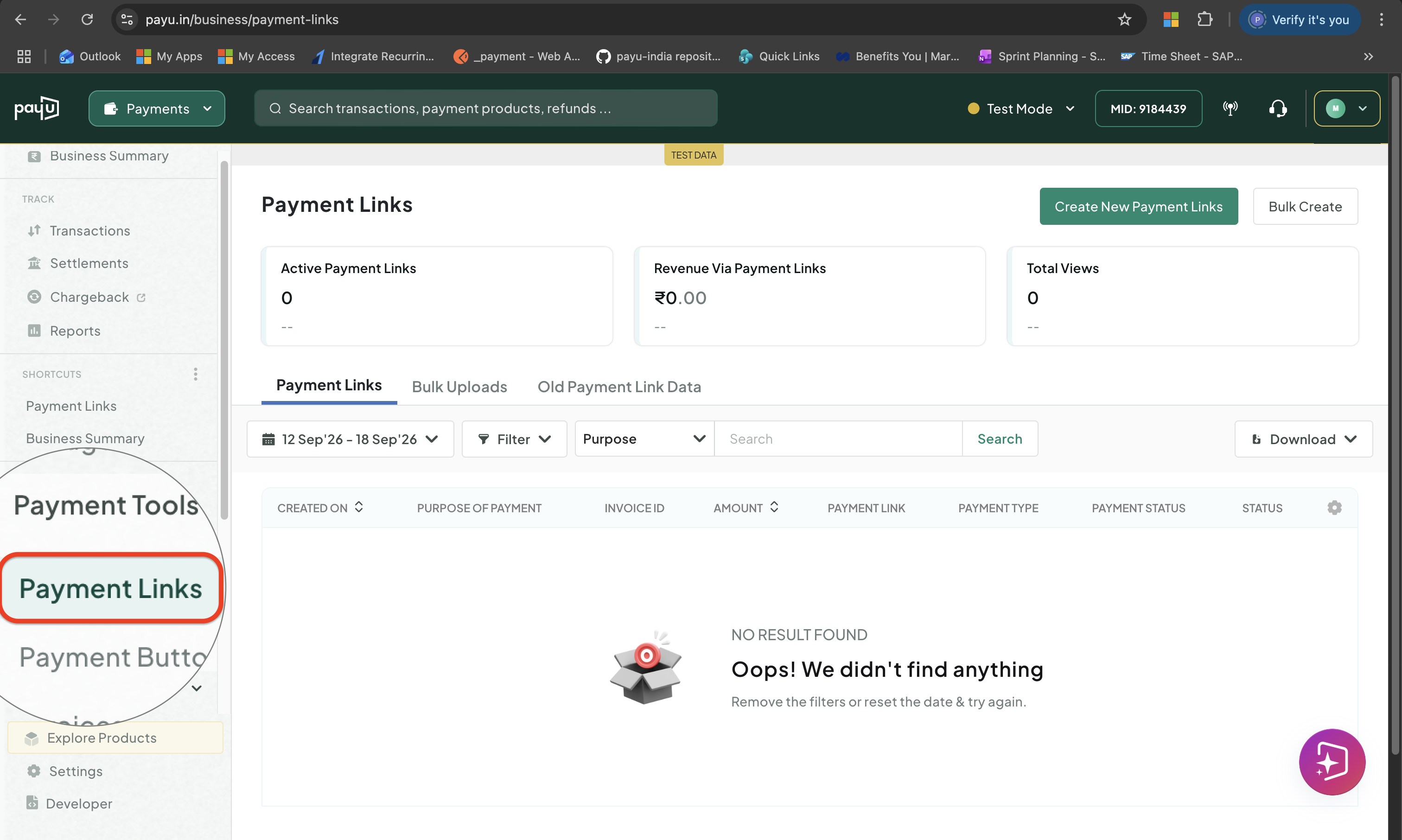
Access Payment Links
-
Click the Filter drop-down and select one or more status and payment type checkboxes. These are the available options:
- Status
- Active
- Paid
- Deactivated
- Expired
Payment Link Status
Not sure what Active, Paid, Expired, or Deactivated mean? See Payment Link Statuses.
- Payment Type
- Standard
- Partial Payment
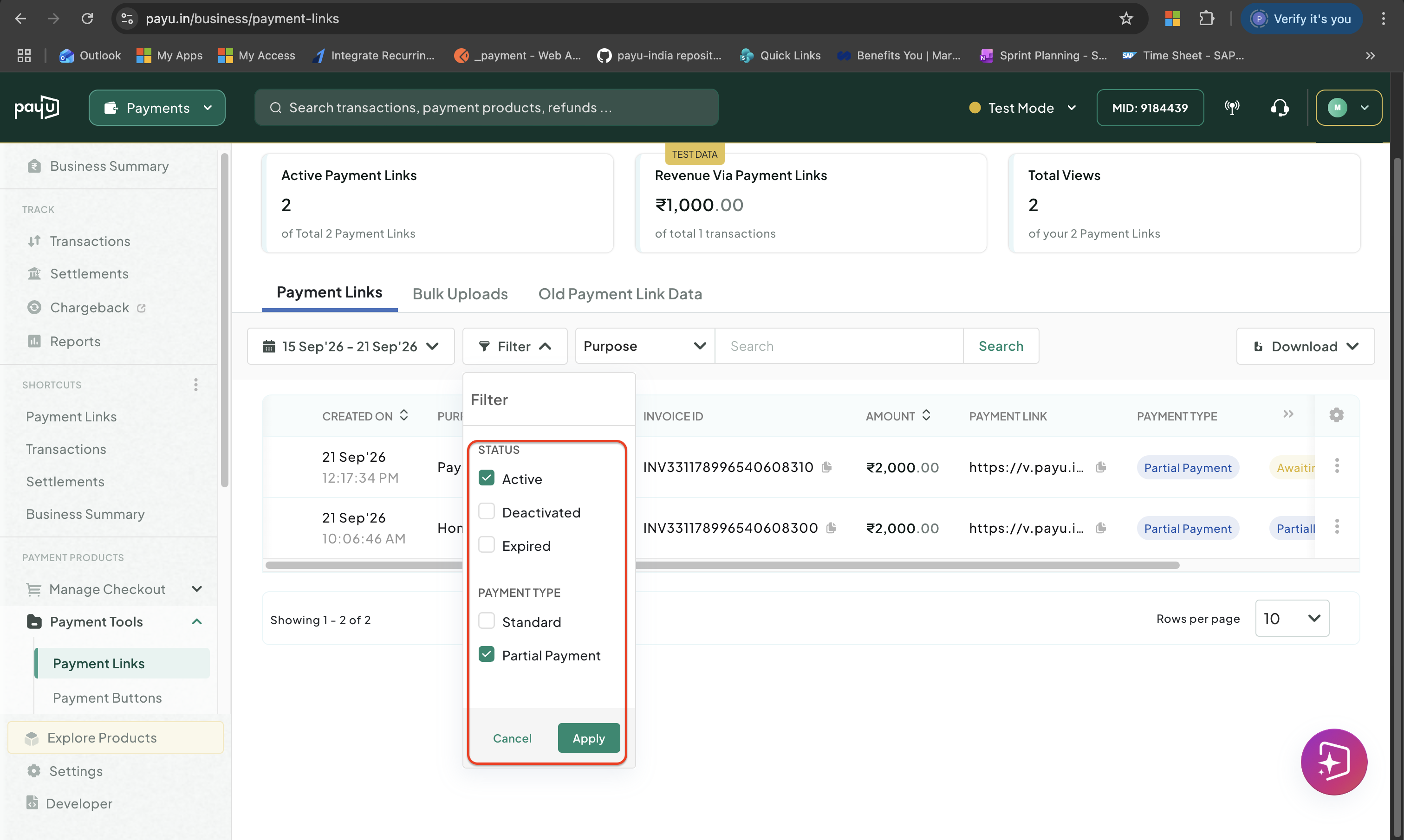
Filter Payment Link List
- Status
-
Click Apply to filter the list.
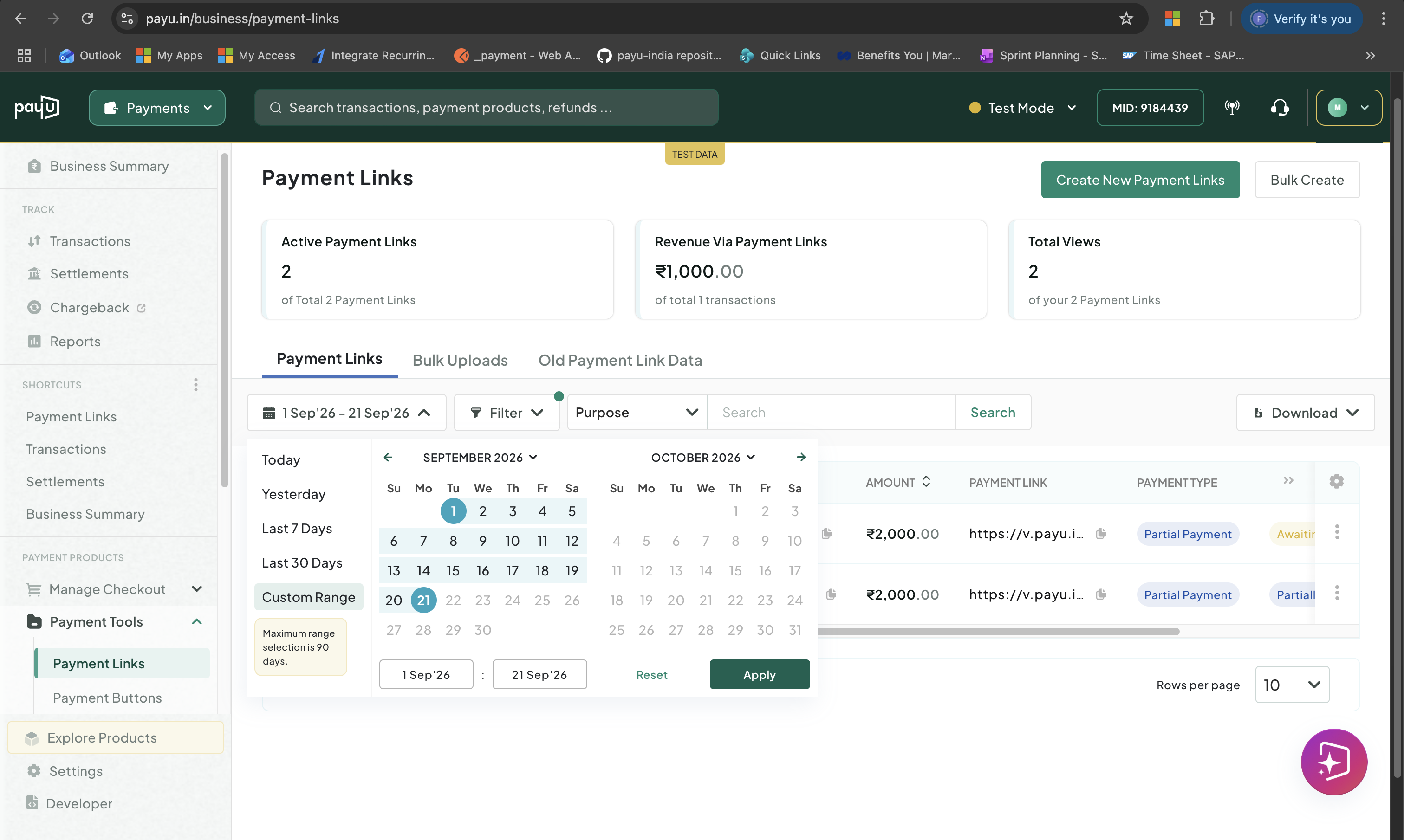
Filter by Date Range
To filter the list by date range:
-
Log in to the PayU dashboard and go to Payment Links under Payment Tools.
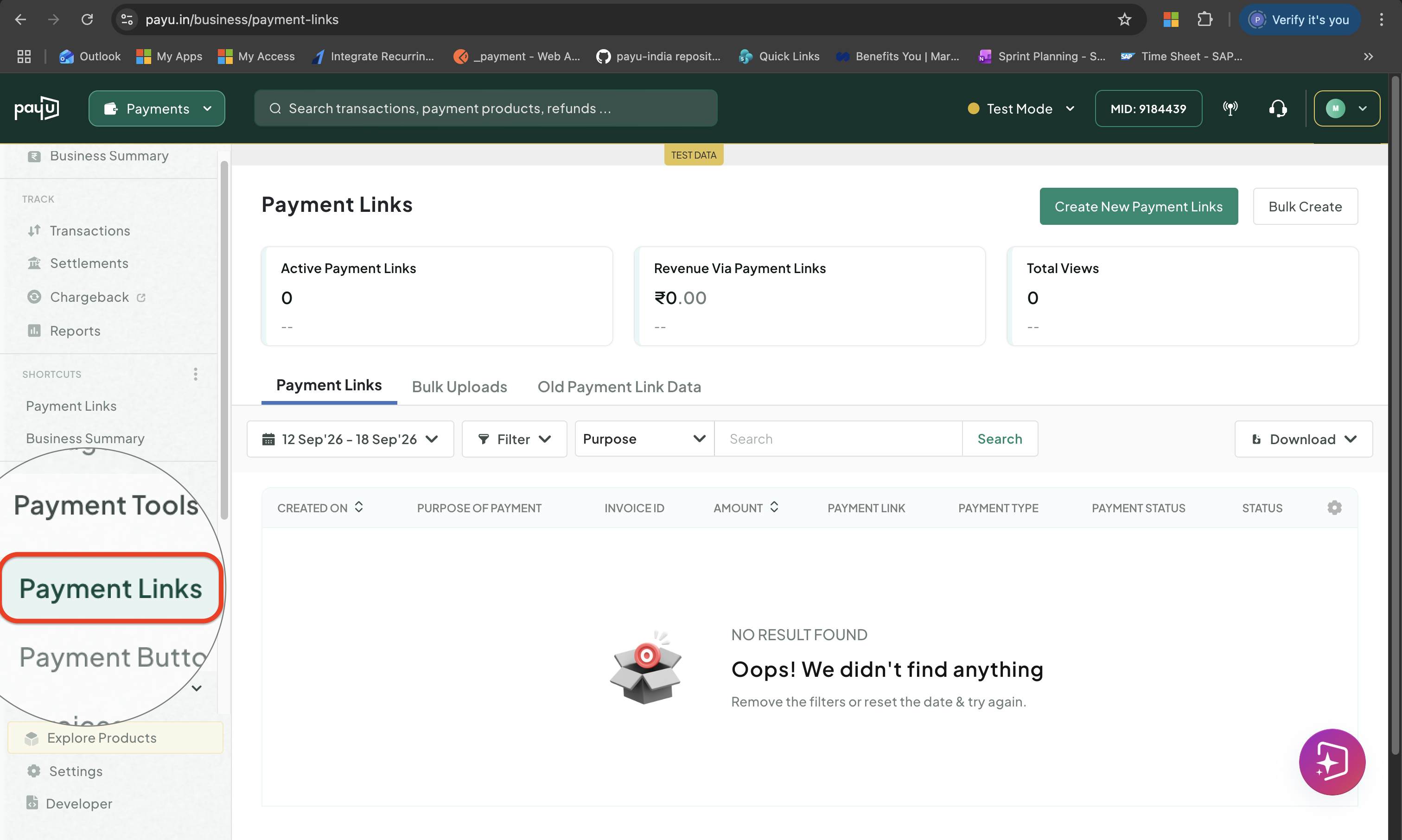
Access Payment Links
-
Click the calendar icon and select any of the following.
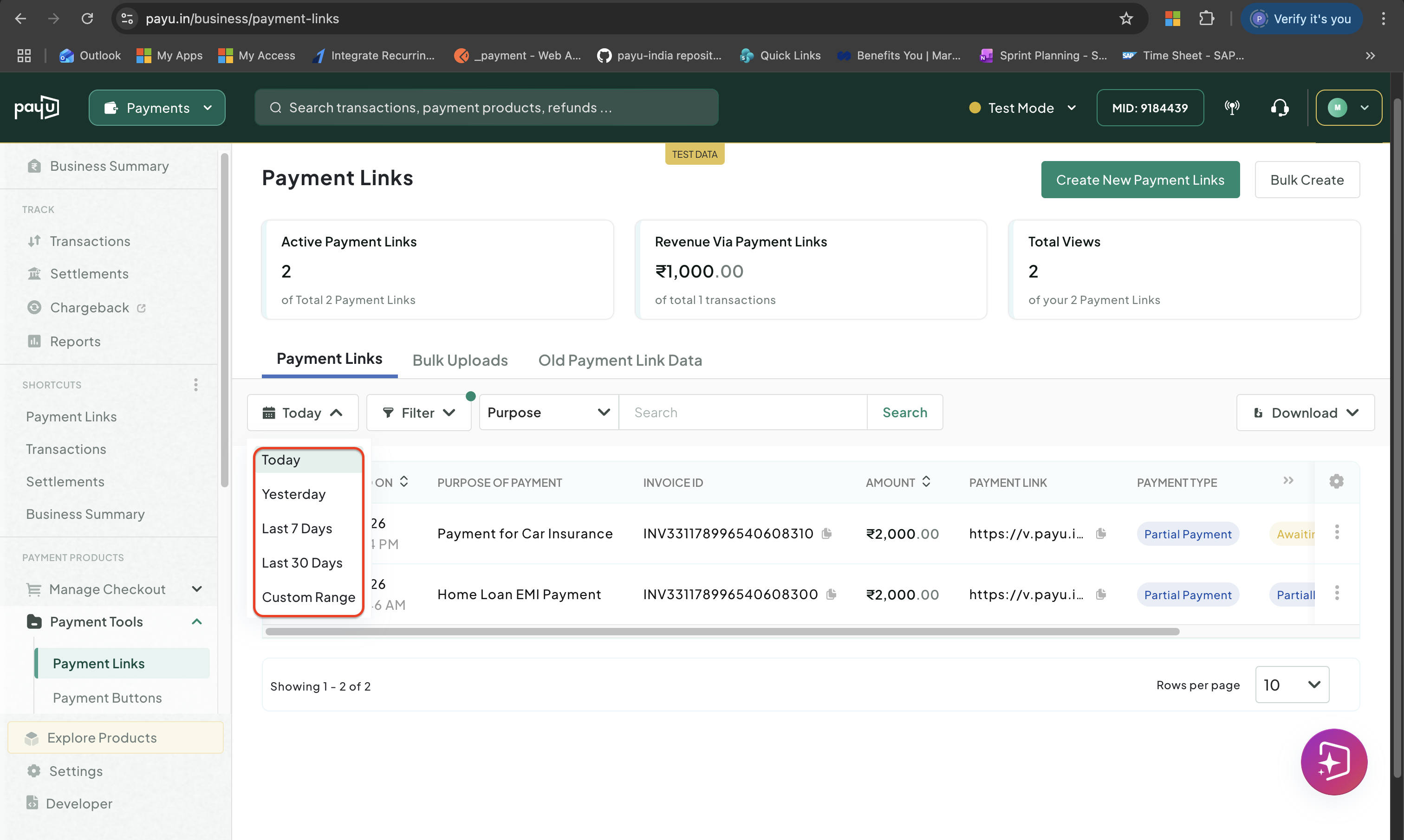
Search a Payment Link
You can search a payment link by purpose or invoice number.
To search a payment link:
-
Log in to the PayU dashboard and go to Payment Links under Payment Tools.
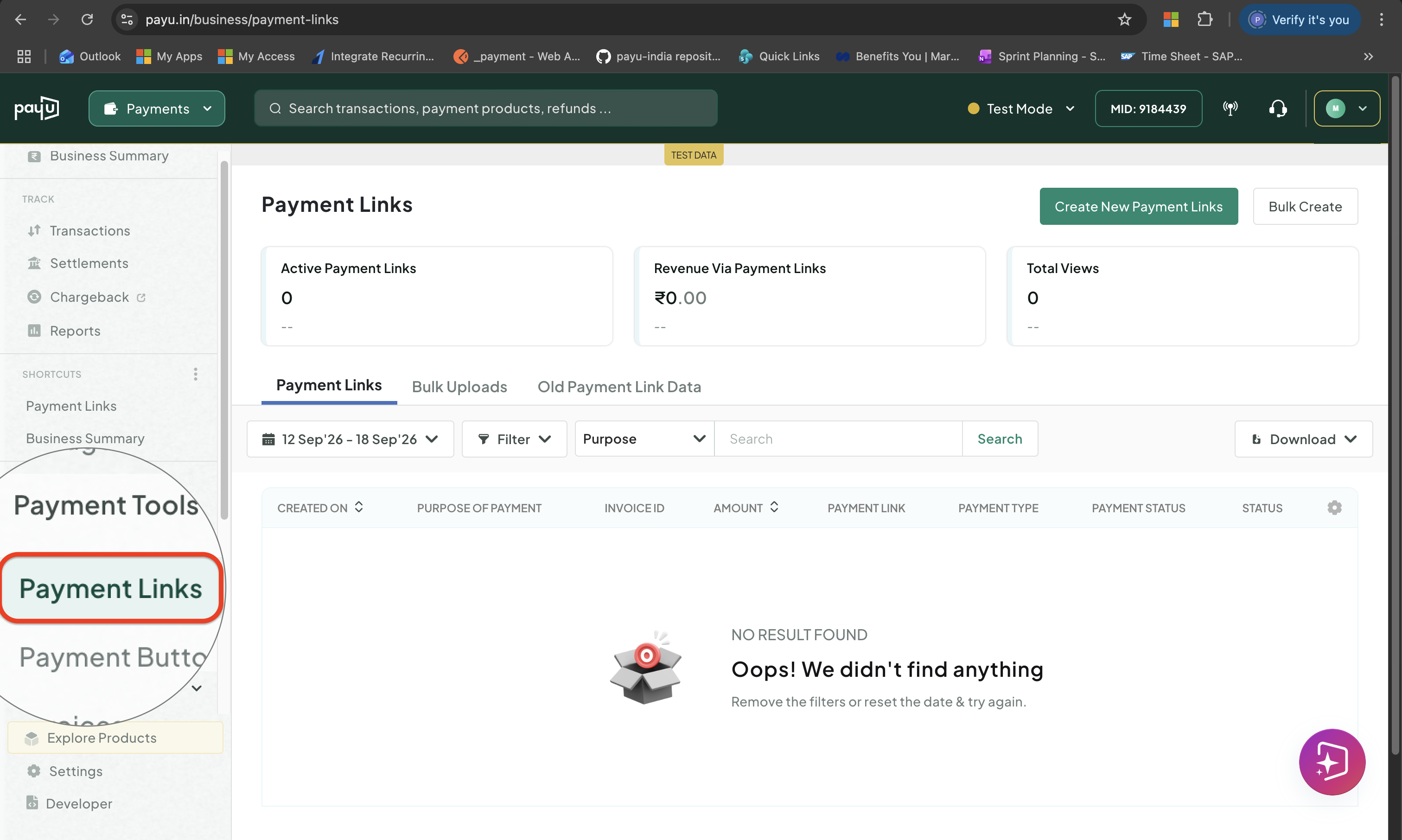
Access Payment Links
-
Use the drop-down next to the search to select the search type. Below are the available options:
- Purpose
- InvoiceNumber
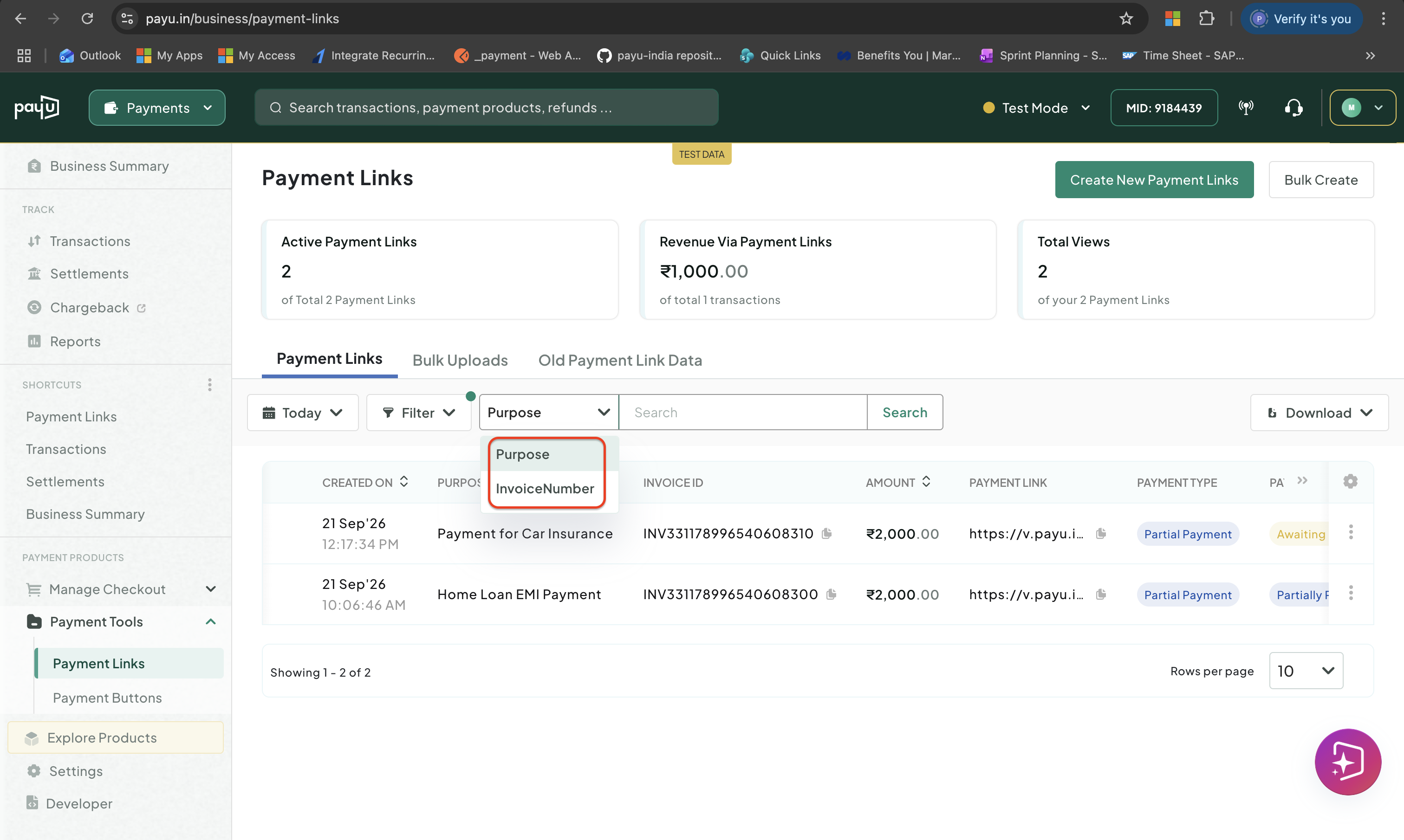
Select Search Type
-
Enter the required information in the search bar based on your selection and click Search.
How Do I Download My Payment Link Records?
Export Payment Link Records
To download payment link records:
-
Log in to the PayU dashboard and go to Payment Links under Payment Tools.
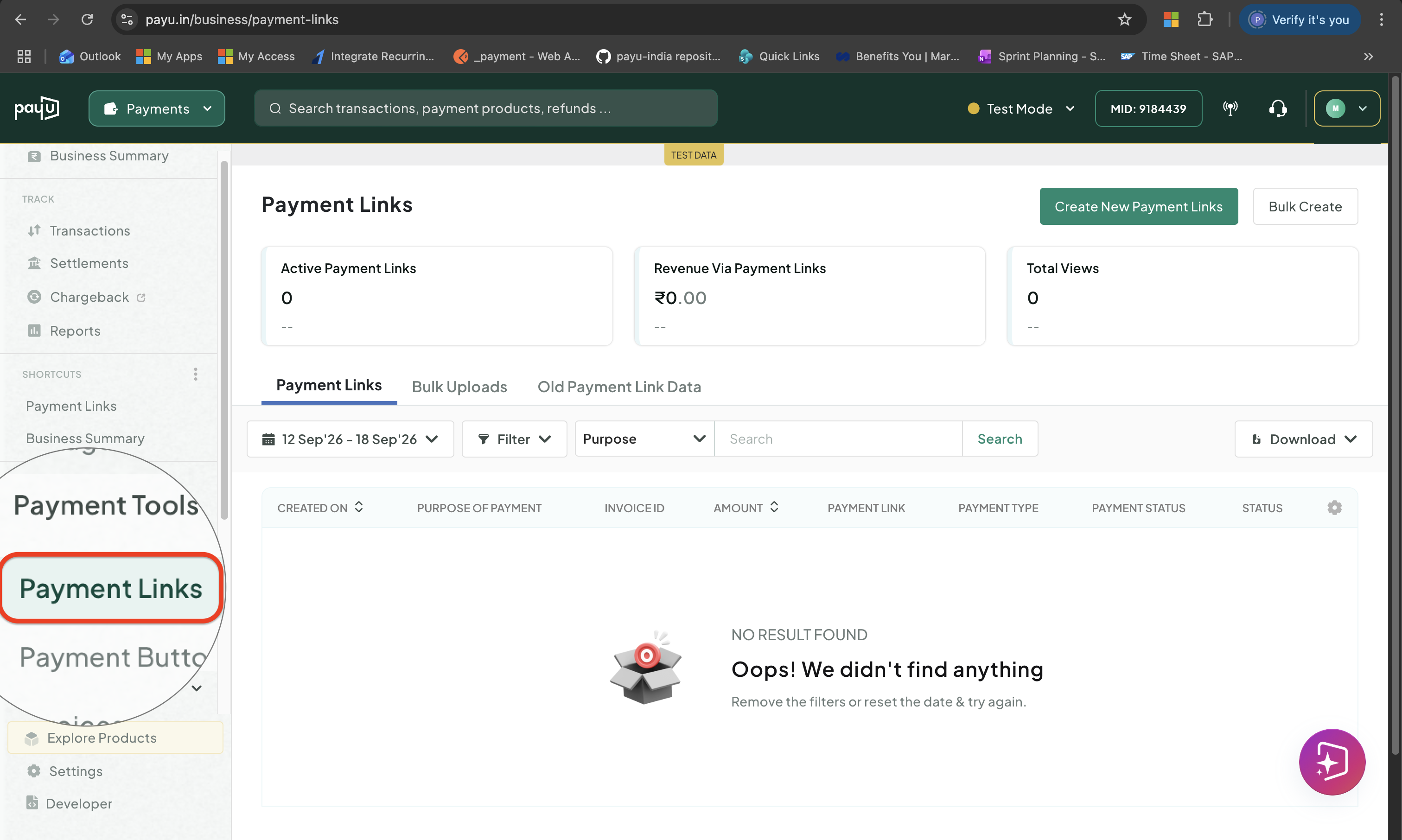
Access Payment Links
-
Click the Download drop-down at the top of the table and select any of the following format:
| Format | Contents |
| -------------------------------- | ------------------------------------ |
| csv | Summary of all payment links |
| xlsx | Summary of all payment links (Excel) |
| Txns - csv | Transaction-level detail per link |
| Txns - xlsx | Transaction-level detail (Excel) |
| Old Payment Link Data - csv | Legacy link data |
| Old Payment Link Data - xlsx | Legacy link data (Excel) |
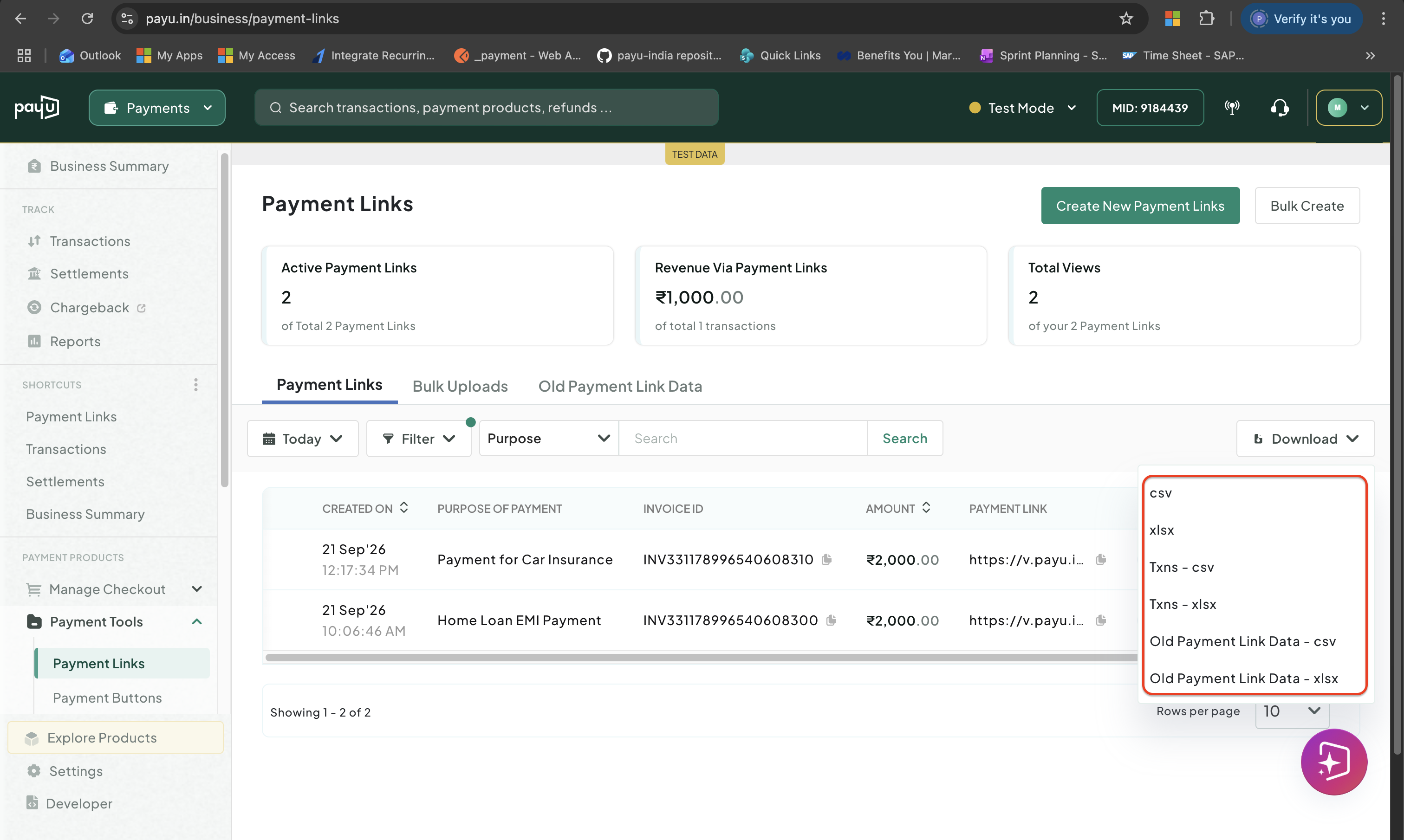
Select the Format
- Click Download on the Report Ready for Download pop-up menu to download the report.
For Developers
- If you want to create payment links from your own system such as a CRM, billing tool, or backend, use the Create a Payment Link API.
- If you want to fetch, update, or deactivate links from your own system, see the fetch and manage APIs.
Split the Settlement Across Multiple Accounts
If your business operates as a marketplace, aggregator, or platform, collecting payments on behalf of vendors, service providers, or partners, PayU can automatically split the settlement from each Payment Link transaction into multiple bank accounts.
You define the split rules: by absolute amount or by percentage, applied either at the time of the transaction or after collection. Each sub-merchant receives their portion directly; you retain your platform fee.
Next Steps
New to Payment Links? Start here to understand what it is, who it is for, and what your customers experience when they pay.
Step-by-step guide to creating and sending a payment link.
Fix issues with links not working, payments not reflecting, and more.
Updated 2 days ago
What's Next?
Explore related information and resources.
