
Create and Manage Plans
Create a manage plans from the PayU dashboard.
You can manage plans by performing the following actions from PayU dashboard.
- Create a plan
- Create subscriptions for a plan
- View plans
- Duplicate plans
- Edit plans
- Deactivate plans
Create a Plan
To create a plan:
-
Log in to the PayU dashboard, expand Subscriptions and click Plans from the left menu.
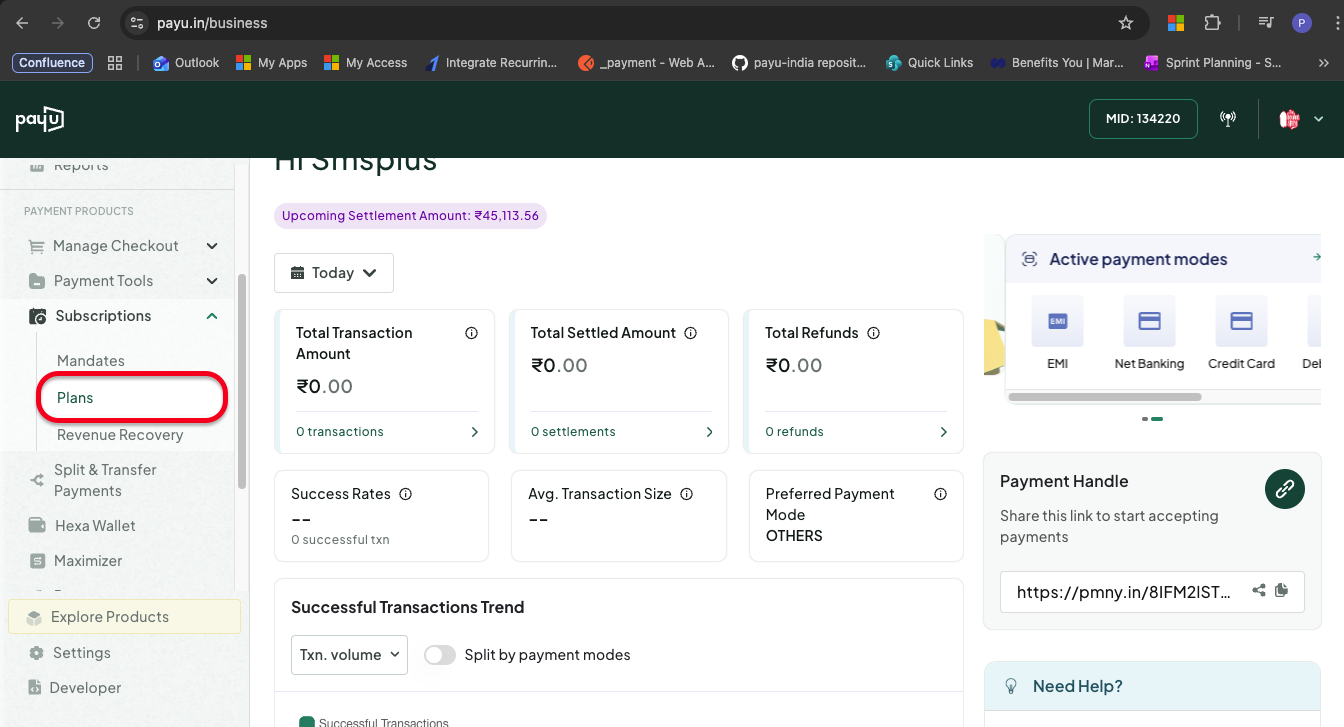
Access Plans
-
Click + Create Plan displayed on the top-right corner of the page.
The Create Plan pop-up menu appears.
-
Provide the following details:
Field Description Required/Optional Notes Plan ID A unique identifier for the plan Optional Maximum 32 characters. Cannot be changed after plan creation. Auto-generated if not provided. Plan Name The name of the plan visible to customers Mandatory No character limit. Description A short description of the plan Mandatory Maximum 100 characters. Billing Type Determines whether the plan is for recurring or one-time payments Mandatory Choose Recurring or One-time Billing Cycle (appears only when Billing Type = Recurring) The frequency at which recurring debits should happen Mandatory for Recurring Options: Day, Week, Month, Year Billing Interval (appears only when Billing Type = Recurring) The number of billing cycles between each debit Mandatory for Recurring Positive integer (e.g., 1 for every cycle, 3 for every 3 cycles) Billing Amount The amount to debit from the customer's account Mandatory Minimum ₹1. Up to 2 decimal places. Note: For free trial (FreeTrial=1), upfront amount is auto-populated as ₹2 for Cards/UPI or ₹0 for ENach. Upfront Amount One-time registration amount paid by the customer during subscription setup Optional Same format as Billing Amount. For free trials, this is auto-populated. Billing Type Options:
-
Recurring: Choose this option for recurring debits at set intervals. You must configure the Billing Cycle and Billing Interval.
- Billing Cycle Examples:
- Day: Recurring debit happens daily
- Week: Recurring debit happens weekly
- Month: Recurring debit happens monthly
- Year: Recurring debit happens yearly
- Billing Interval: Enter how many cycles should pass between debits (e.g., 1 for every month, 3 for every 3 months)
- Billing Cycle Examples:
-
One-time: Choose this option to create a one-time payment link without recurring charges.
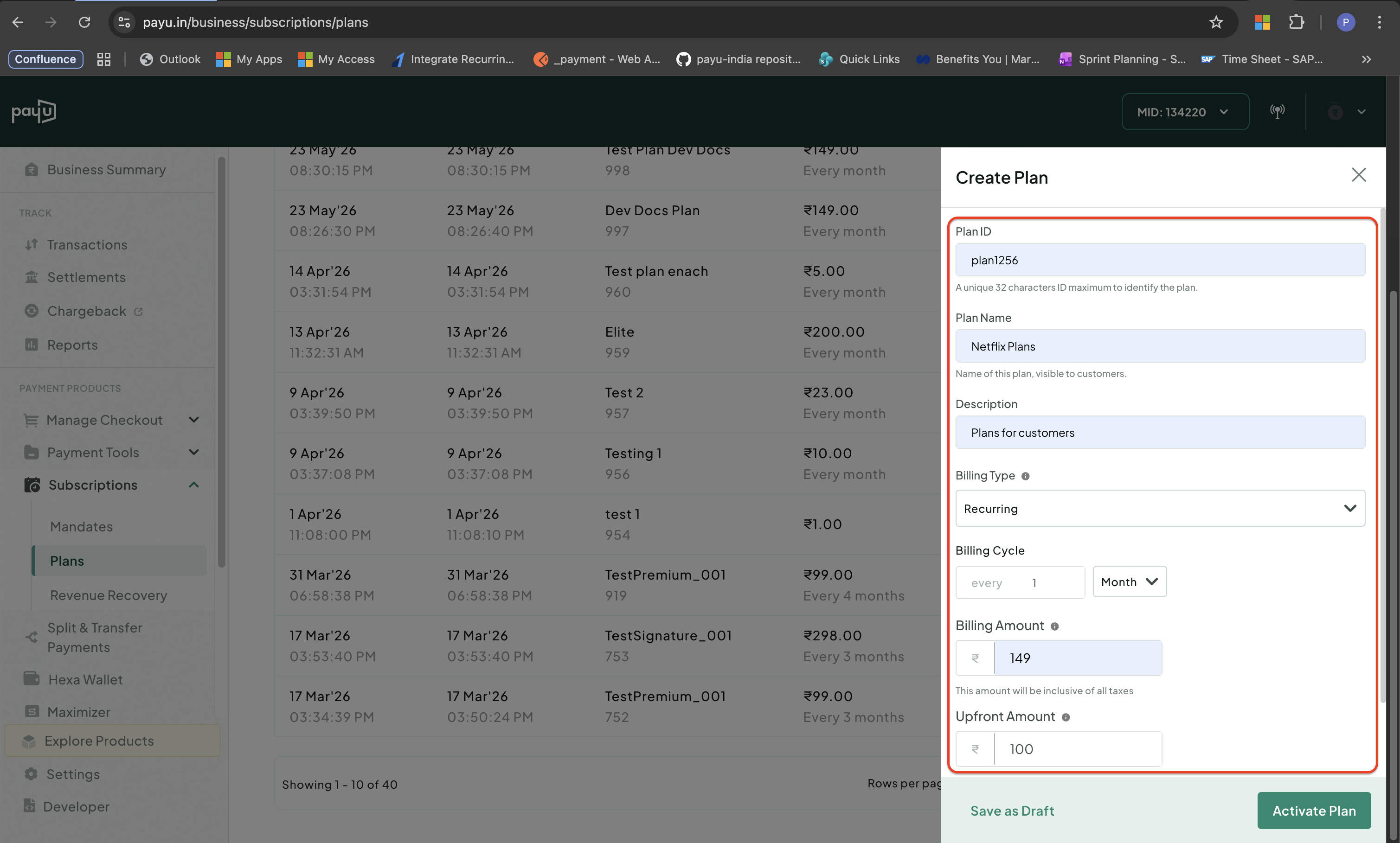
Create Plan Fields
-
-
Click any of the following:
- Save as Draft: To save the plan as a draft.
- Activate Plan: To create and activate plan.
Create Subscriptions for a Plan
To create a subscription for a plan:
-
Log in to the PayU dashboard, expand Subscriptions click Plans from the left menu.
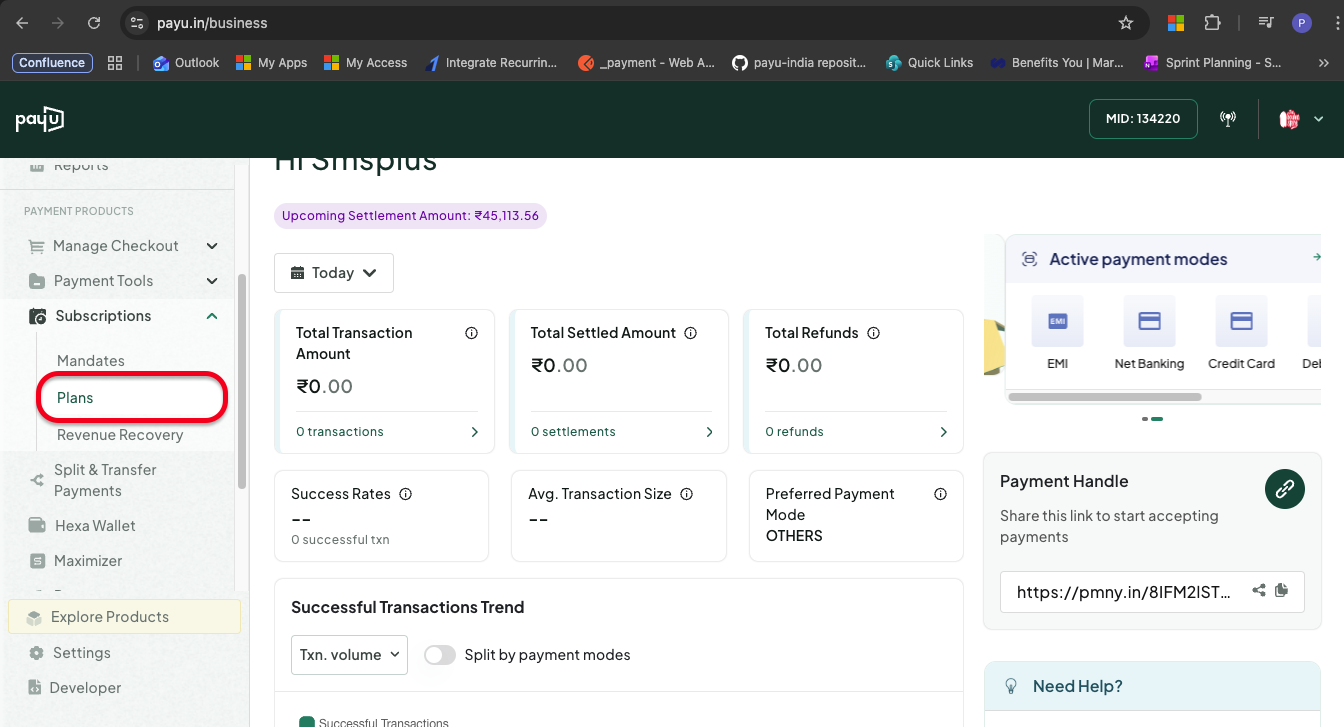
-
Click the required plan to create a Subscription and click + New Subscription.
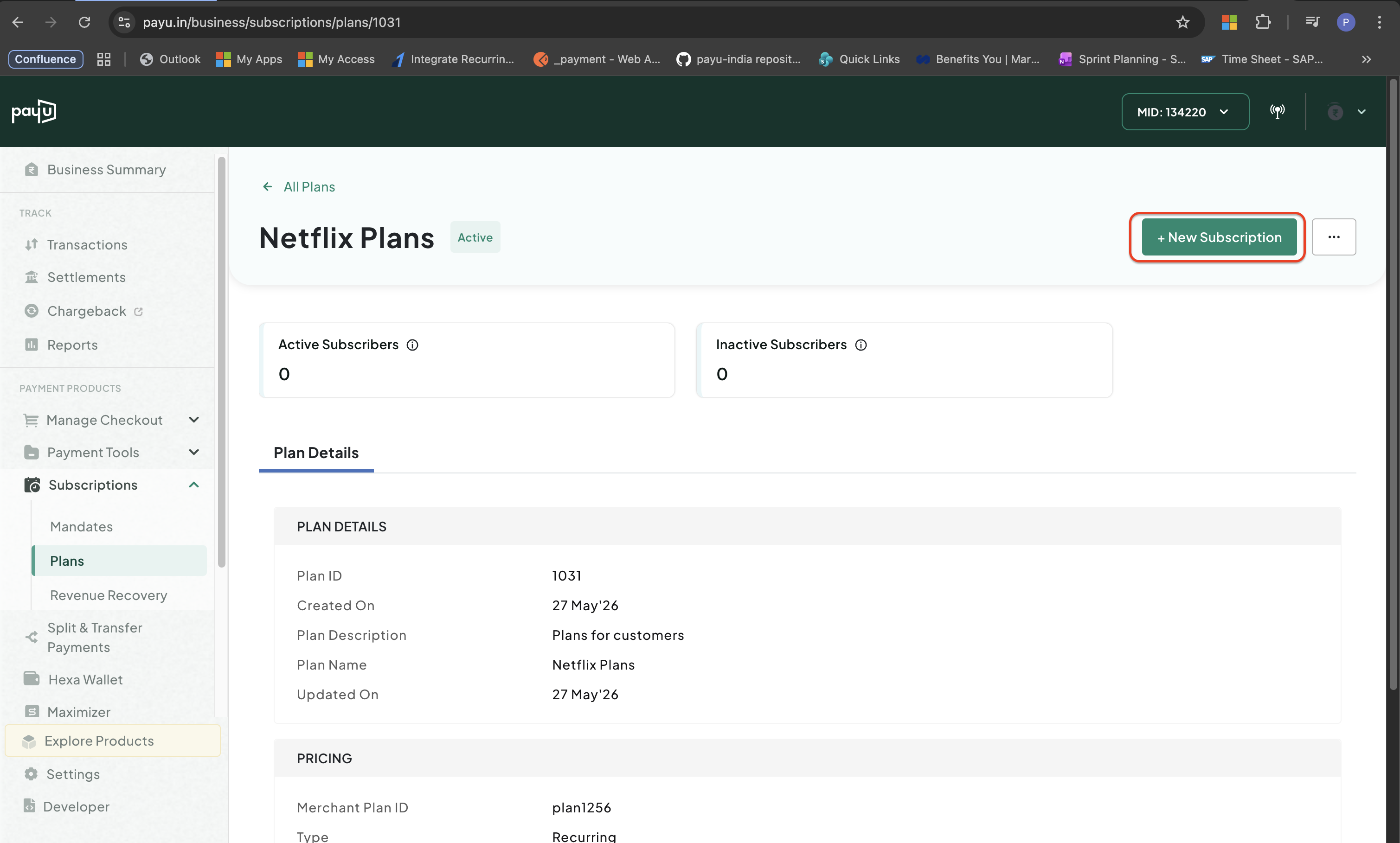
The subscription creation form appears with Plan Details and Payment Details sections auto-populated from the selected plan.
Plan Details: Shows the plan name, billing amount, billing cycle, and upfront amount from the selected plan. You can edit these values for this specific subscription if needed.
Payment Details: Configure the payment schedule and preferences:
- Start Date: The date from which the subscription becomes active and recurring charges begin
- End Date: The last date through which the subscription remains active
- Payment Methods: Select which payment modes are available for the customer (Cards, UPI, Net Banking)
-
Enter Customer Details including name, email, and phone number. You can enable email/SMS notifications to send the subscription link directly to the customer.
-
(Optional) Click Additional Details to add custom fields, shipping information, tax amounts, or other checkout customizations.
For complete details on configuring customer information and additional fields, refer to Create a Subscription Payment Link.
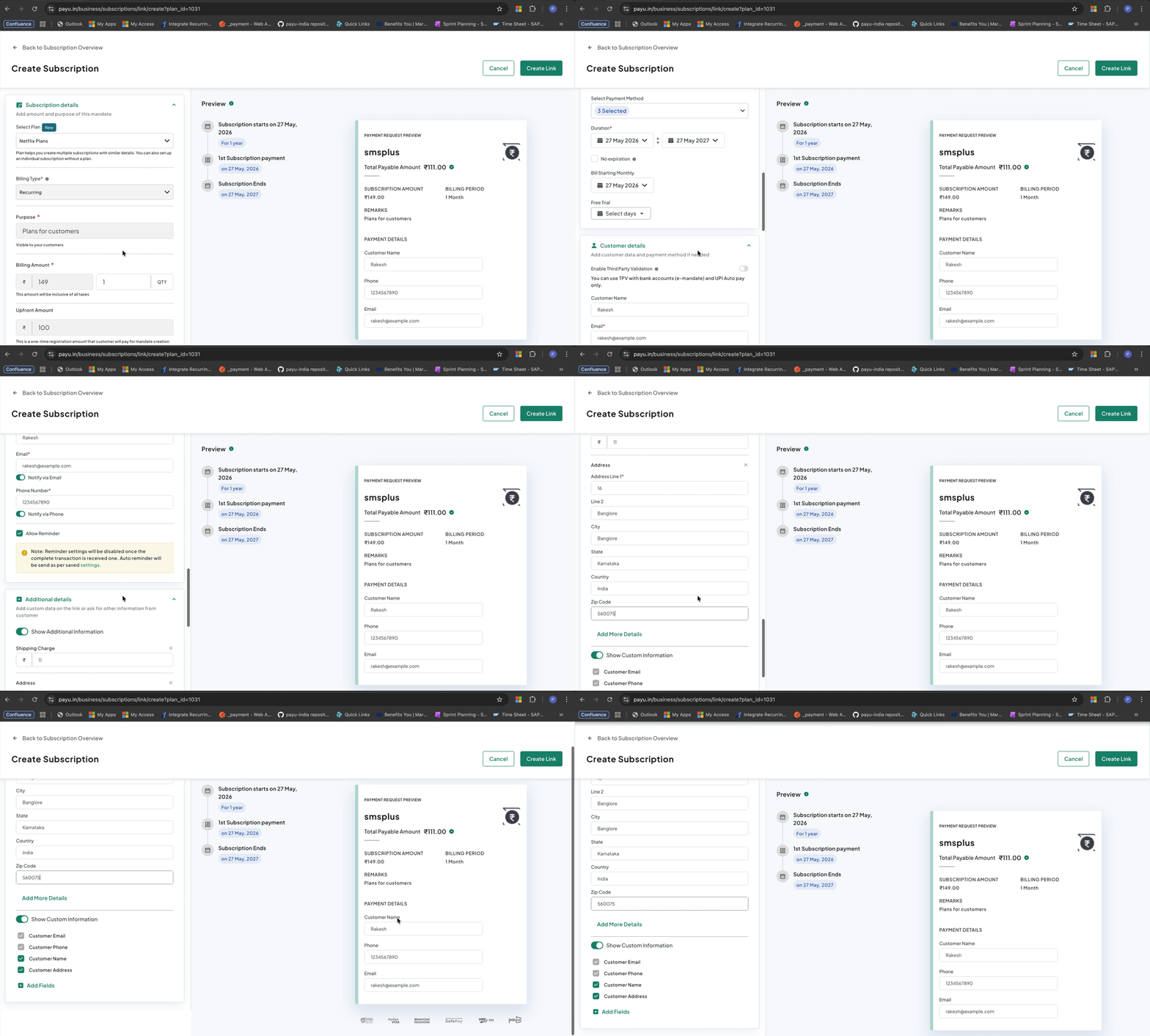
Subscription Fields
-
Check the preview in the Payment Request Preview section and click Create Link.
View Plans
To view plans:
Log in to the PayU dashboard, expand Subscriptions click Plans from the left menu.
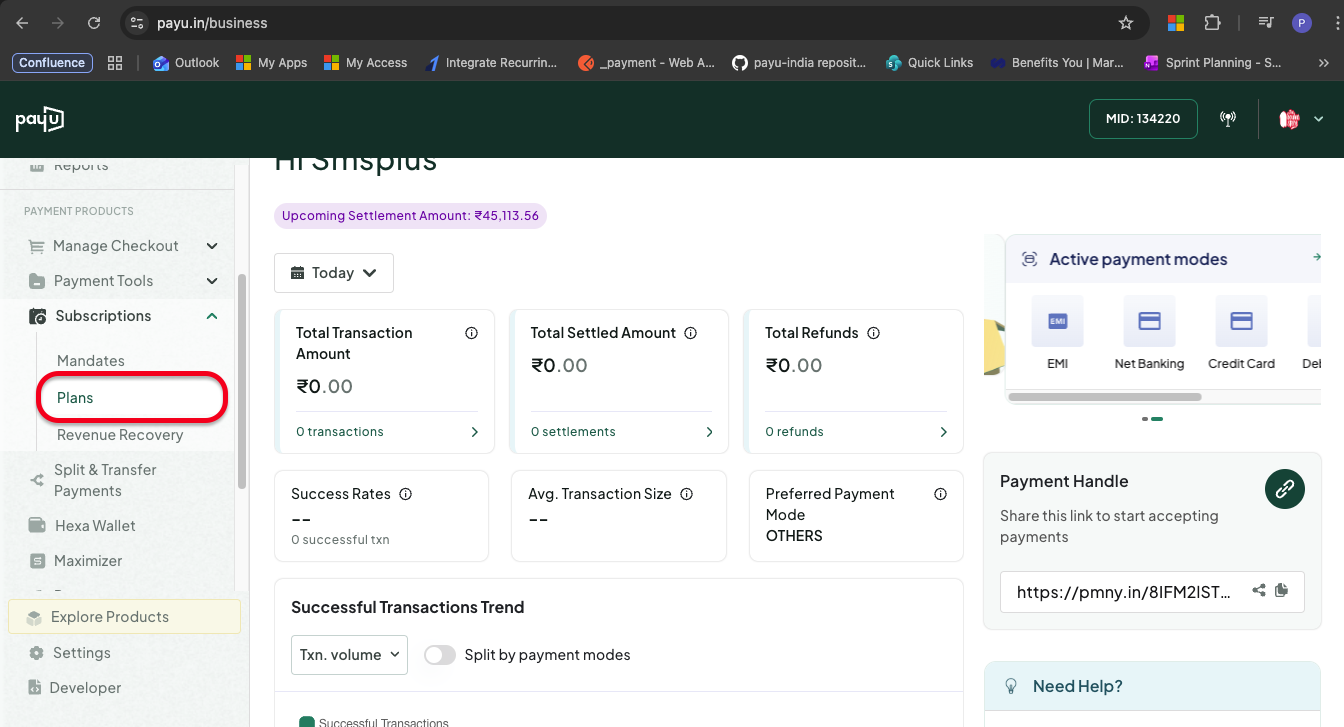
Access Plans
A list of all plans with the following information in displayed in the All Plans section:
- Created Date
- Updated Date
- Plan
- Pricing
- Status
- Active Mandates
Action PlansYou can perform various actions from the All Plans section. Click the three dots menu icon against the required plan to perform actions depending on the plan status.
- Active Plans: You can perform the following actions on active plans.
- Create Subscription
- Duplicate Plan
- Deactivate
- Draft Plans: You can perform the following actions on draft plans.
- Edit Plan
- Duplicate Plan
- Deactivate
- Archived/Deactivated Plans: You can perform the following actions on archived/deactivated plans.
- Duplicate Plan
View Plan Details
To view plan details:
-
Log in to the PayU dashboard, expand Subscriptions click Plans from the left menu.
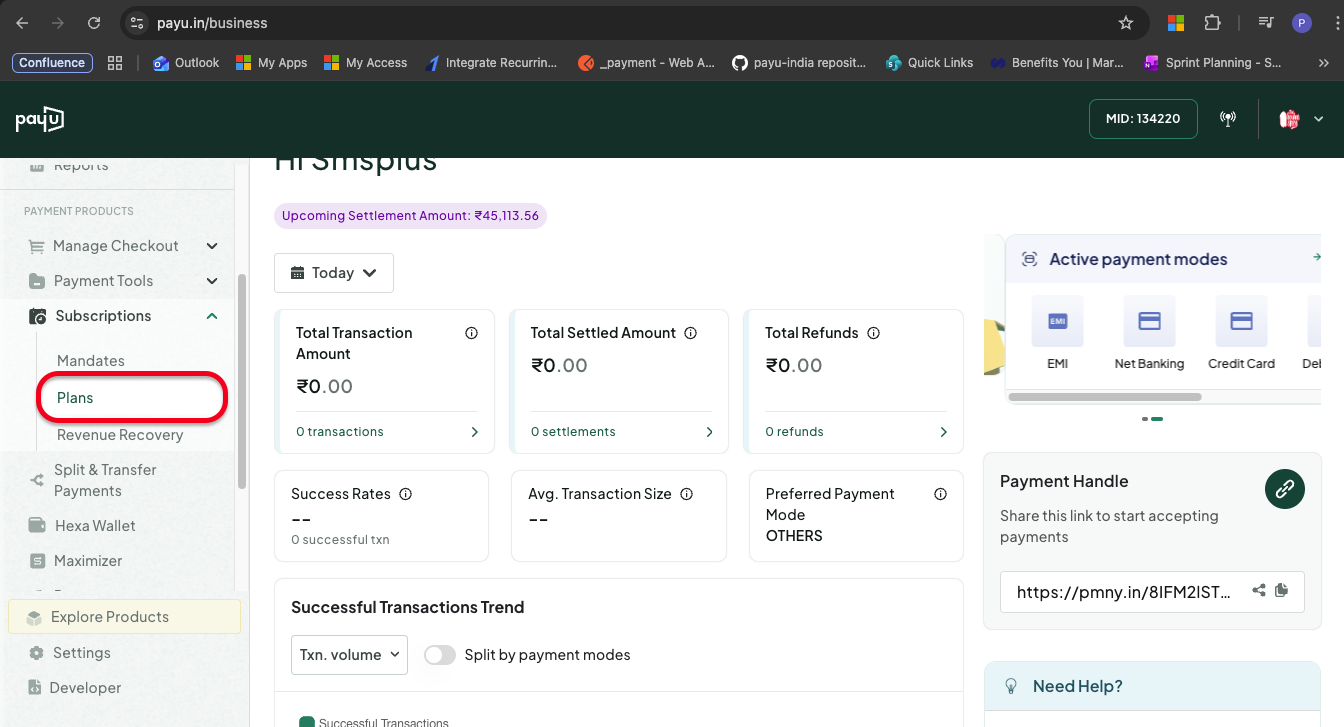
Access Plans
-
Click the required plan to view its details.
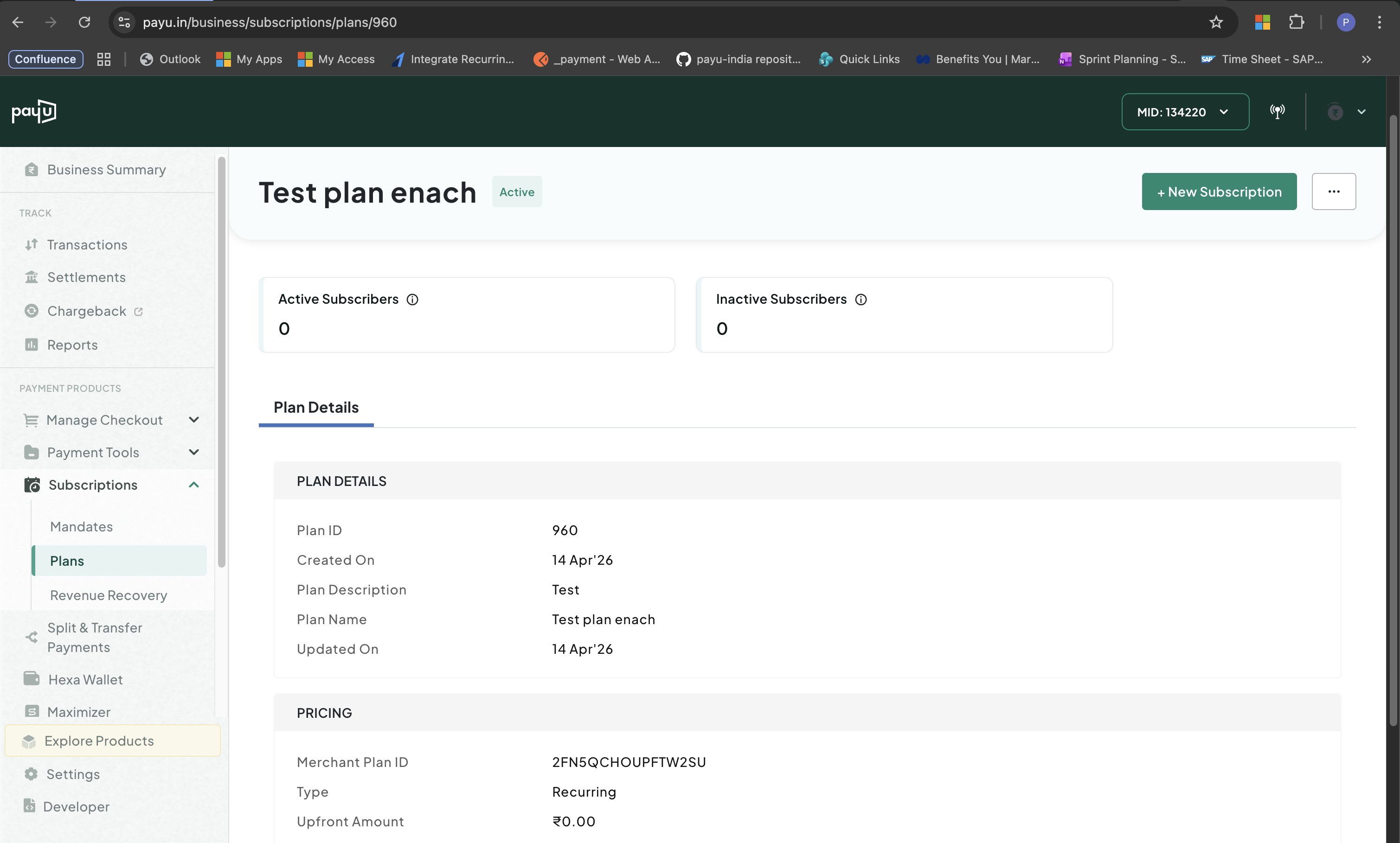
Plan Details
The Plan Details page displays:
- Plan Information: Plan ID, name, description, billing type, billing amount, and upfront amount
- Pricing: Billing cycle and interval configuration
- Created On: Date when the plan was created
- Updated On: Date when the plan was last modified
- Active Subscribers: Number of subscriptions currently active under this plan (customers with active mandates who are being charged)
- Inactive Subscribers: Number of subscriptions that were created from this plan but are no longer active (cancelled, expired, or failed mandates)
Edit a Plan
To edit a plan:
-
Log in to the PayU dashboard, expand Subscriptions click Plans from the left menu.
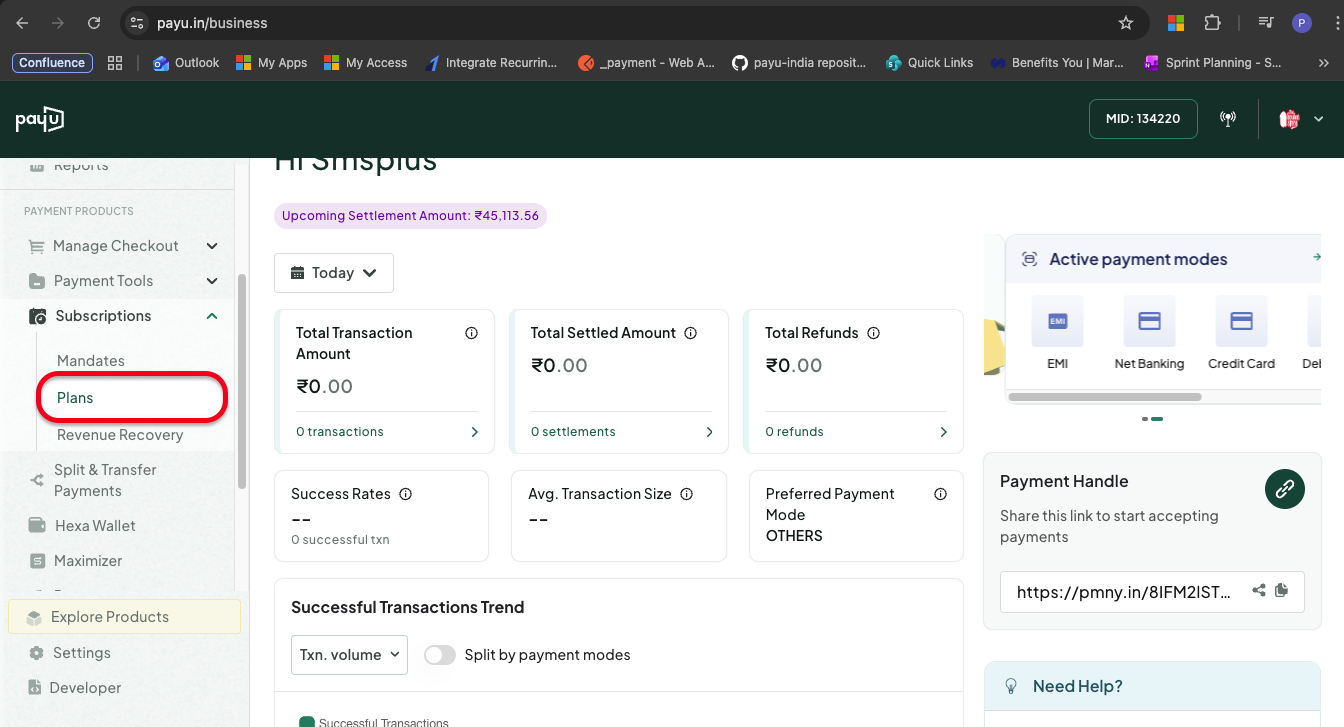
Access Plans
-
Click the three dot menu against a required plan and click Edit Plan. Alternatively, you can edit a plan from the Plan Details section.
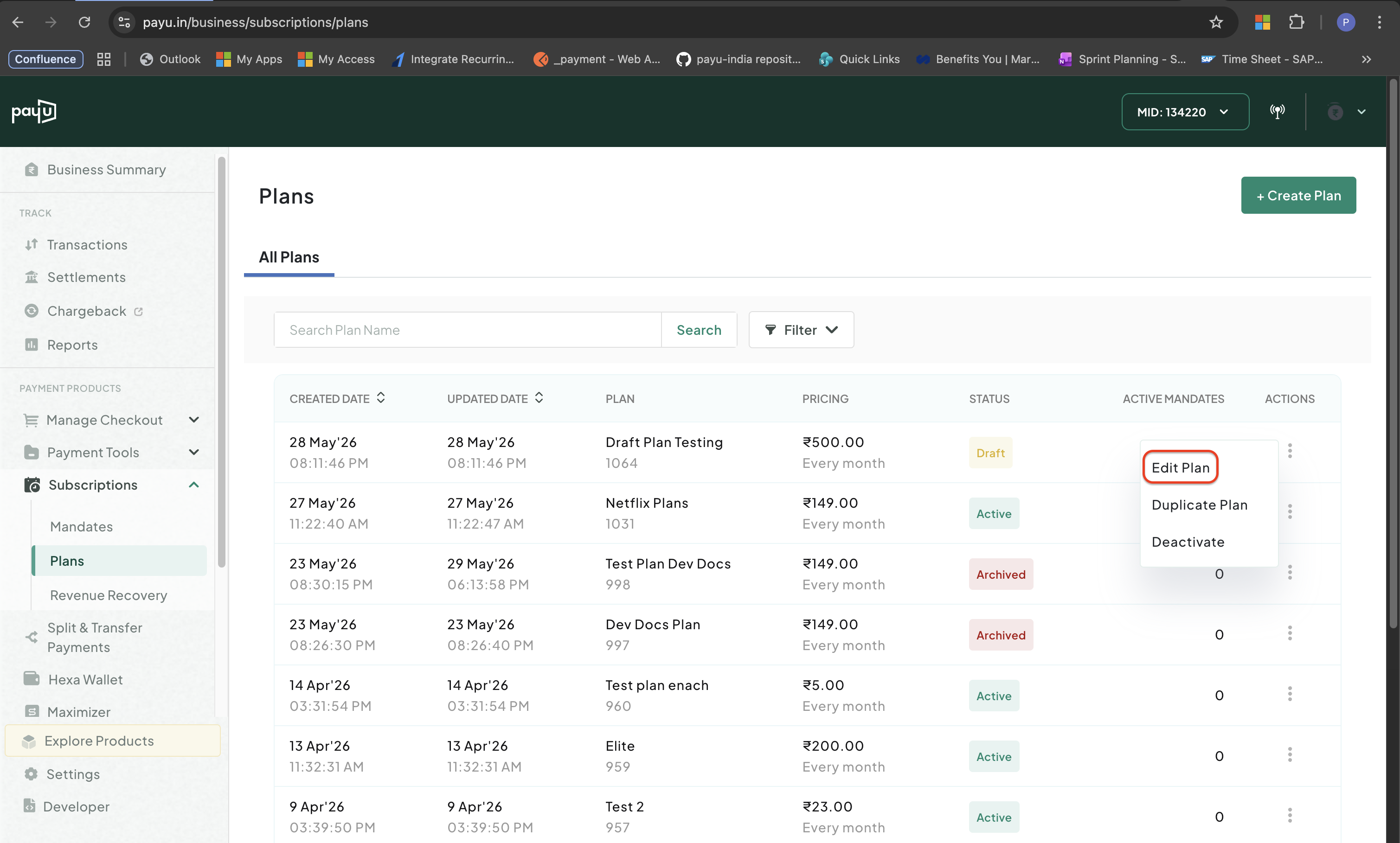
Edit a Plan
The Edit Plan pop-up menu appears.
-
Edit the required details and click Activate Plan.
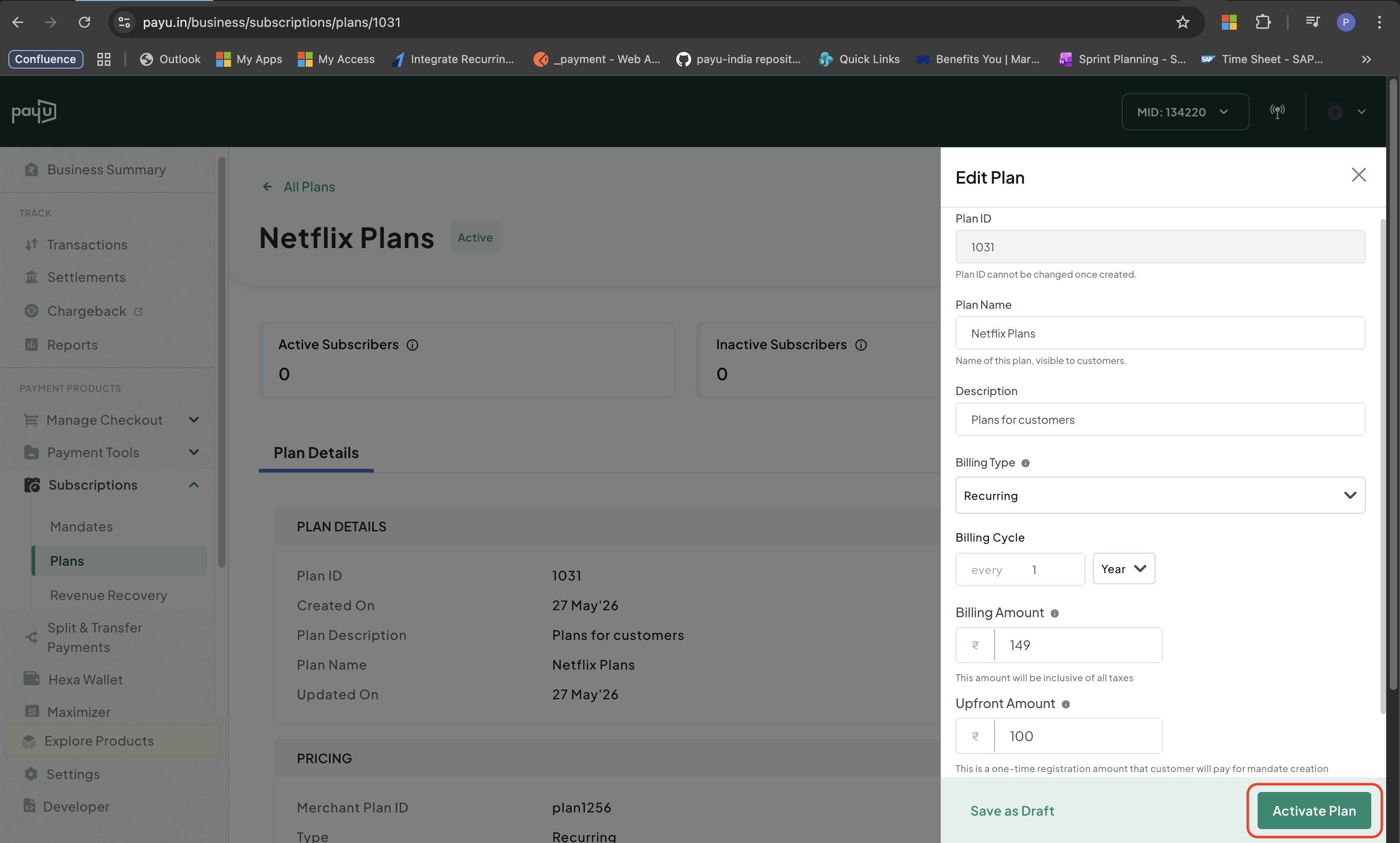
Edit Plan Fields
Edit RestrictionsThe following fields cannot be edited after plan creation:
- Plan ID: The unique identifier cannot be changed once the plan is created
- Billing Cycle and Interval (for plans with active subscriptions): Cannot be modified if the plan has active subscribers
All other fields including Plan Name, Description, Billing Amount, and Upfront Amount can be edited. Note that changes may only apply to new subscriptions created after the edit.
Duplicate a Plan
-
Log in to the PayU dashboard, expand Subscriptions click Plans from the left menu.
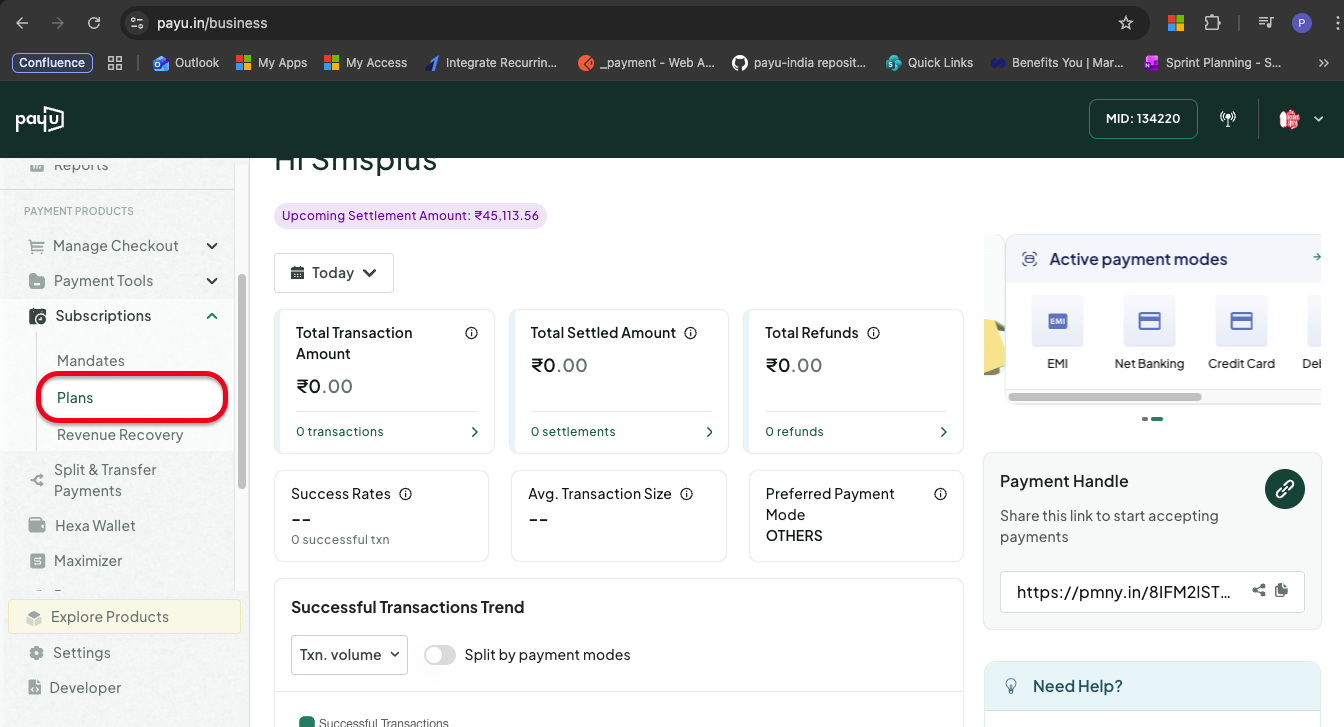
Access Plans
-
Click the three dot menu against a required plan and click Duplicate Plan. Alternatively, you can duplicate a plan from the Plan Details section.
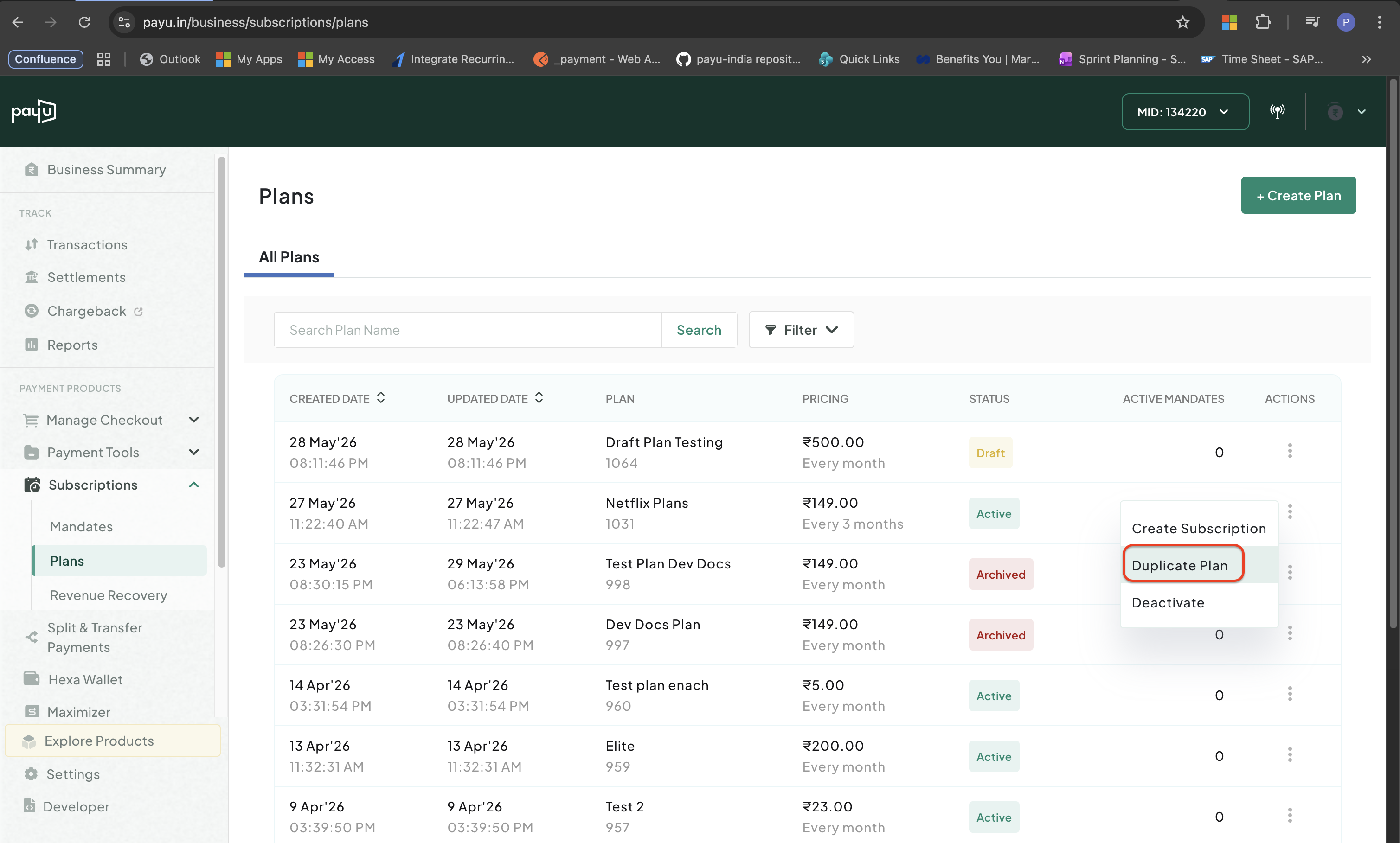
Duplicate a Plan
The Duplicate Plan pop-up menu appears.
-
Enter the Plan ID and change other details as required in the Duplicate Plan pop-up menu.
-
Click Activate Plan.
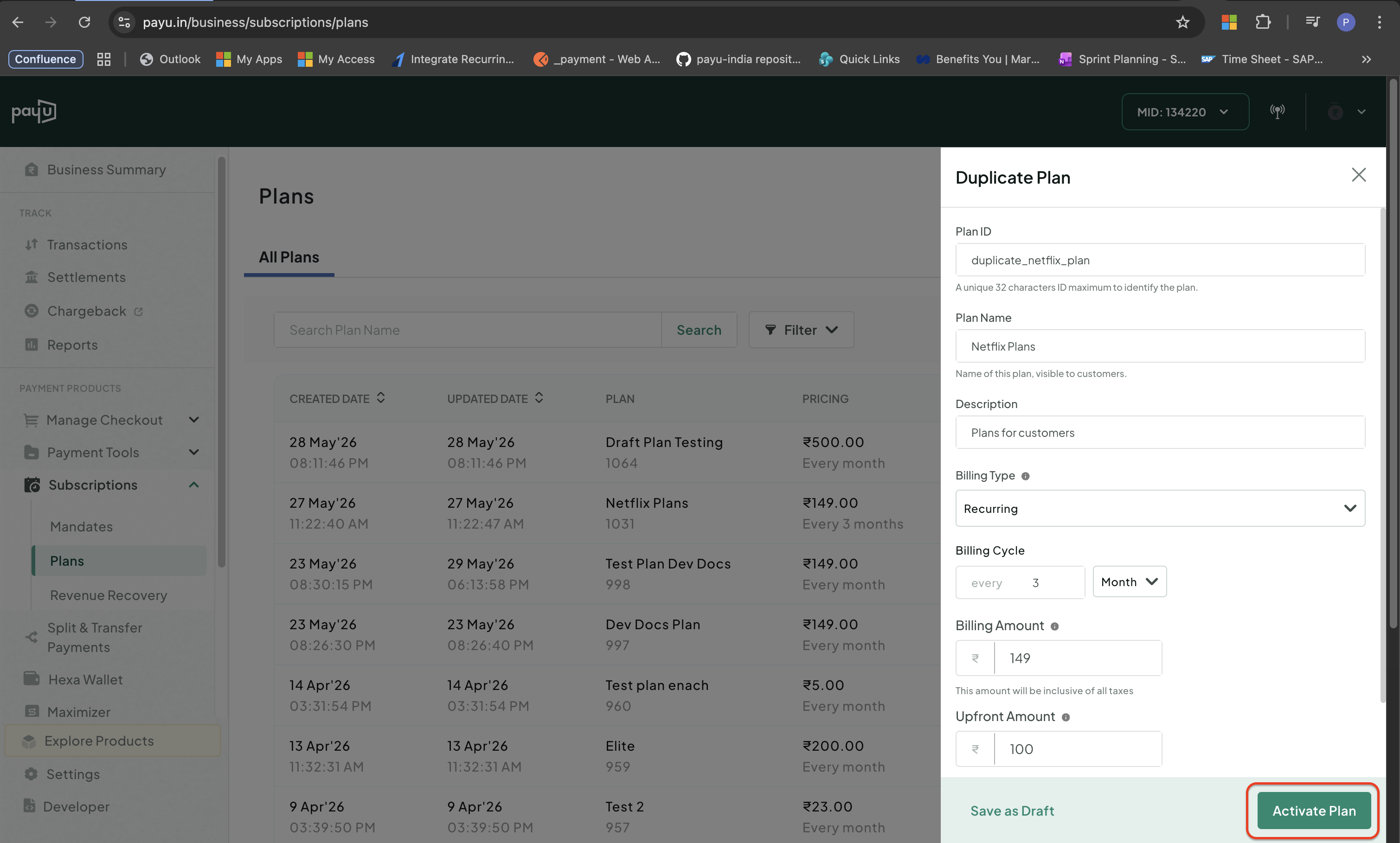
Duplicate Plan Fields
Deactivate a Plan
To deactivate a plan:
-
Log in to the PayU dashboard, expand Subscriptions click Plans from the left menu.
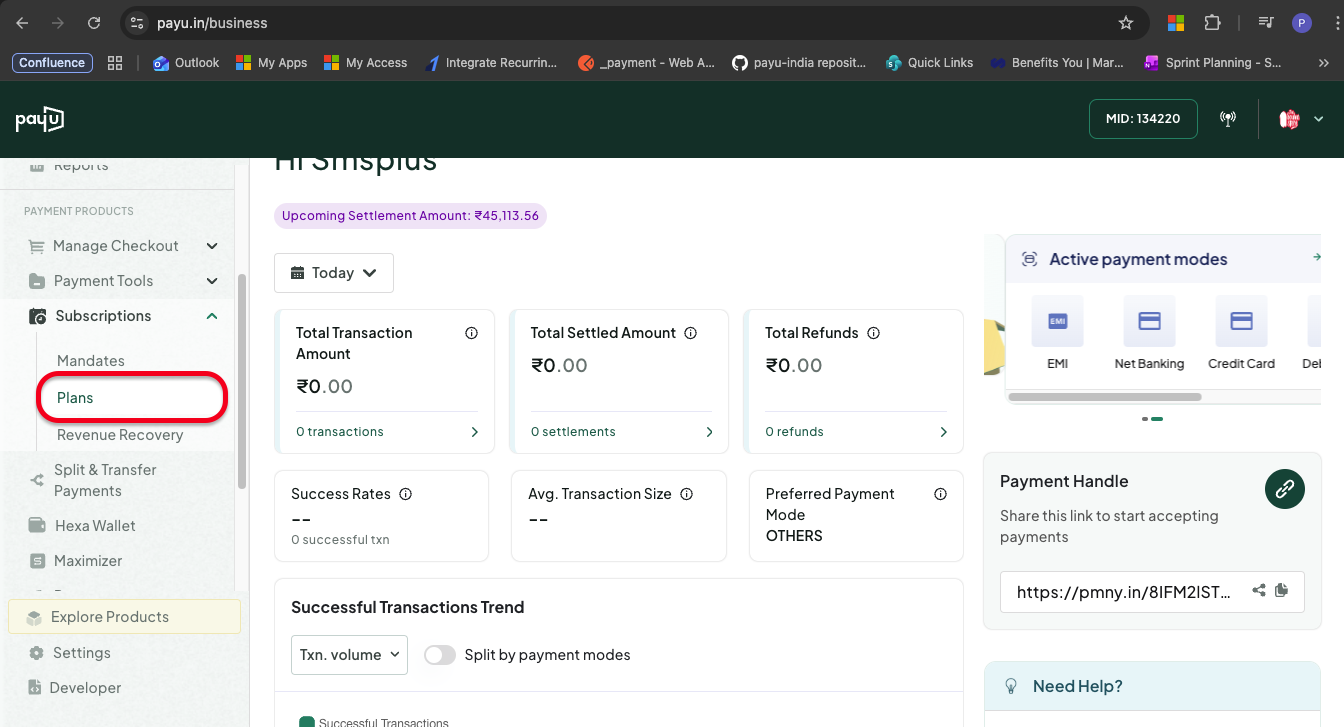
Access Plan
-
Click the three dot menu against a required plan and click Deactivate. Alternatively, you can deactivate a plan from the Plan Details section.
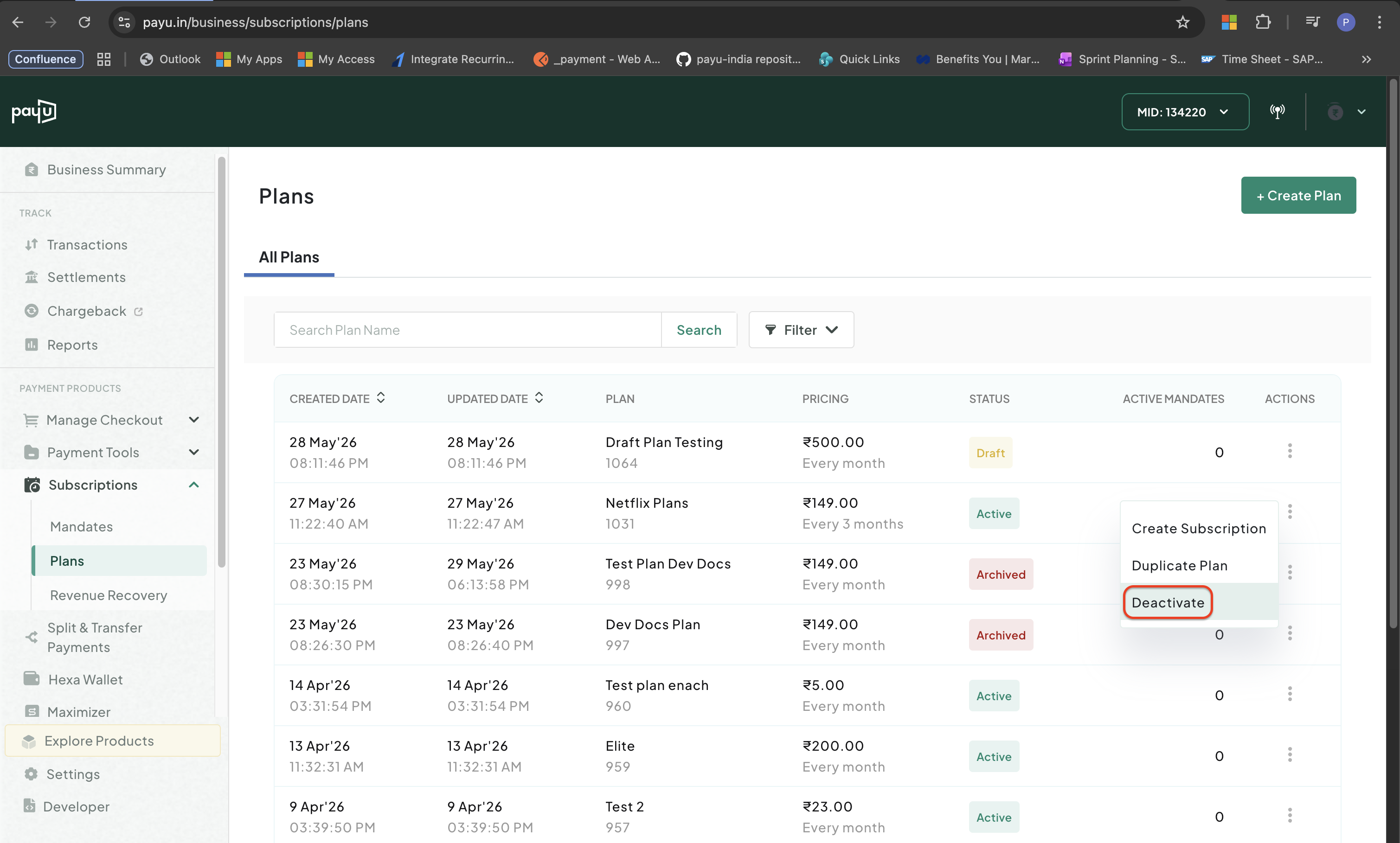
Access Plans
-
Click Deactivate Plan in the Deactivate Plan pop-up menu.
The plan moves to the Archived state. You can reuse by duplicating it.
Updated 20 days ago
