
Payment Retries
What is Payment Retry?
Payment retry is an automated mechanism that attempts to re-process failed recurring payment transactions for subscriptions (Standing Instructions). When a scheduled recurring payment fails, the retry system automatically attempts the payment again at configured intervals, improving the chances of successful collection.
Why Use Payment Retries?
Failed recurring payments are a common challenge for subscription-based businesses. Payment retries help merchants recover revenue from failed transactions that would otherwise be lost, automate re-attempts instead of manual follow-up, and provide seamless subscription continuity without requiring customer intervention for temporary payment issues.
Retry Configuration Options
PayU provides three approaches to configure payment retries. For detailed configuration steps, refer to Configure Retry Strategy section below.
Available Options:
- Smart Retry - PayU-managed retry using machine learning (verify availability with PayU Support)
- Custom Retry - Merchant-configured retry with full control over timing and behavior
- Don't Enable Retry - Disable automatic retry attempts for failed payments
Common Payment Failure Reasons
Understanding why payments fail helps you configure appropriate retry strategies:
| Failure Reason | Description | Retry Recommended? |
|---|---|---|
| Card Expired | Customer's payment card has crossed expiry date | ❌ No - Customer needs to update payment method |
| Insufficient Balance | Customer's account doesn't have enough funds | ✅ Yes - Balance may be available later |
| Card Blocked by Bank | Issuing bank has blocked the card for security or other reasons | ⚠️ Conditional - May resolve if temporary security hold |
| Mandate Cancelled | Customer has cancelled the mandate from their bank/app | ❌ No - Customer action required to reinstate |
| Technical Failure | Network issues, gateway timeout, or temporary system unavailability | ✅ Yes - Usually resolves automatically |
Best PracticeConfigure 2-3 retry attempts with 24-48 hour intervals for temporary failures like insufficient balance or technical issues.
Navigate to Retry Settings
To access the retry configuration page:
- Log in to the PayU Dashboard.
- Navigate to Subscriptions from the left sidebar.
- Click Revenue Recovery.
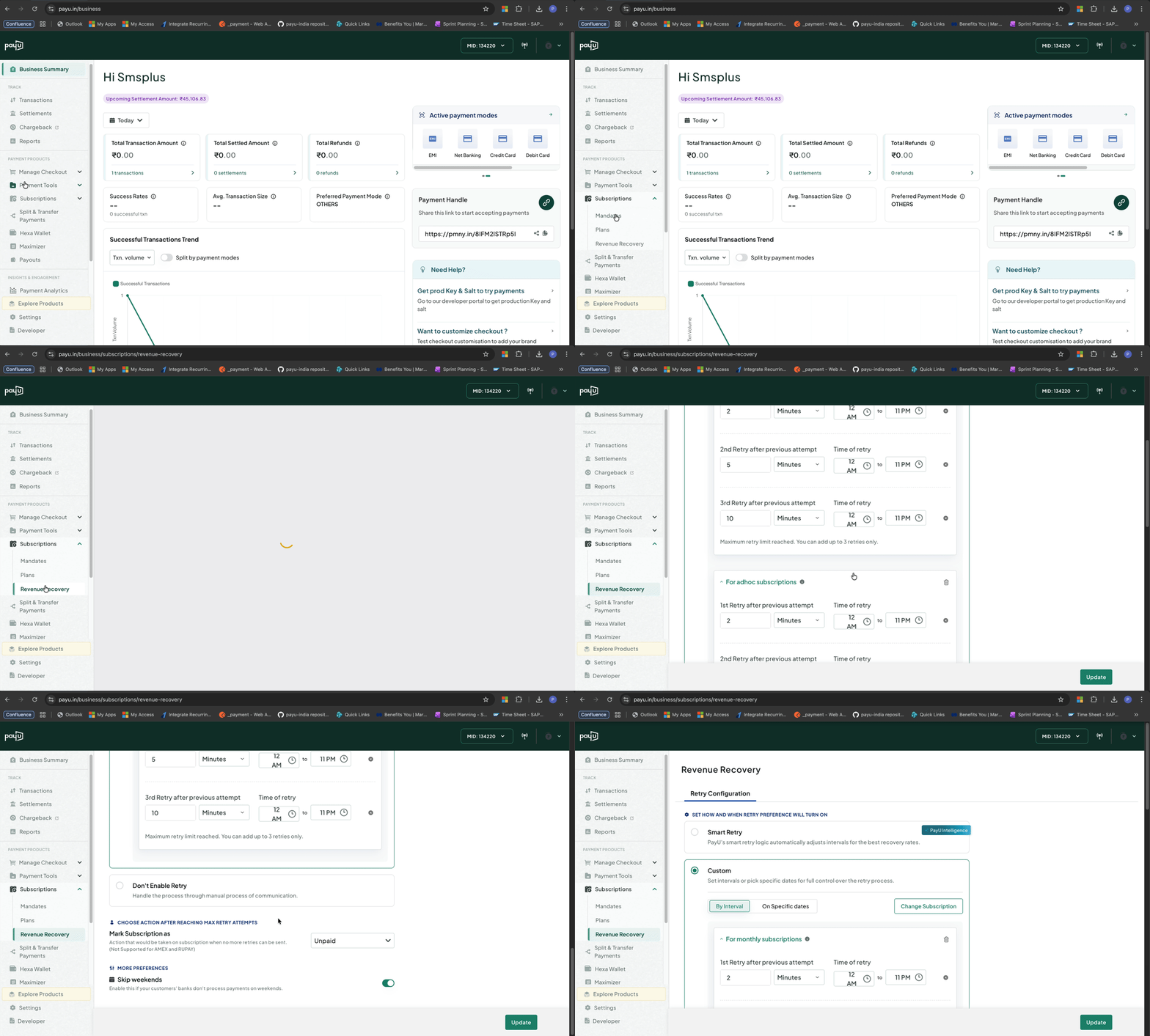
Navigate to Revenue Recovery
Default State: Retry DisabledBy default, payment retry is disabled on your merchant account. Failed subscription transactions will not be automatically retried until you configure and enable a retry strategy below.
Configure Retry Strategy
Follow these steps to configure your retry strategy:
Step 1: Choose Retry Type
Select one of the following retry types:
Smart Retry (Recommended for most merchants)
Select this option to let PayU automatically manage retry timing and frequency based on machine learning models trained on historical payment data.
Configuration: None required - PayU handles everything automatically.
Custom Retry (Advanced)
Configure your own retry logic with complete control over timing, frequency, and post-failure actions.
Configuration Steps:
-
Select Subscription Cycles: Choose which subscription types this retry configuration applies to:
- All Subscriptions (applies to Daily, Weekly, Monthly, Yearly, Once, Adhoc)
- Specific cycles only (e.g., Monthly and Yearly only)
-
Define Retry Attempts: Configure up to 7 retry attempts:
- Retry Interval: Time between attempts (in Minutes, Hours, or Days)
- Time Window: Start time and end time for retry attempts (12-hour format with AM/PM)
- Example: First retry after 24 hours, second after 48 hours, third after 72 hours
-
Configure Post-Retry Action: Define what happens when all retry attempts fail:
Action Impact on Subscription Impact on Mandate When to Use Unpaid (Default) Subscription stays active but marked as unpaid Mandate remains active Temporary failures - give customer time to resolve Cancelled Subscription automatically cancelled Mandate is revoked Permanent failures - clean up inactive subscriptions ImportantThe Cancelled action is not supported for AMEX and RUPAY cards. Use Unpaid for these card types.
-
Weekend Handling: Enable Skip weekends to prevent retry attempts on Saturdays and Sundays.
-
Save Configuration: Click Update to apply retry settings to your merchant account.
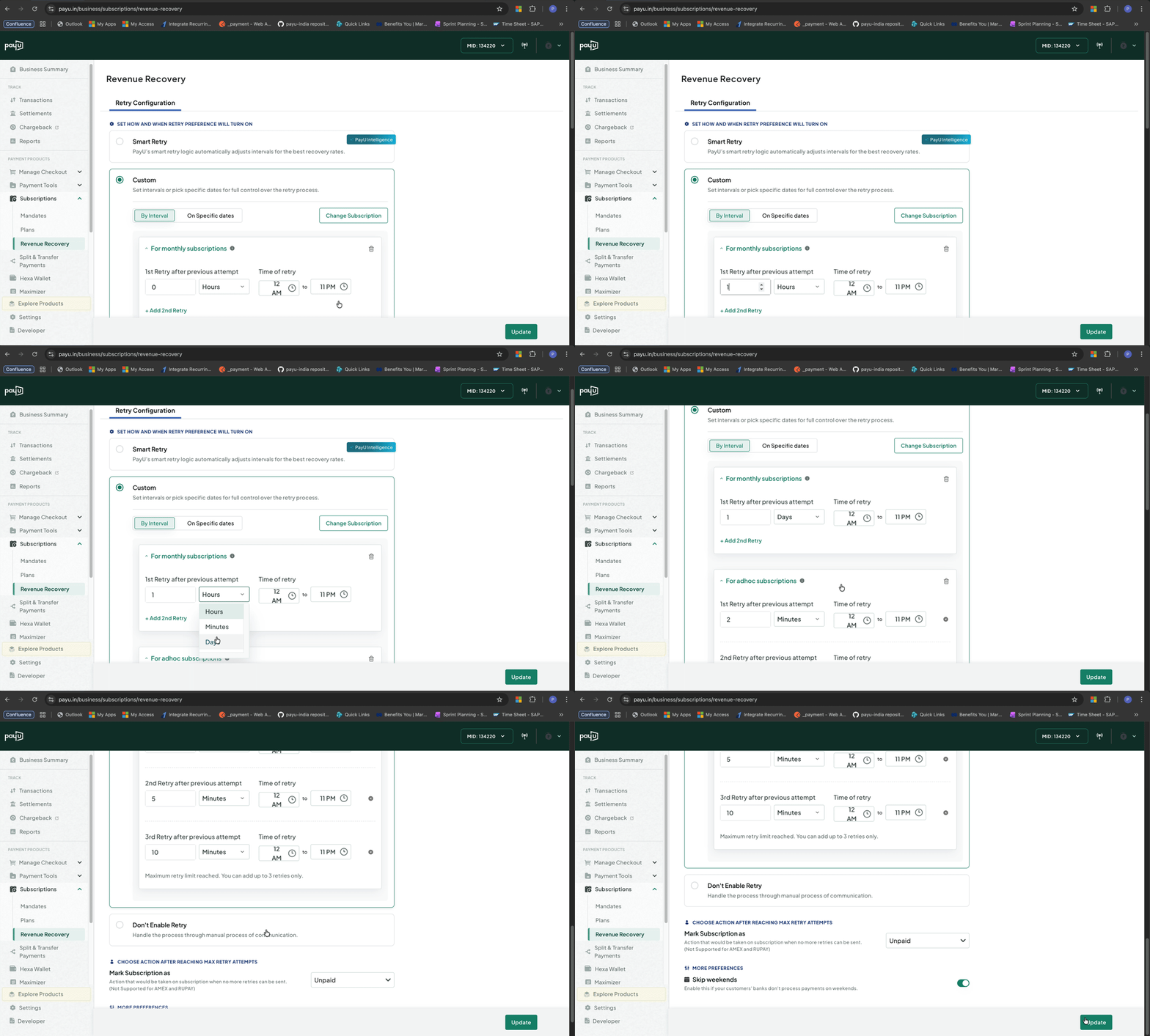
Configure Custom Retry Settings
Don't Enable Retry
Select this option to disable automatic retry attempts for failed recurring payments. Failed transactions will not be retried and will require manual intervention or customer action to resolve.
Configuration: None required - retry is disabled.
When to use: When you want to handle failed payments manually or have your own retry mechanism outside of PayU.
Step 2: Verify Configuration
After saving, your retry settings are applied immediately to all future failed subscription transactions. Existing failed transactions are not retroactively retried.
Field Validations
The Retry Configuration page validates each field before saving. Use the following reference when configuring Custom Retry settings:
Technical ValidationField specifications have been verified against PayU's retry management system. For the latest validation rules, contact PayU Support or refer to internal documentation.
| Functionality | Mandatory/Optional | Validation / Allowed Values |
|---|---|---|
| Retry Type | Mandatory | Allowed values: Smart Retry, Custom, and Don't EnaAdhoc Subscriptionble Retry |
| Mark Subscription as | Mandatory | Allowed values: Unpaid and Cancelled. Note: Not supported for AMEX and RUPAY cards. |
| Skip weekends | Optional | A radio button to enable or disable the option. |
| Custom Toggle (when Retry Preference = Custom) | Mandatory when Retry Preference = Custom | By Interval or On Specific dates. Note: Specific Dates feature coming soon. |
| Subscription Types | Mandatory when Retry Preference = Custom | At least one required. Allowed values:
|
| Interval Value | Mandatory when Retry Preference = Custom and Custom Toggle = By Interval | Positive integers only. Required for each retry row. |
| Interval Unit | Mandatory when Retry Preference = Custom and Custom Toggle = By Interval | Allowed values: Hours, Minutes, and Days. |
| Time of retry (start time) | Mandatory when Retry Preference = Custom and Custom Toggle = By Interval | 12-hour format with AM/PM. If Start Time is set, End Time is required. |
| Time of retry (end time) | Mandatory when Retry Preference = Custom and Custom Toggle = By Interval | 12-hour format with AM/PM. If End Time is set, Start Time is required. End must be after Start. Example: Start = 11 PM → End = 12 AM |
| Max Number of Retries | Mandatory when Retry Preference = Custom and Custom Toggle = By Interval | Maximum 7 retries per subscription type |
Frequently Asked Questions
-
What is the difference between Smart Retry and Custom Retry?
Answer
Smart Retry: PayU-managed approach using machine learning to automatically determine optimal retry timing and frequency based on historical transaction data. No configuration required.
Custom Retry: Merchant-configured approach where you define the exact number of retries, intervals between attempts, applicable subscription cycles, and post-failure actions.
Recommendation: Use Smart Retry for hands-off optimization, or Custom Retry if you need specific retry timing for business reasons (e.g., align with customer salary dates).
-
How many retry attempts can I configure?
Answer
With Custom Retry, you can configure up to 7 retry attempts per subscription cycle. Each retry can have different intervals (minutes, hours, or days) and time windows.
-
What happens when all retry attempts fail?
Answer
You choose the post-retry action when configuring Custom Retry:
- Unpaid (Default): Subscription remains active but marked as unpaid. Mandate stays active. Customer can still manually pay or resolve the issue.
- Cancelled: Subscription is automatically cancelled and mandate is revoked. Customer must re-register to resume subscription.
Note: Cancelled action is not available for AMEX and RUPAY cards.
-
Can I skip retry attempts on weekends?
Answer
Yes. When configuring Custom Retry, enable the Skip weekends option to prevent retry attempts on Saturdays and Sundays. This setting applies to all retry attempts in your configuration.
-
When do retry settings take effect?
Answer
Retry settings are applied immediately after you click Update. The settings apply to all future failed subscription transactions. Existing failed transactions are not retroactively retried.
-
Does cancelling a subscription after retry failure revoke the mandate?
Answer
Yes. When you select Cancelled as the post-retry action, both the subscription is cancelled AND the customer's mandate is revoked with the bank/payment provider. The customer will need to create a new mandate if they want to re-subscribe.
-
Can I configure different retry strategies for different subscription cycles?
Answer
Yes. When configuring Custom Retry, you can select specific subscription cycles (Daily, Weekly, Monthly, Yearly, Once, Adhoc) and define different retry configurations for each. For example, you might retry Monthly subscriptions 3 times but Daily subscriptions only once.
Updated 20 days ago
