
Manage Invoice Items
Build and manage your product and service catalog in PayU — add items with rates and GST details so you can quickly add them to any invoice.
Your item catalog is a reusable library of the products and services you bill for in an invoice. Add items here once with their rates and tax details and you can quickly select them when creating any invoice.
How Do I Access My Item Catalog?
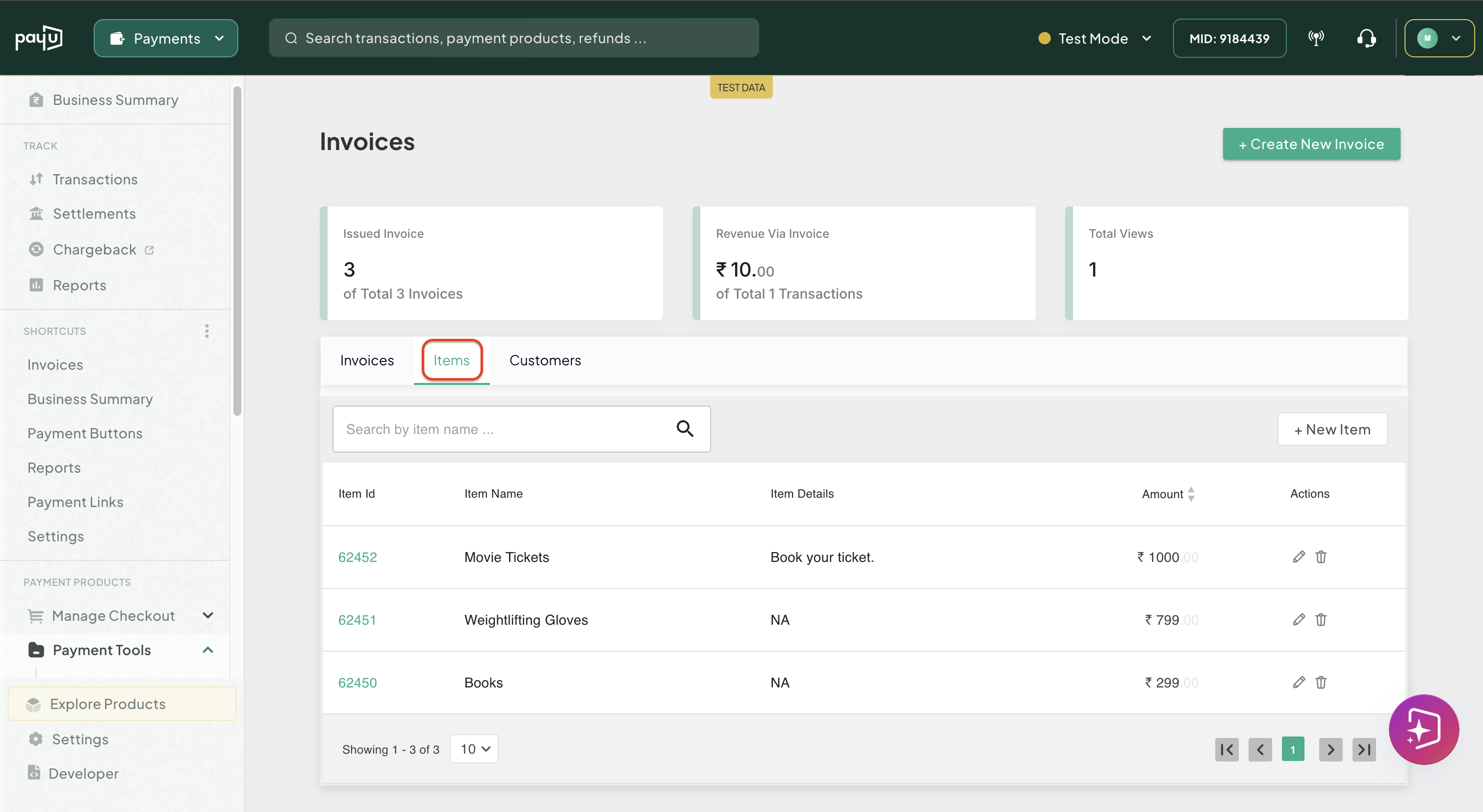
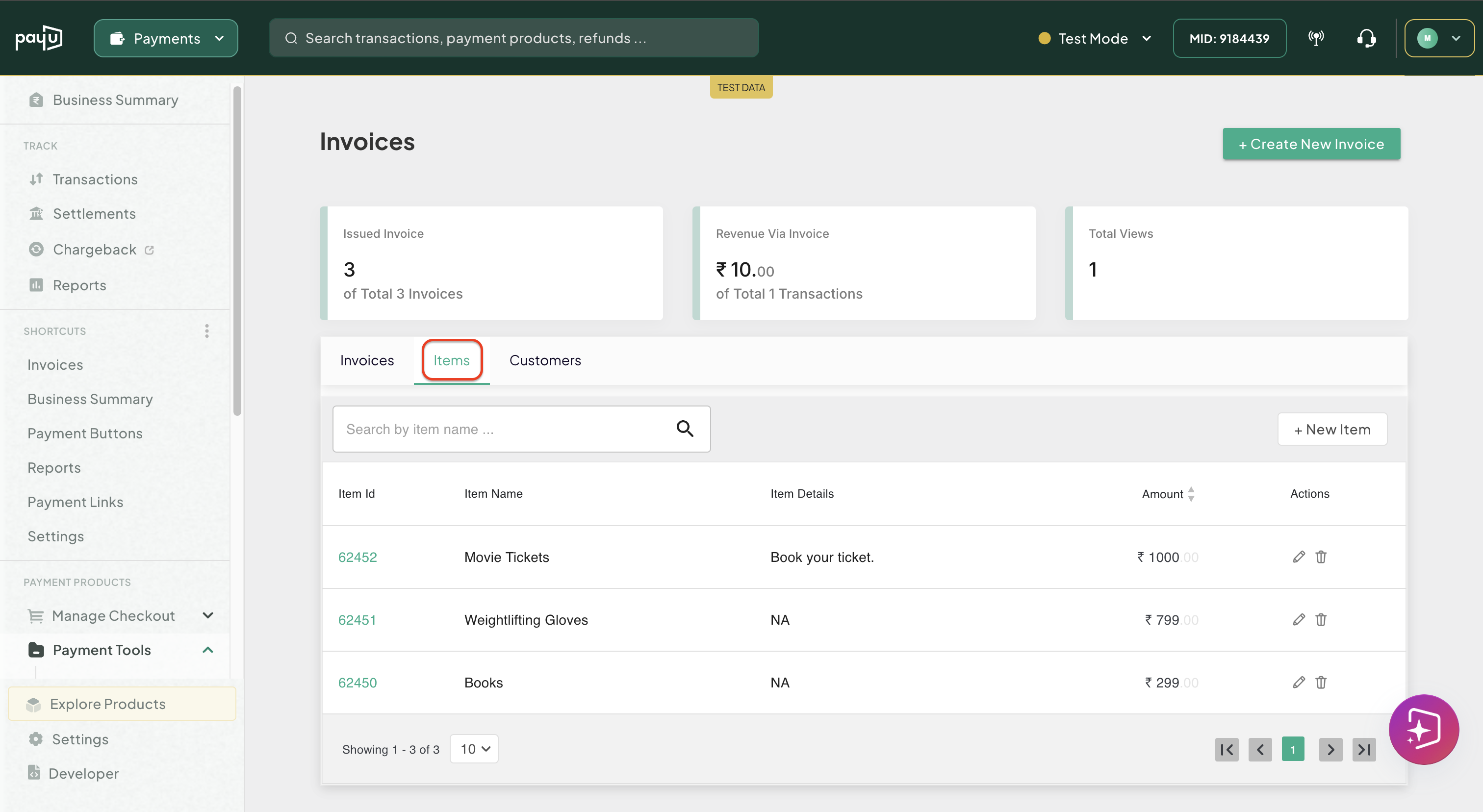
To open the item catalog: log in to the PayU Dashboard, click Invoices under Payment Tools, then click the Items tab.
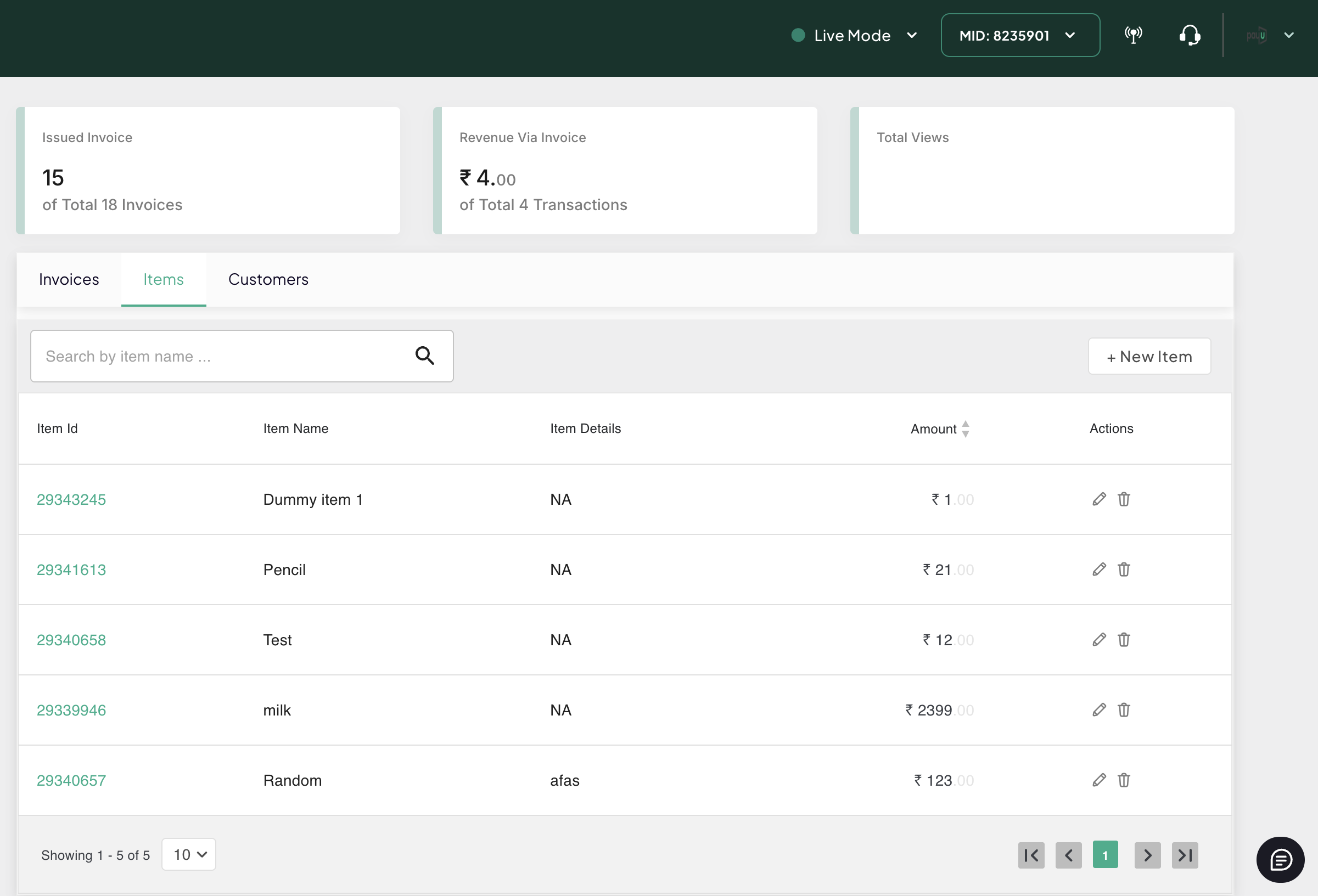
Access invoice items
The list shows all your items with their Item ID, Item Name, Description, Rate, and an Actions menu for editing or deleting each item. Use the Search field at the top to find a specific item by name.
What Can I Do With Items?
You can perform the following actions:
- Create a new item
- Edit an item
- Delete an item
Create a New Item
Steps to Create a New Item
To add a product or service to your catalog:
-
Log in to the PayU Dashboard and go to Payment Tools → Invoices → Items.
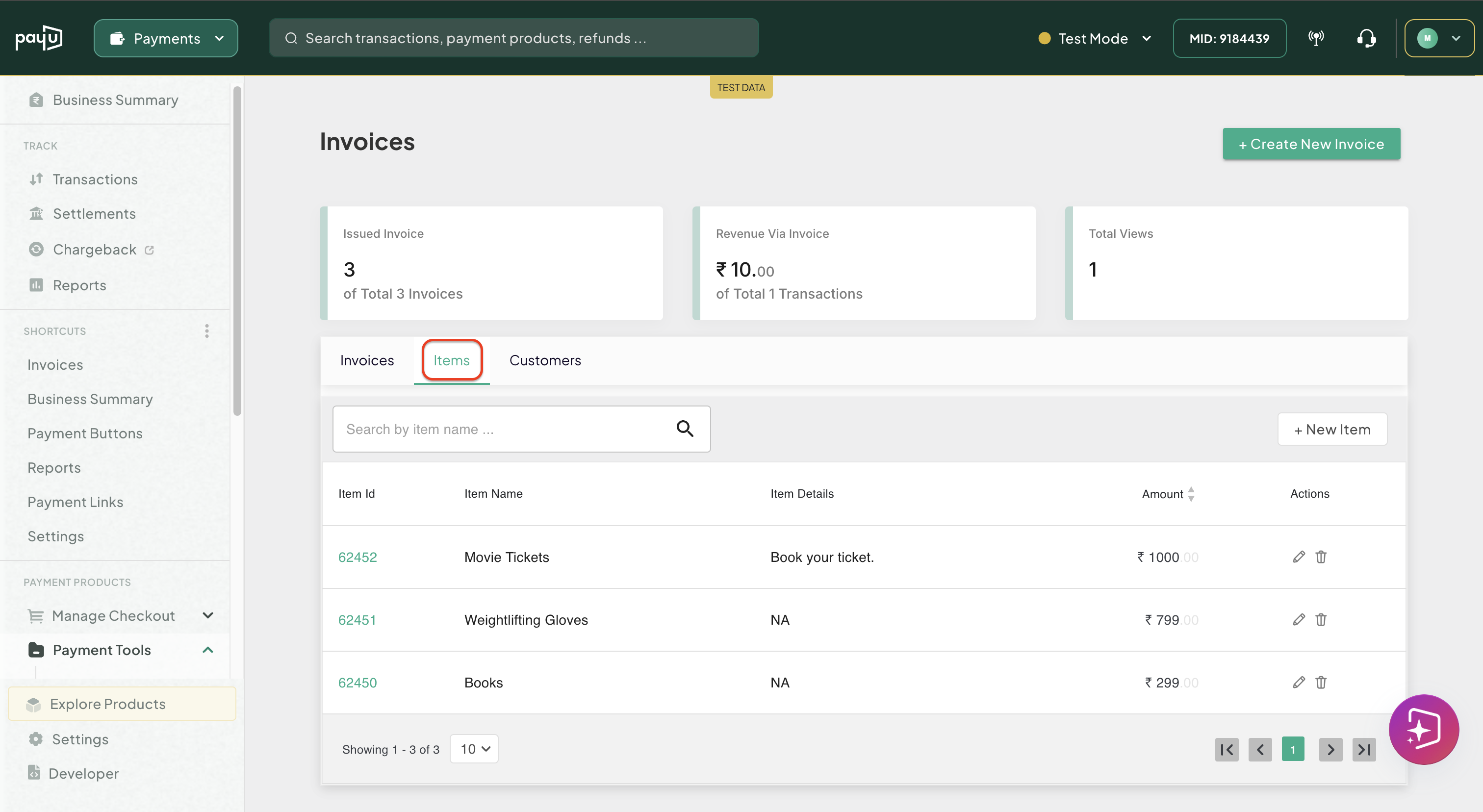
Access invoice items
-
Click New Item at the top-right corner.
The Add Item panel opens.
- Fill in the basic details:
| Field | What to enter |
|---|---|
| Item Name | The name of the product or service. For example, "Website Design" or "Monthly Retainer" |
| Rate | The price per unit in rupees |
| Item Description (optional ) | A short description of what the item is (optional but useful for the customer) |
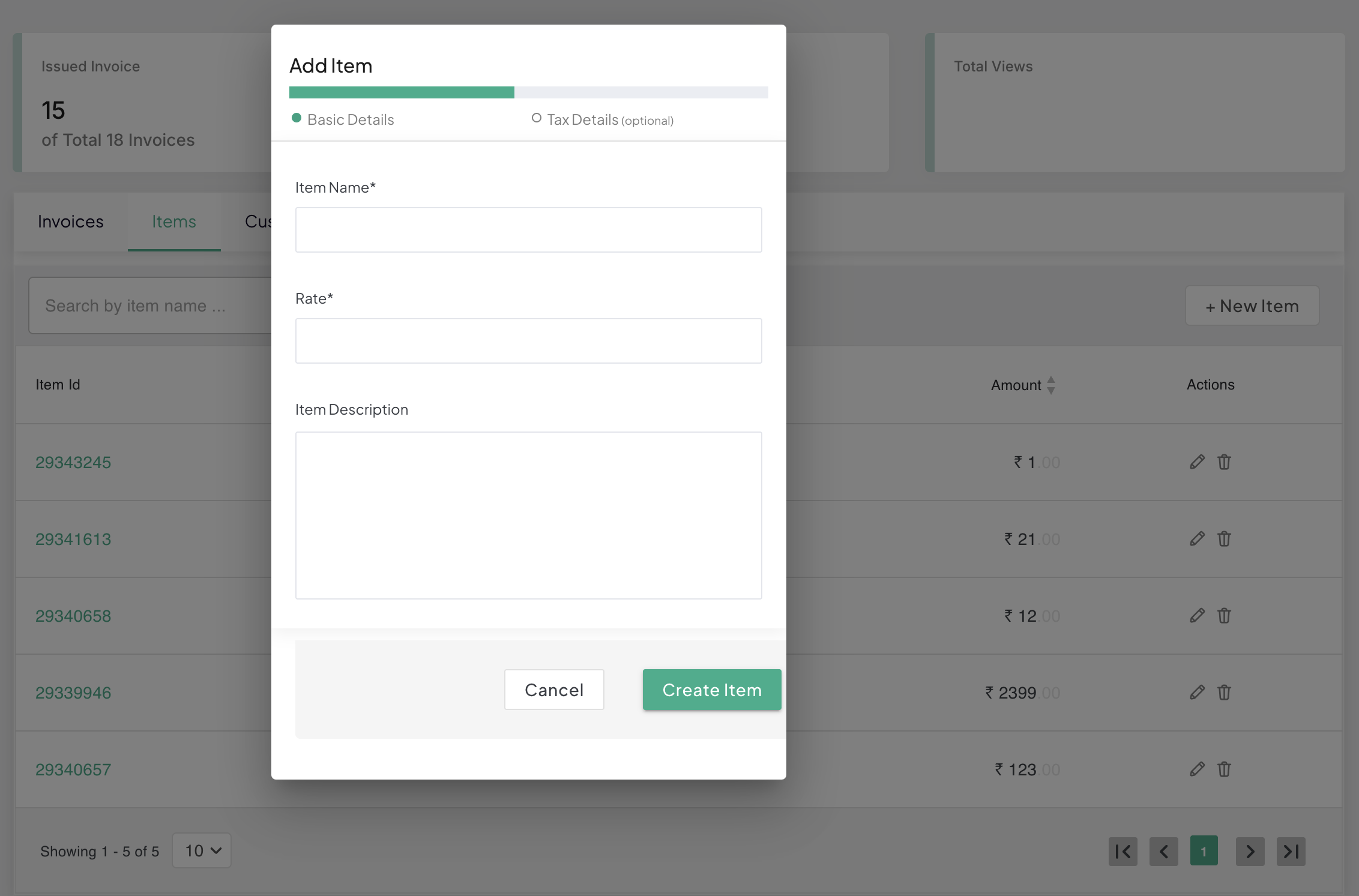
Item basic details
-
Click Create Item.
-
Fill in the Tax Details section:
| Field | What to enter |
|---|---|
| Inter-State Tax (IGST) | GST rate applicable when billing a customer in a different state |
| Intra-State Tax (CGST + SGST) | GST rate applicable when billing a customer in the same state |
| Cess | Additional cess percentage if applicable |
| HSN / SAC Code | The Harmonised System of Nomenclature (goods) or Service Accounting Code (services) for this item |
| Tax Inclusive / Exclusive | Whether the rate you entered already includes tax (inclusive) or whether tax will be added on top (exclusive) |
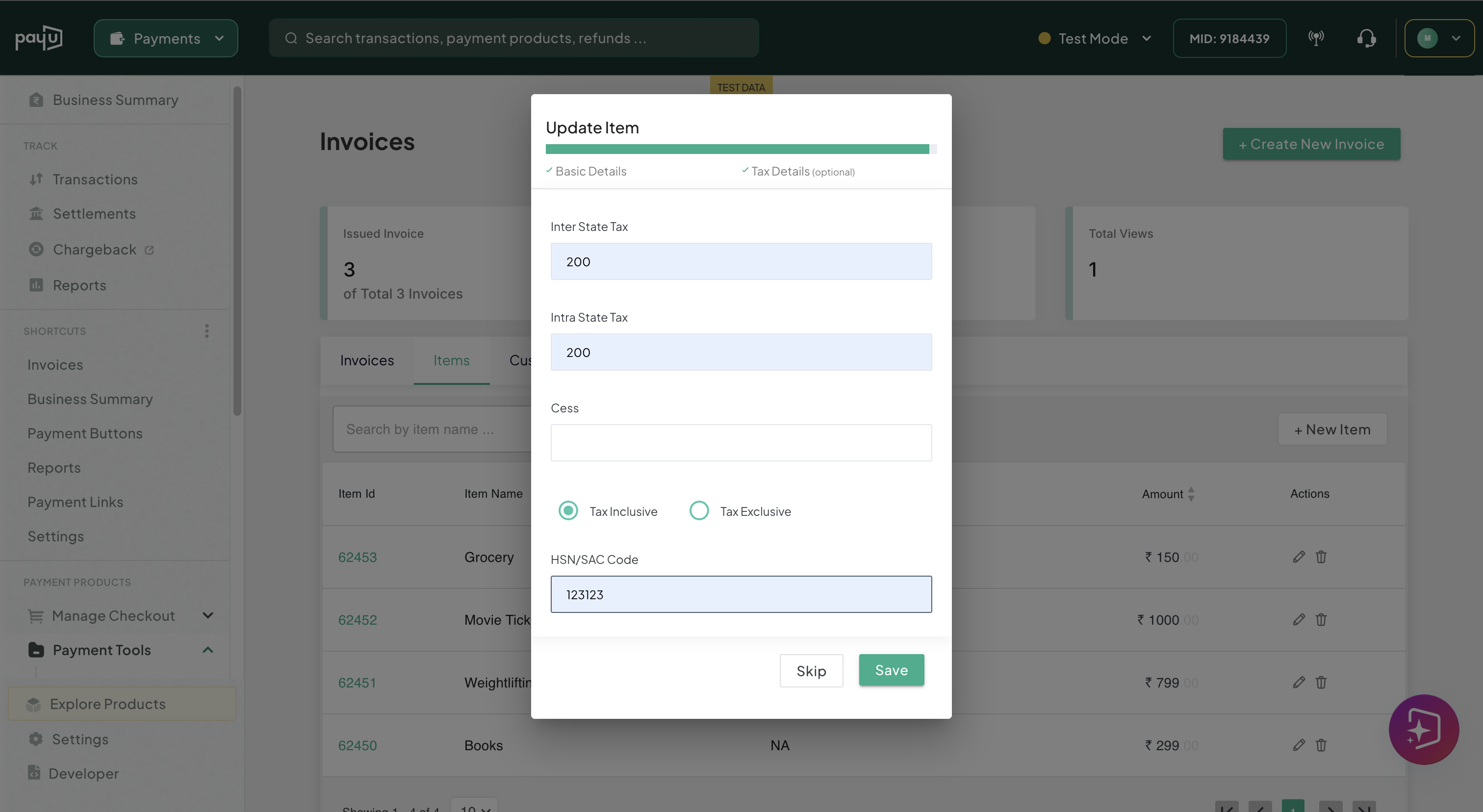
Item tax details
-
Click Save to save the tax details.
Tips:You can choose to skip this step and add these details later.
The item is now available in the Enter Item Name drop-down when creating any invoice.
Edit an Item
Steps to Edit an Item
To update an item's details:
-
Log in to the PayU Dashboard and go to Payment Tools → Invoices → Items.
Access invoice items
-
Find the item you want to update and click the edit icon in the Actions column.
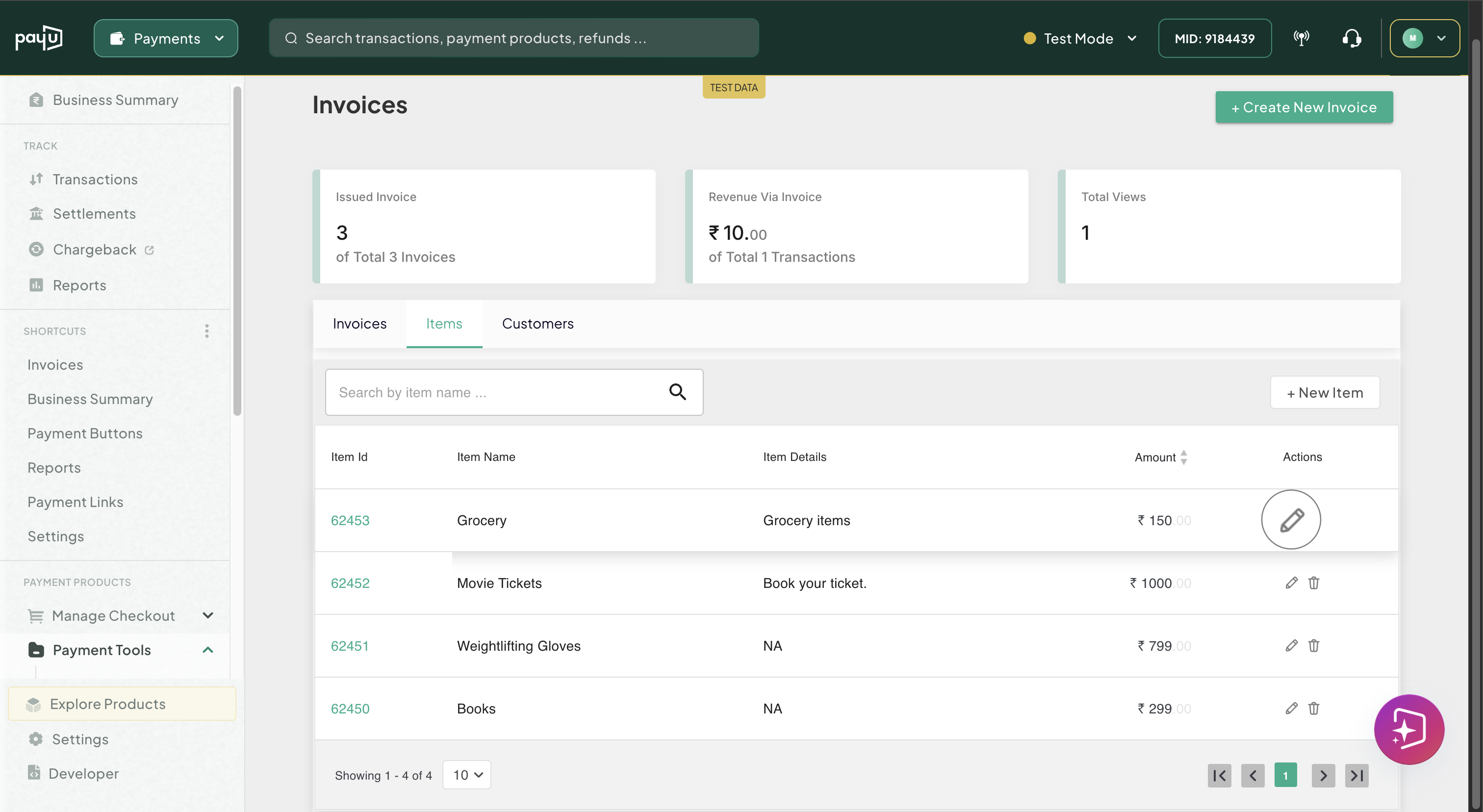
Edit an item
The Update Item panel opens.
- Update the Item Name, Rate, or Item Description as needed.
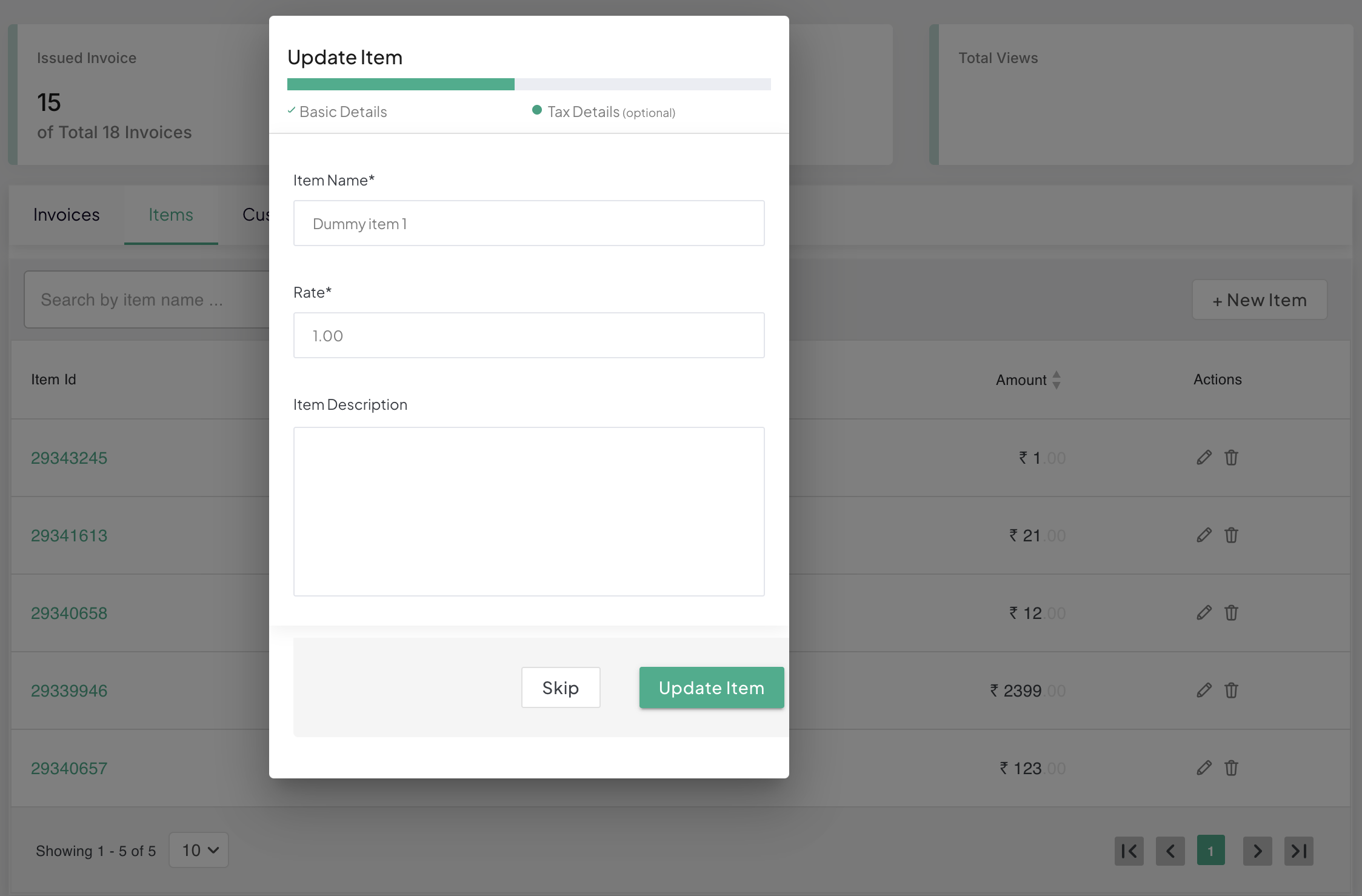
- Click Update Item to go to the Tax Details section and update the tax settings if required.
- Click Save to save the changes.
Tips:Editing an item updates the catalog for future invoices. It does not change any invoices that have already been created or sent.
Delete an Item
To remove an item from your catalog:
-
Log in to the PayU Dashboard and go to Payment Tools → Invoices → Items.
Access invouce items
-
Find the item you want to delete and click the delete icon in the Actions column.
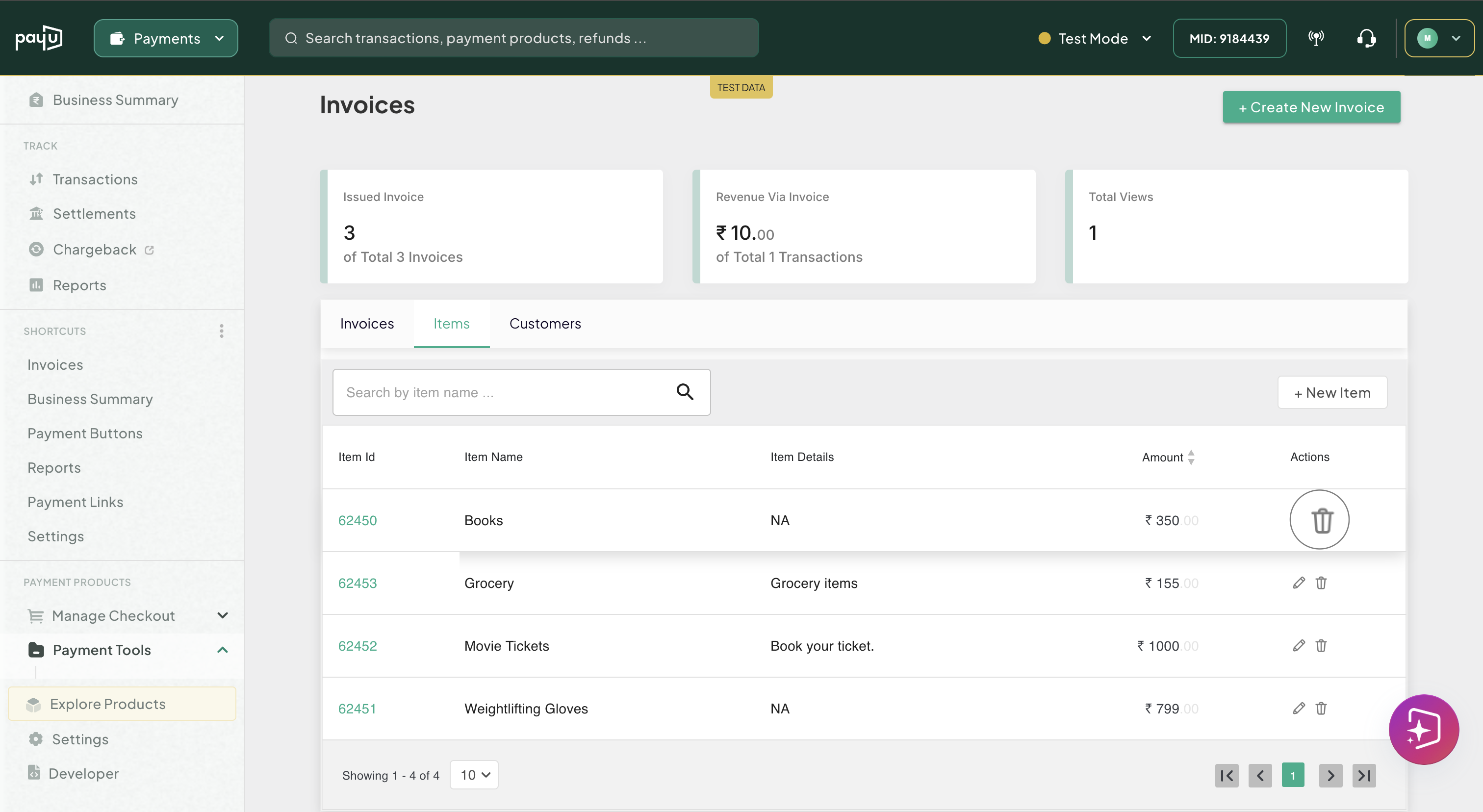
Delete an item
-
Click Yes, Delete in the pop-up menu.
The item is removed from the catalog and will no longer appear in the Enter Item Name drop-down when creating invoices.
Important!Deleting an item is permanent. It does not affect invoices that have already been created or sent.
Next Steps
Updated about 2 months ago
