
Manage Invoices
View, filter, resend, cancel, and download your PayU Invoices from the Dashboard.
You can view and manage all your invoices from the PayU Dashboard after they are created and sent.
How Do I Access My Invoices?
To open your invoices: log in to the PayU Dashboard and click Invoices under Payment Tools.
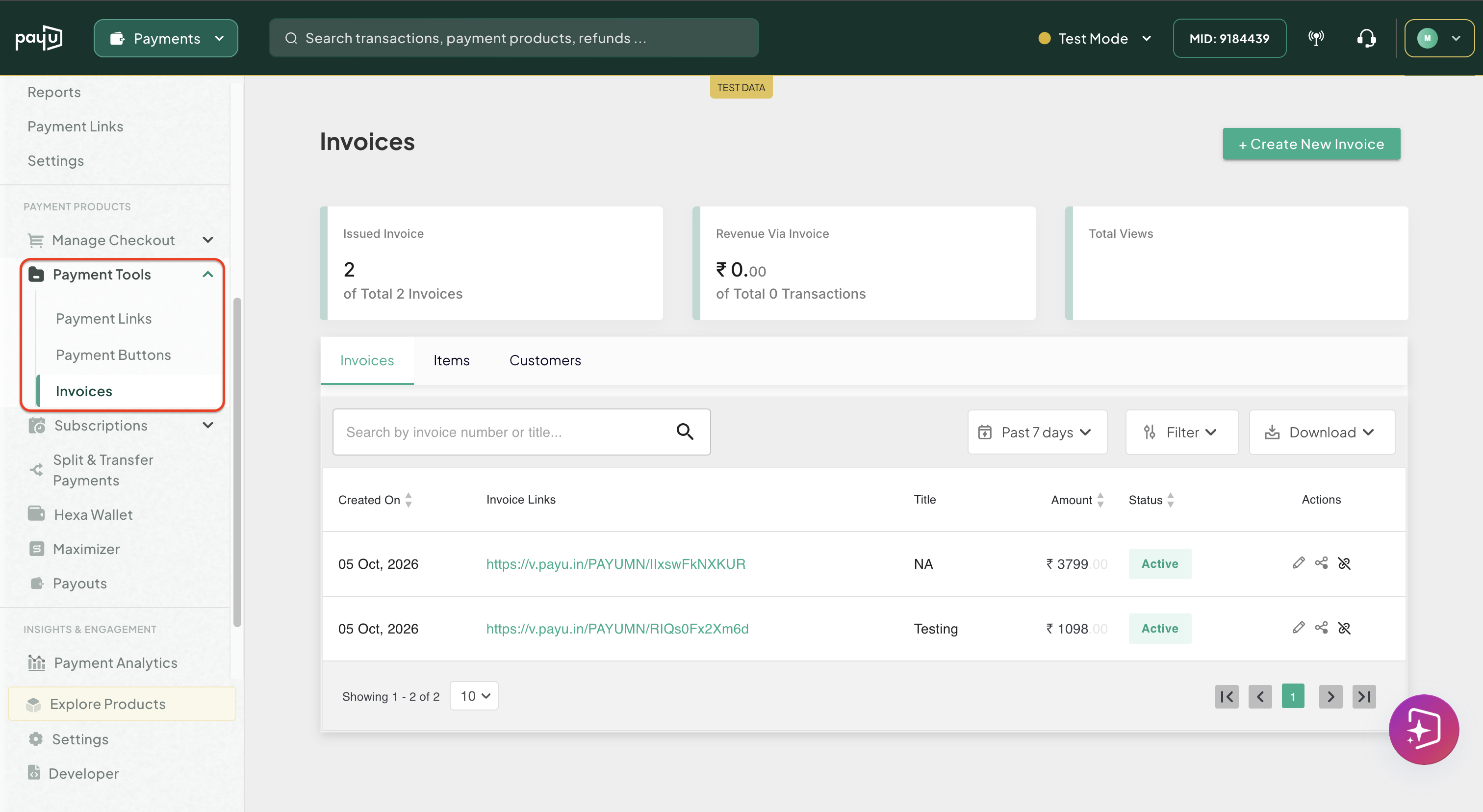
Access Invoices
The list shows all your invoices for the past 7 days by default, with the following columns:
| Column | What it shows |
|---|---|
| Created On | The date on which the invoice was created |
| Invoice Links | The invoice link that is shared with customers |
| Title | The invoice title you entered when creating it |
| Amount | The total amount on the invoice |
| Status | Current state — Draft, Sent, Paid, Overdue, or Cancelled |
| Actions | Buttons to perform various actions on an invoice |
Important!Note that you cannot edit invoices after you send them. If an invoice has wrong details, deactivate it and create a new one with the correct information.
What Can I Do With an Invoice?
You can perform the following actions after an invoice is created:
- View invoice Details
- Edit an invoice
- Resend an invoice
- Duplicate an invoive
- Deactivate an invoice
- Reactivate an invoice
View Invoice Details
Steps to View Invoice Details
To view the full details of an invoice:
-
Log in to the PayU Dashboard and click Invoices under Payment Tools.
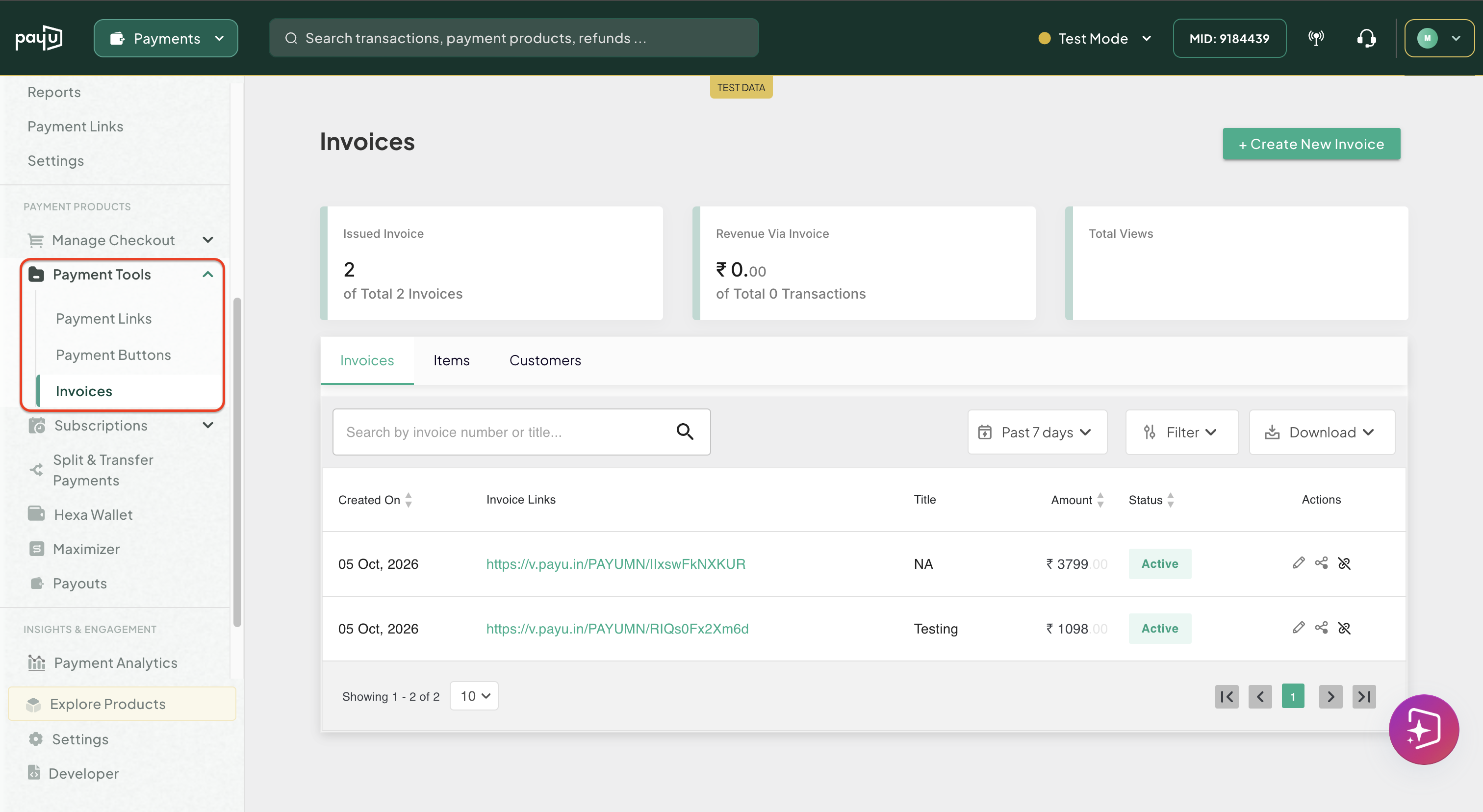
Access Invoices
- Click the invoice you want to view.
The invoice detail page displays:
-
Invoice number, title, issue date, and due date
-
Customer name and contact details
-
Itemized breakdown with quantities, rates, and GST
-
Total amount, GST breakdown, and amount paid (if partial payments were made)
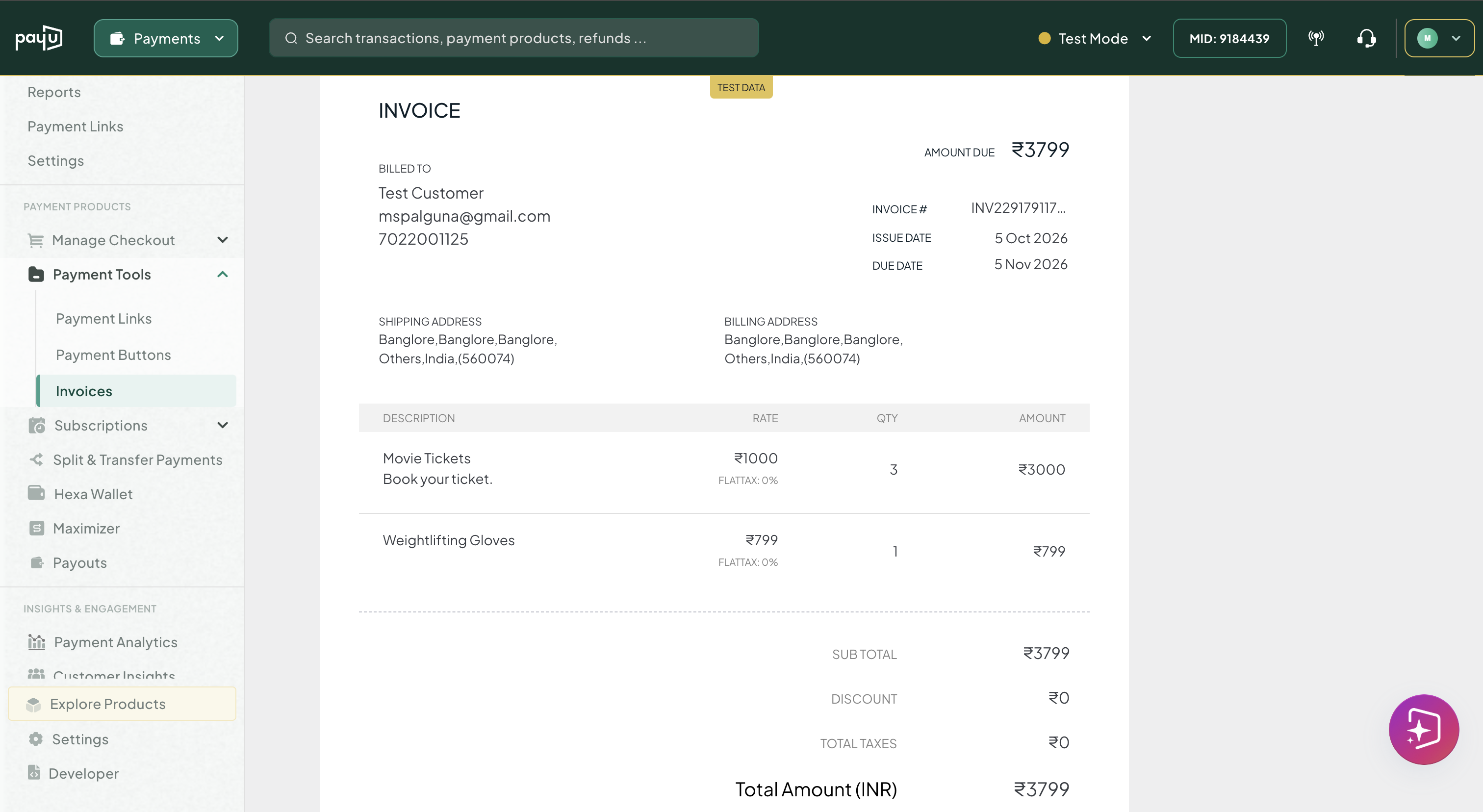
Invoice details
-
Transaction details
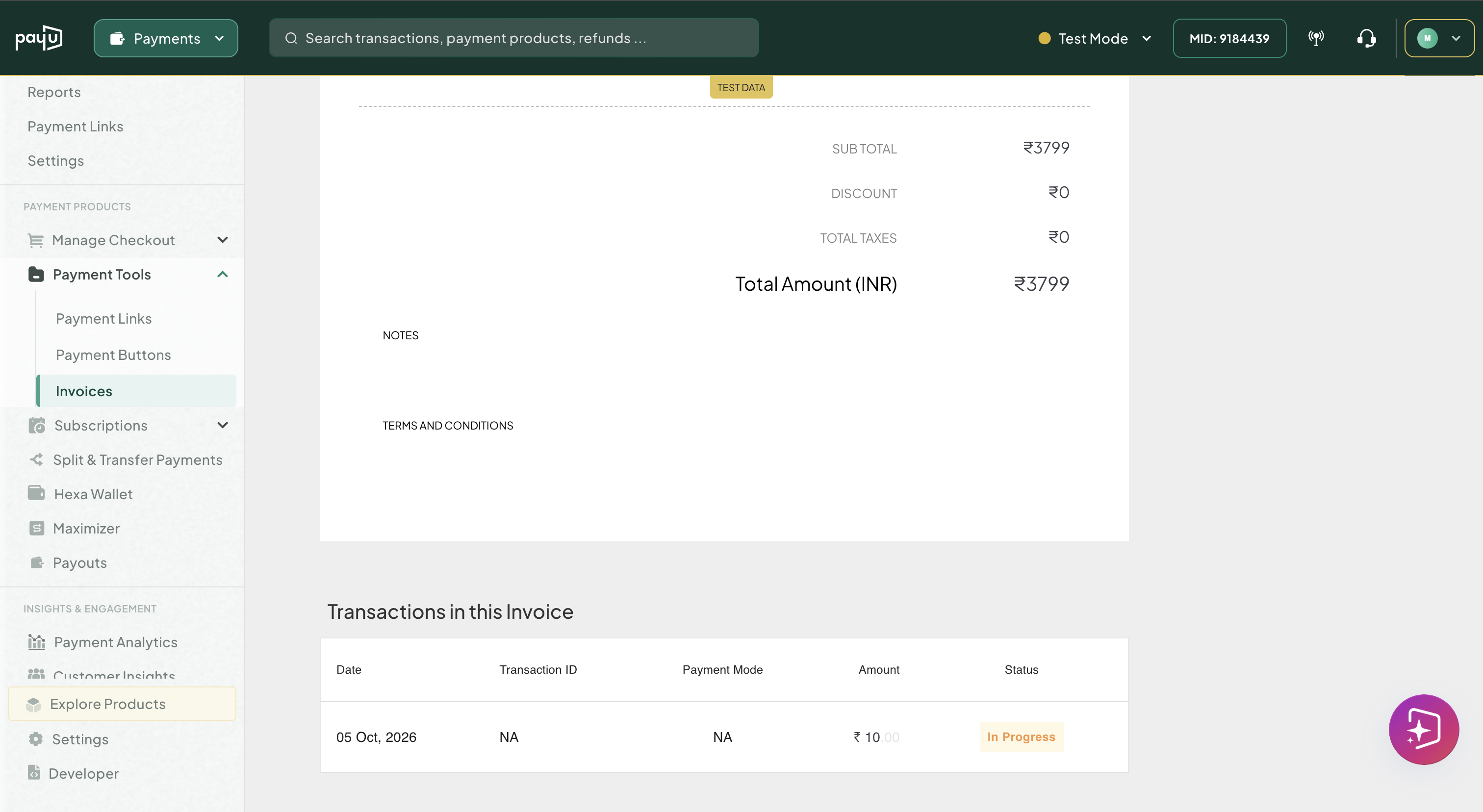
Transaction details
Edit an Invoice
Steps to Edit an Invoice
-
-
Log in to the PayU Dashboard and click Invoices under Payment Tools.
Access Invoices
-
-
Click the edit icon against the required invoice you want to resend.
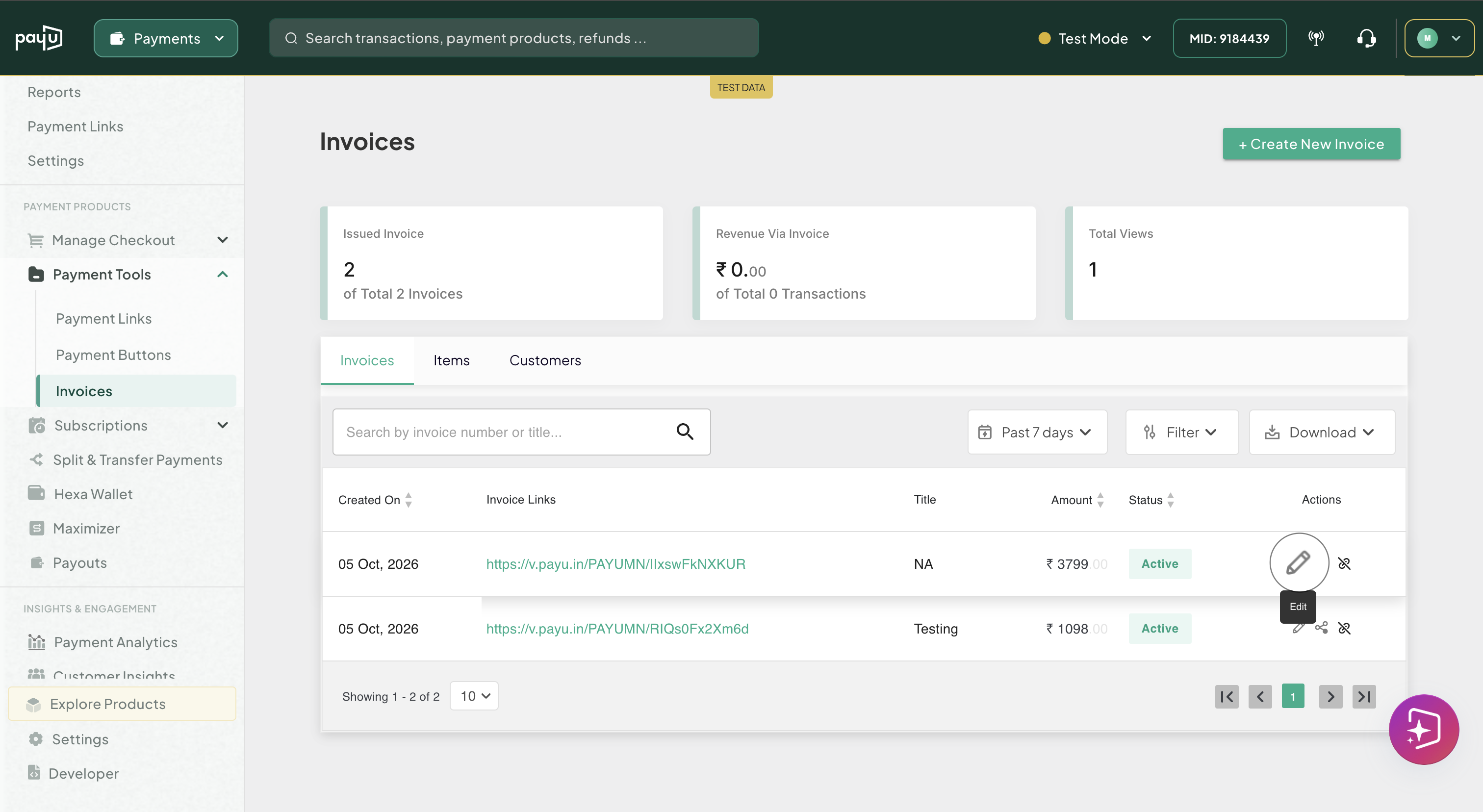
Edit an invoice
-
You can only add or update these information of an invoice:
-
Due Date: Change the due date if required
-
Add Notes and TERMS AND CONDITIONS displayed at the bottom of the page. You should click Save displayed next to the respoective sections headings to save the changes.
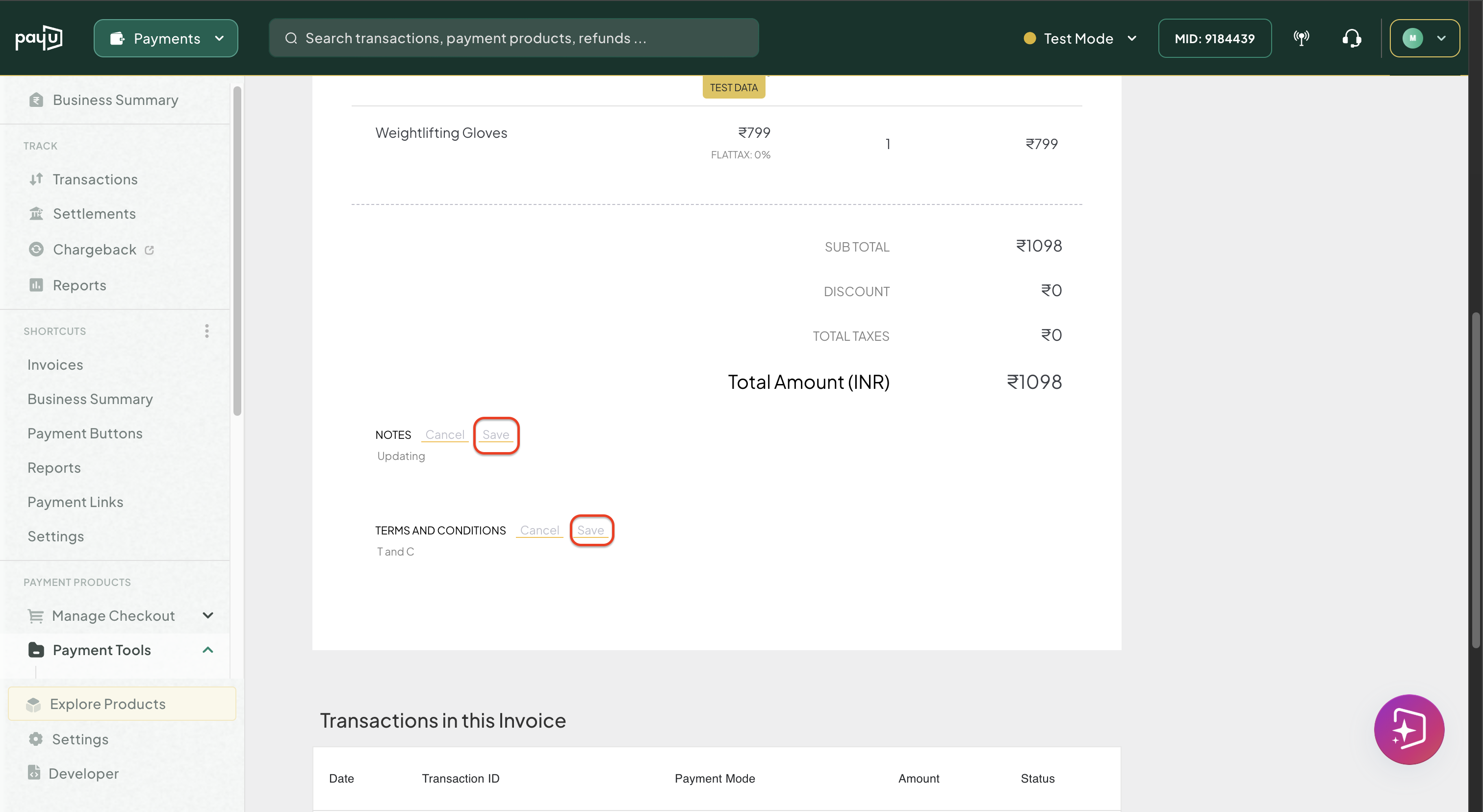
Add Notes and Terms and Conditions
-
Resend an Invoice
Steps to Resend an Invoice
To resend an invoice:
-
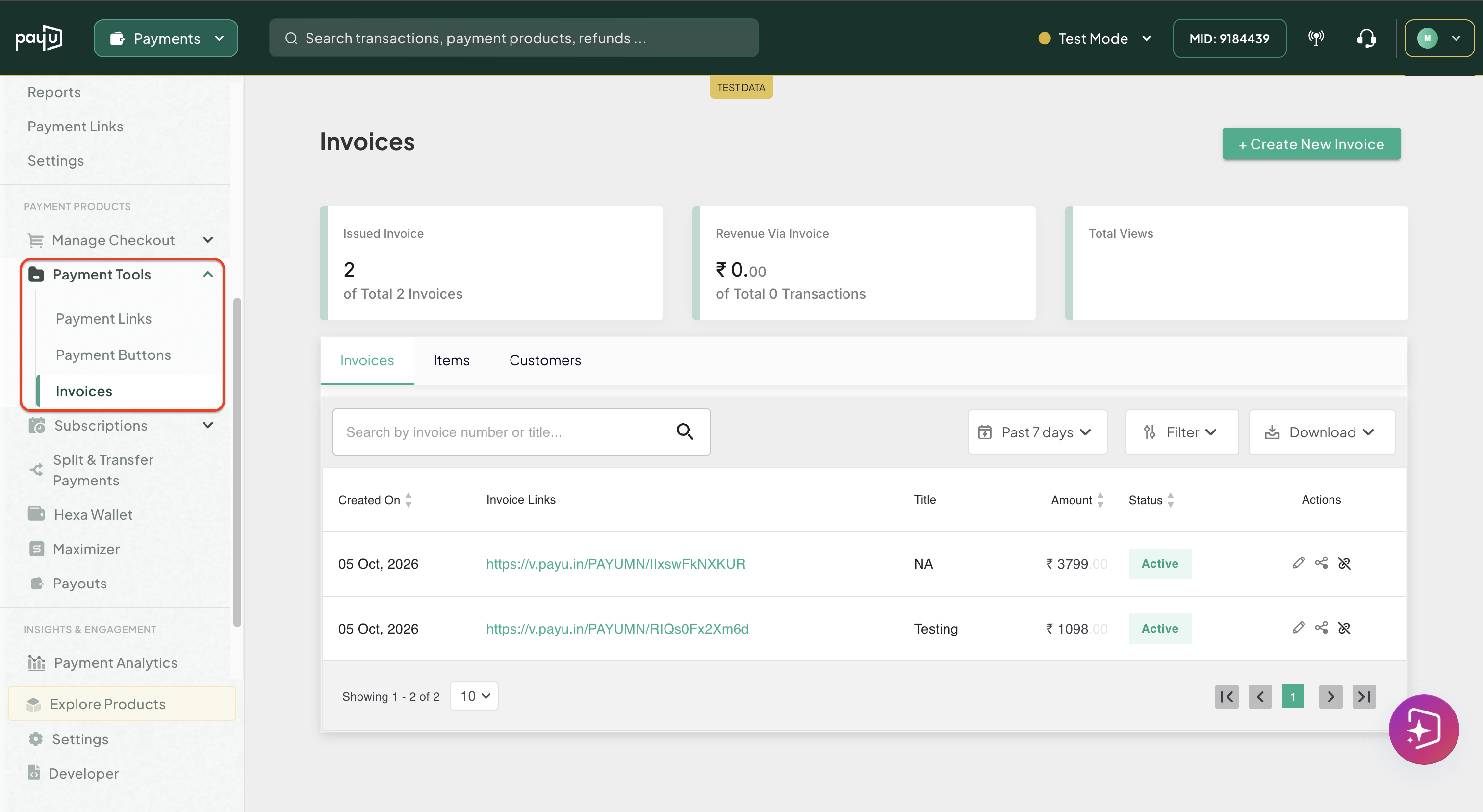
Log in to the PayU Dashboard and click Invoices under Payment Tools.
-
Click the share icon against the required invoice you want to resend.
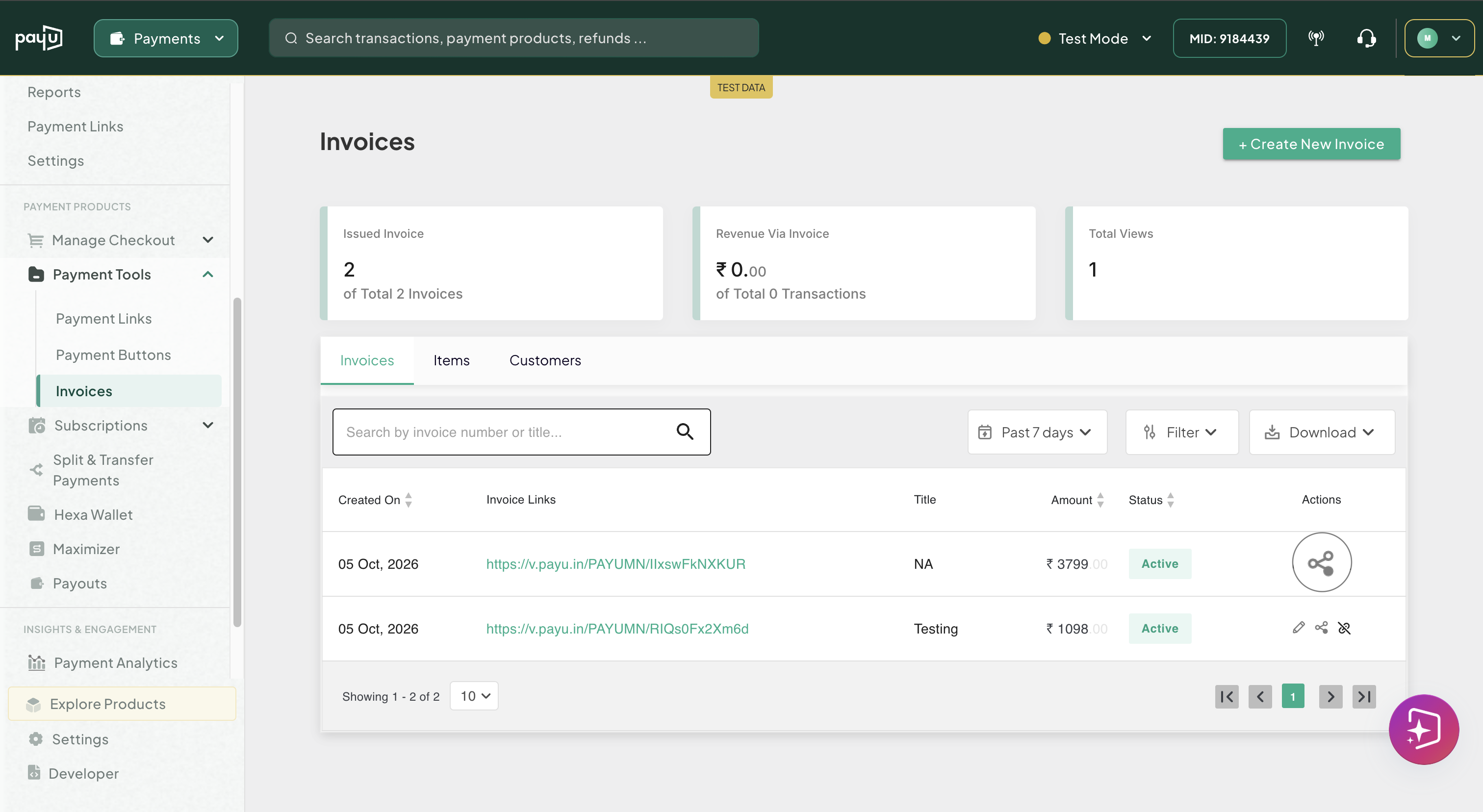
Share an invoice
-
Share the invoice using any of the following options:
- Copy the link and share it manually
- Share the link via WhatsApp or Facebook
- Phone or email by entering either of the details and clicking Send Invoice
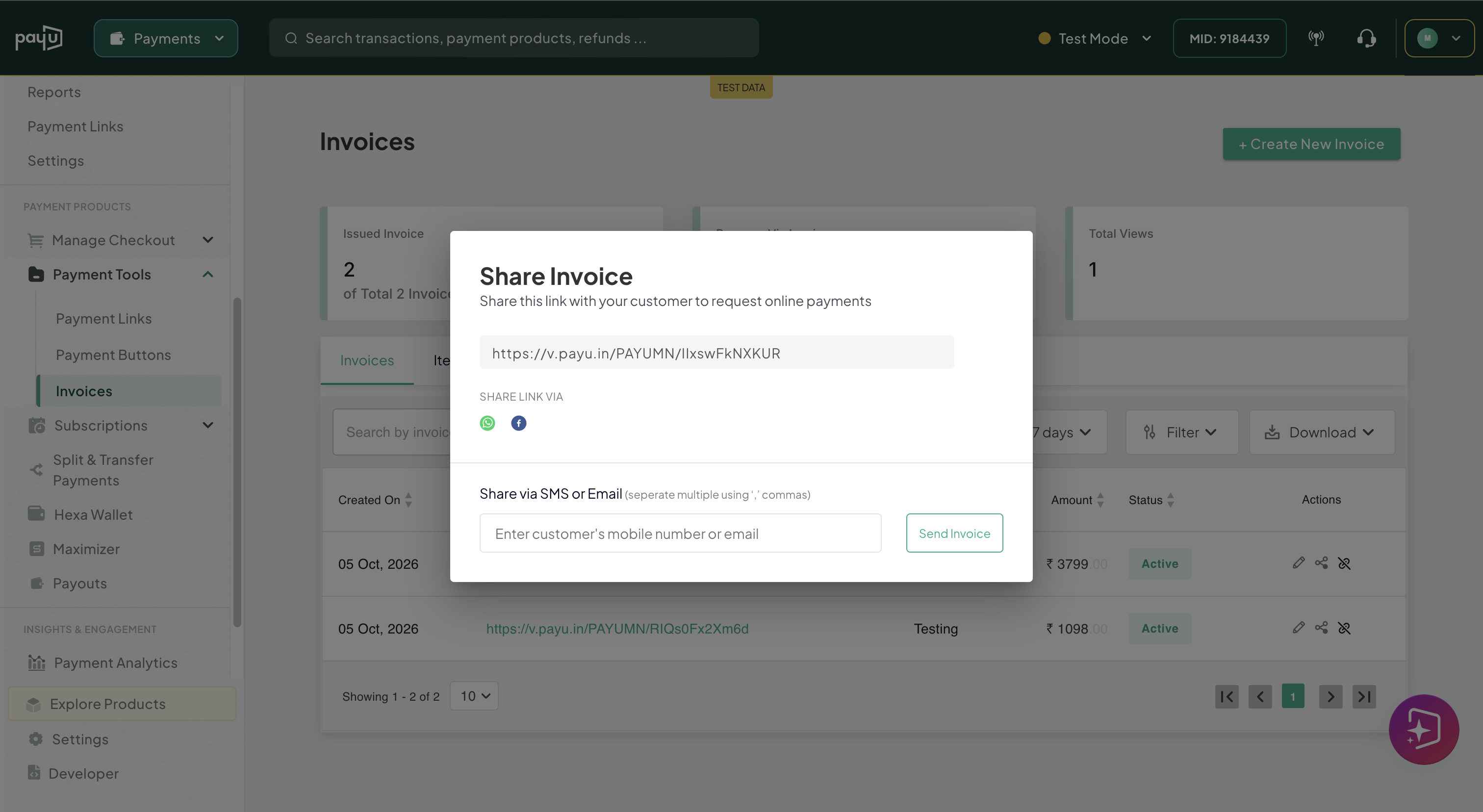
3 ways to resend an invoice
Important!You can only resend invoices that are in Sent or Overdue status. Paid and Cancelled invoices cannot be resent.
Duplicate an Invoice
Steps to Duplicate an Invoice
- Log in to the PayU Dashboard and click Invoices under Payment Tools.
Access Invoices
-
Click the invoice you want to duplicate.
-
Click Duplicate Invoice displayed on the top-right of the page.
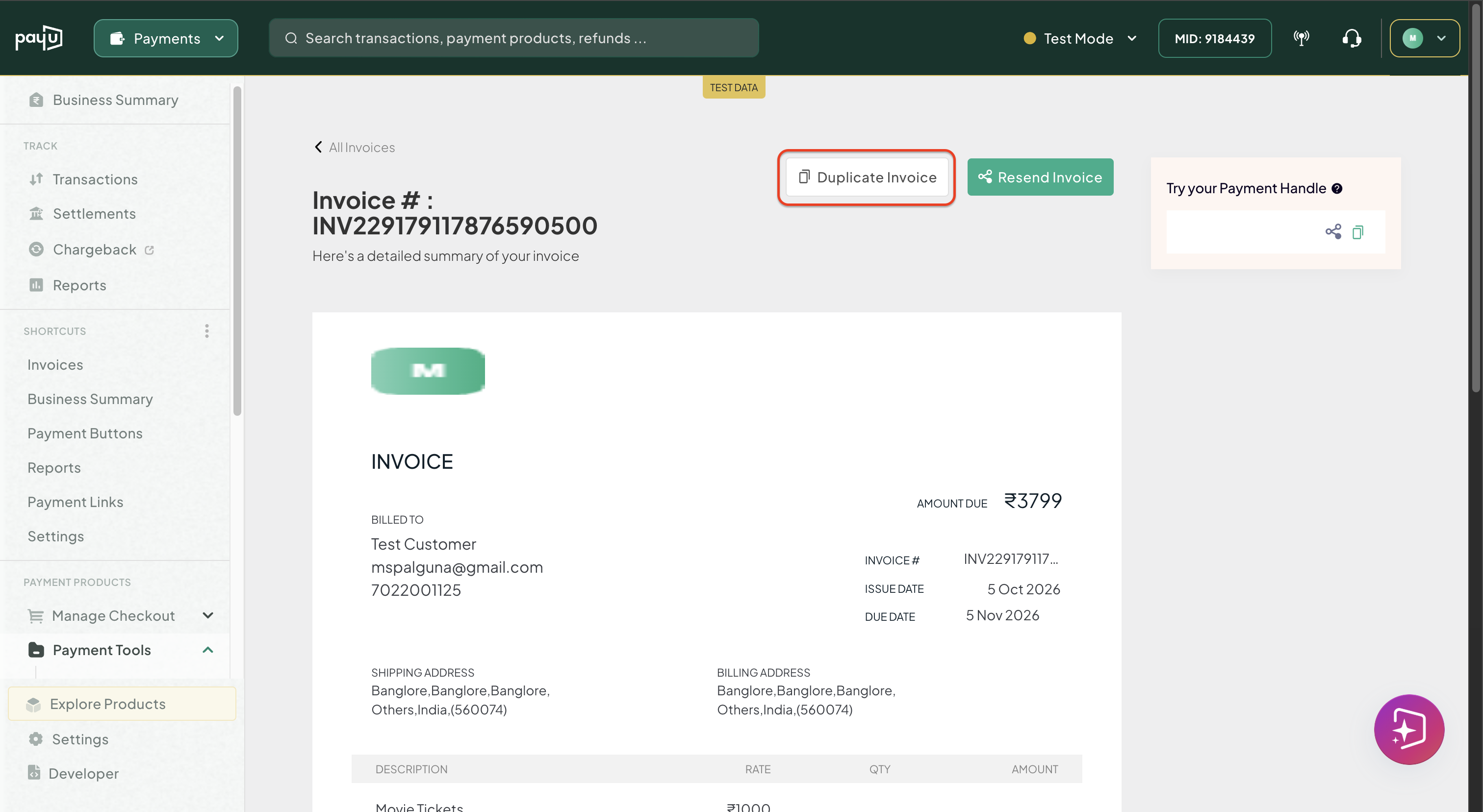
Duplicate an invoice
-
Enter the details and change the settings as required.
-
Click either of the following:
- Save to save the invoice
- Send Invoice to send the invoice using the available options
Deactivate an Invoice
Steps to Deactivate an Invoice
Deactivating an invoice marks it as void. The customer can no longer pay it.
To deactivater an invoice:
-
Log in to the PayU Dashboard and click Invoices under Payment Tools.
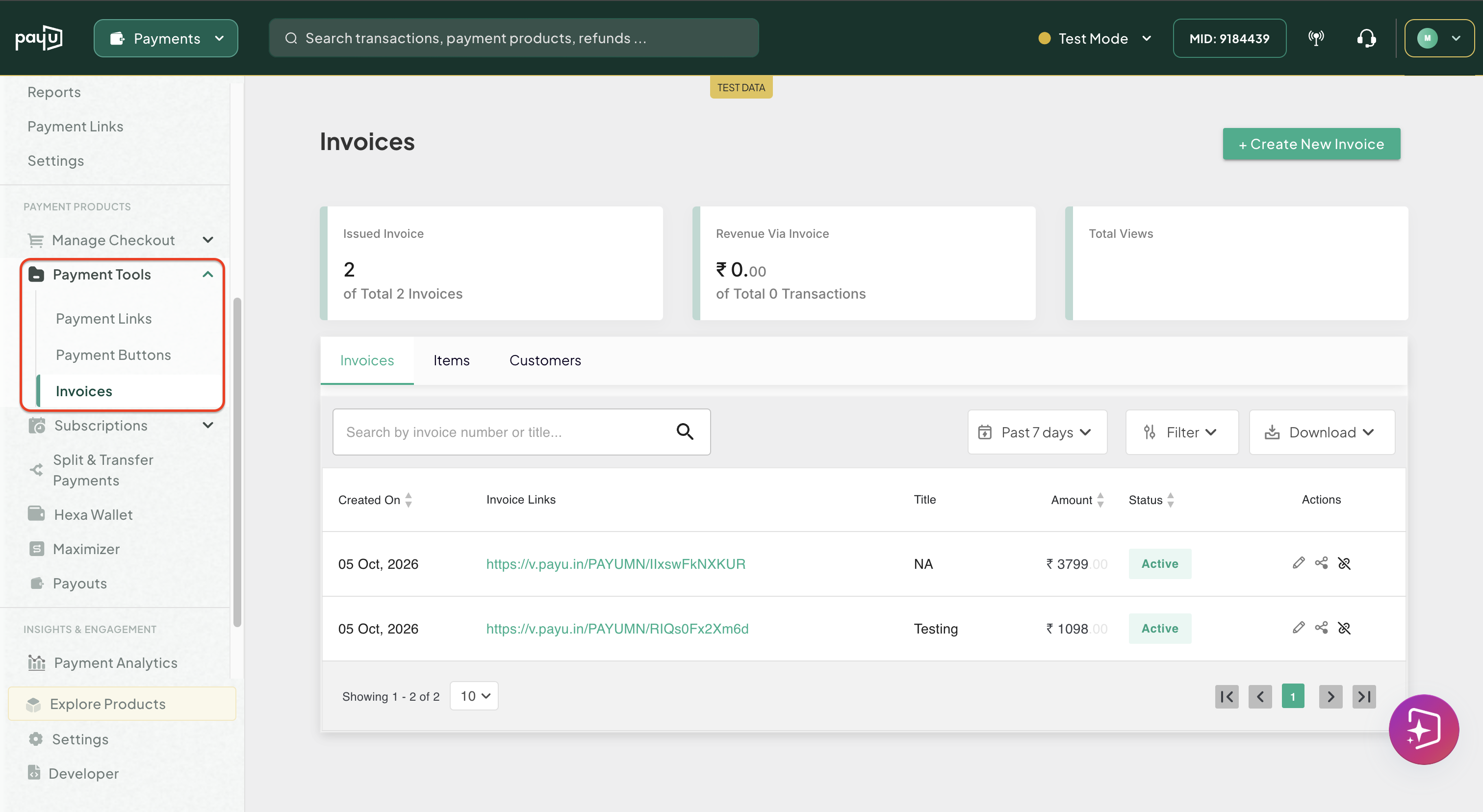
Access invoices
-
Click the deactivate icon against the required invoice.
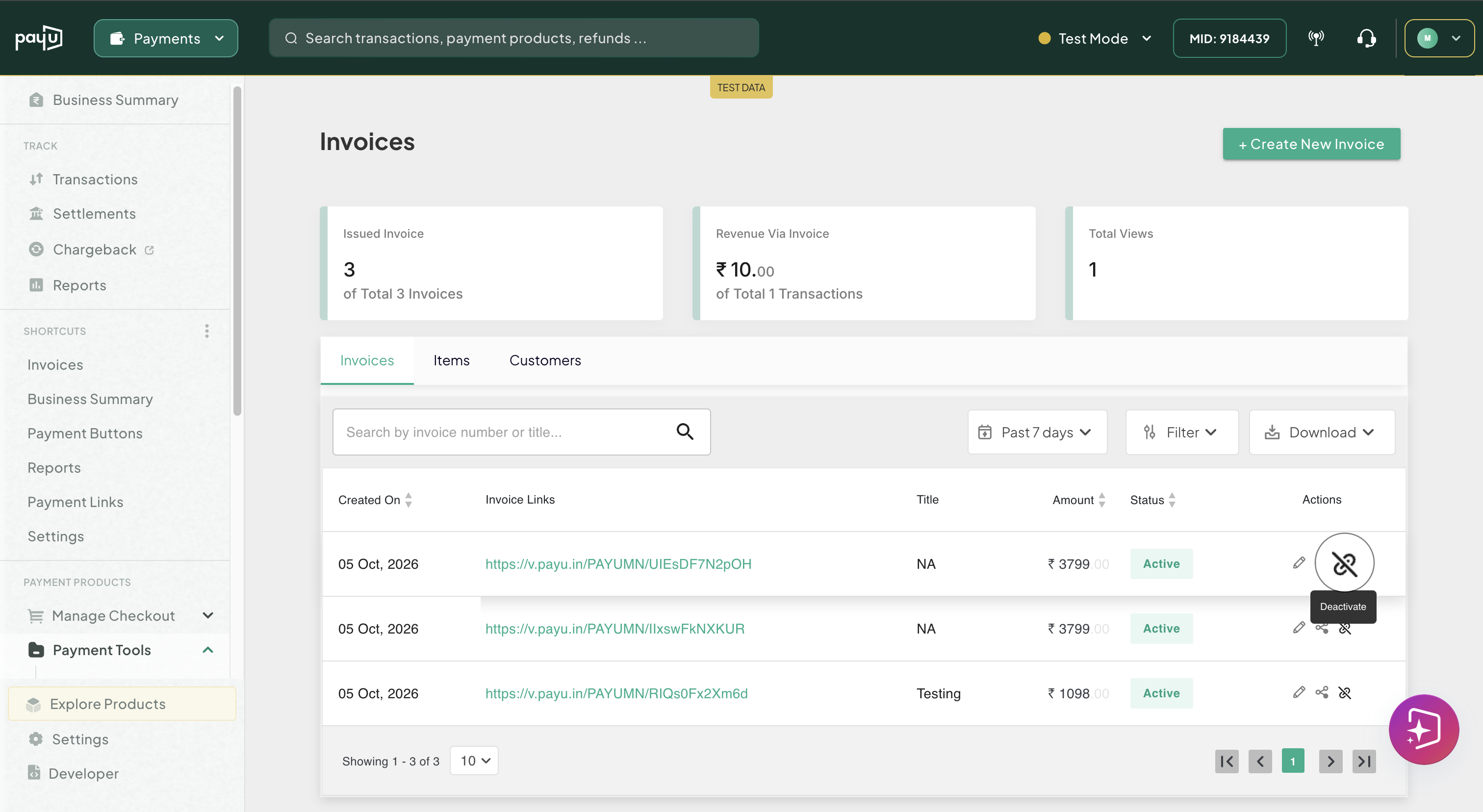
Deactivate an invoice
-
Click Yes, Deactivate on the Are you sure? confirmation pop-up menu.
The invoice status changes to Deactivated.
Reactivate an Invoice
Steps to Reactivate an Invoice
-
Log in to the PayU Dashboard and click Invoices under Payment Tools.
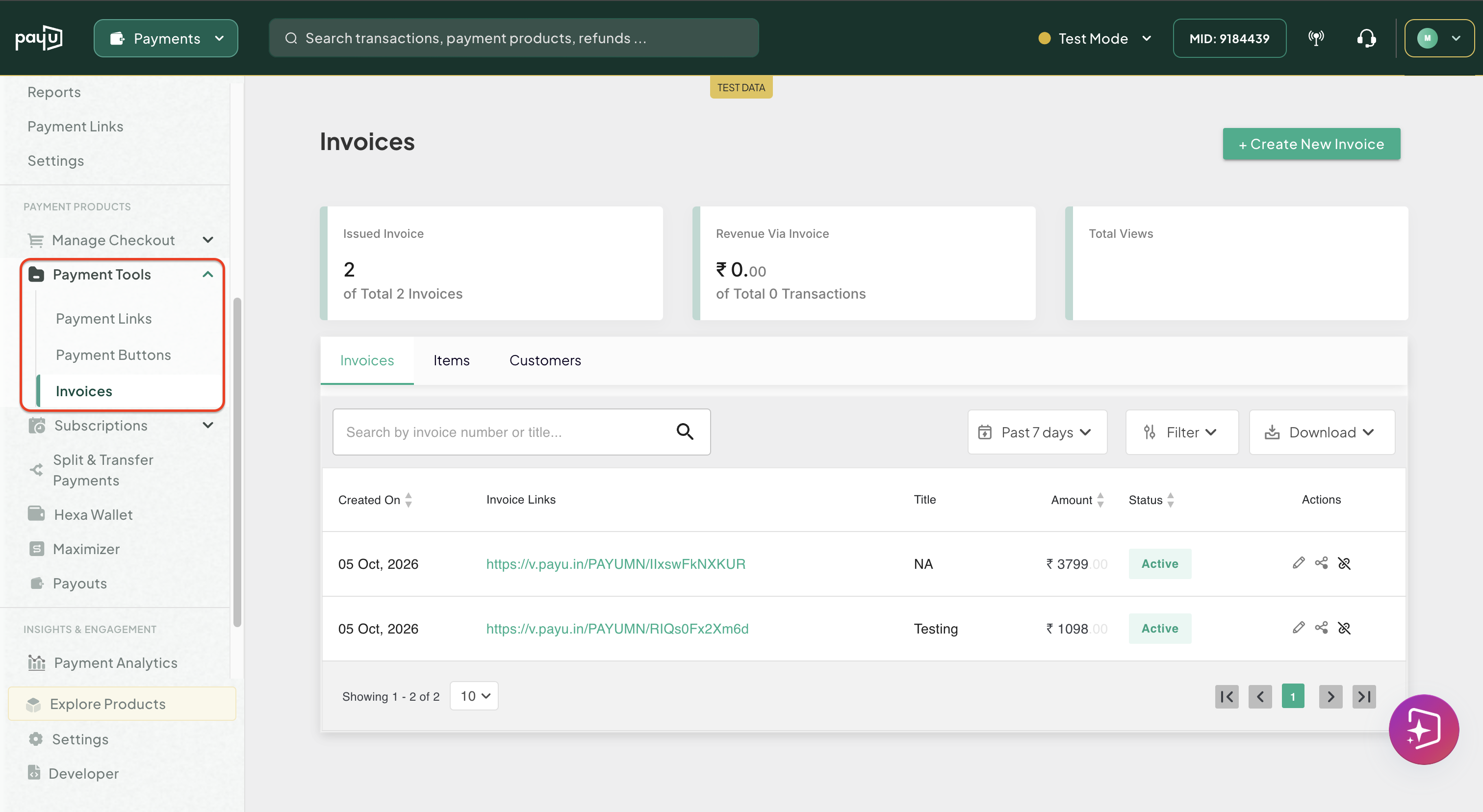
Access Invoices
-
Find the deactivated invoice you want to activate again and click the activate icon.
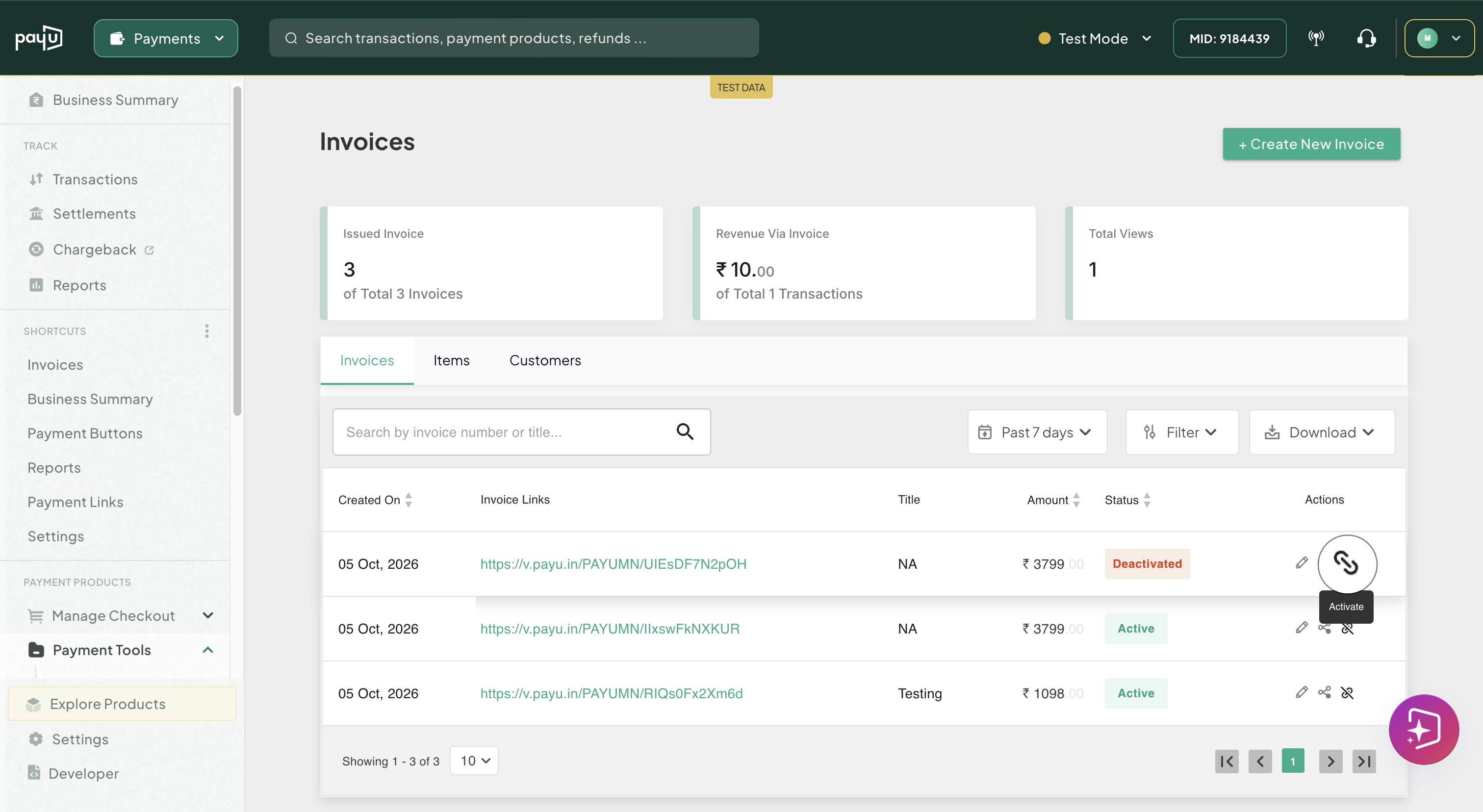
Reactivate an invoice
-
Click Yes, Activate on the Are you sure? confirmation pop-up menu.
The invoice status changes to Active.
How Do I Search for an Invoice?
You can search for an invoice with these options:
Search by Invoice Number or Title
Use the Search field at the top of the Invoices list to find a specific invoice by its number or title. Type any part of the invoice number or title and the list filters in real time.
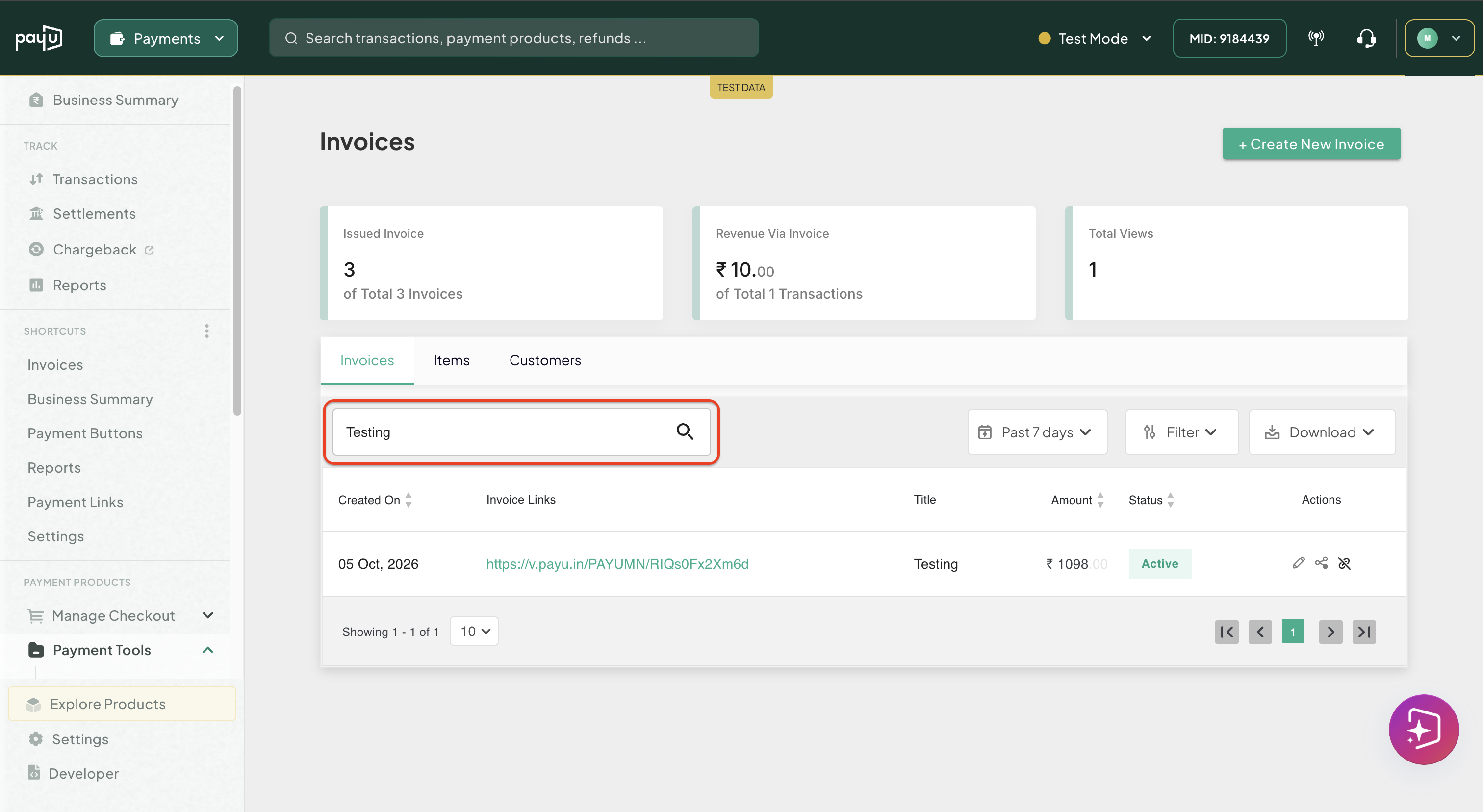
Seacrh by invoice number or title
Filter by Status
To filter invoices by their payment status:
-
Log in to the PayU Dashboard and click Invoices under Payment Tools.
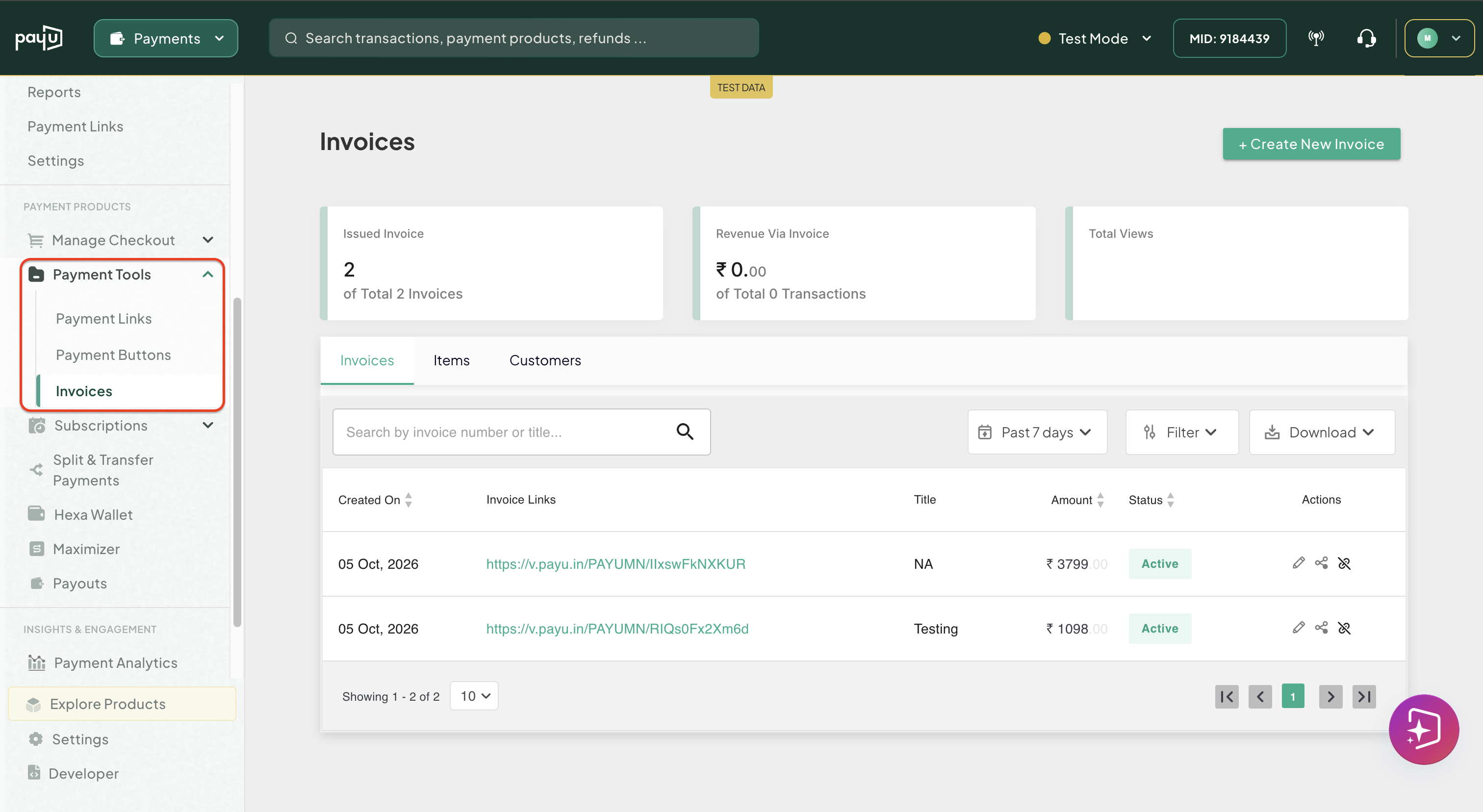
Access invoices
- Click the Filter drop-down and select one or more statuses:
| Status | What it means |
|---|---|
| Draft | Saved but not sent to the customer yet |
| Actice | Sent to the customer and active |
| Deactivated | Manually deactivated. This invoice is no longer payable |
| Expired | The invoice is expired |
-
Click Apply to filter the list.
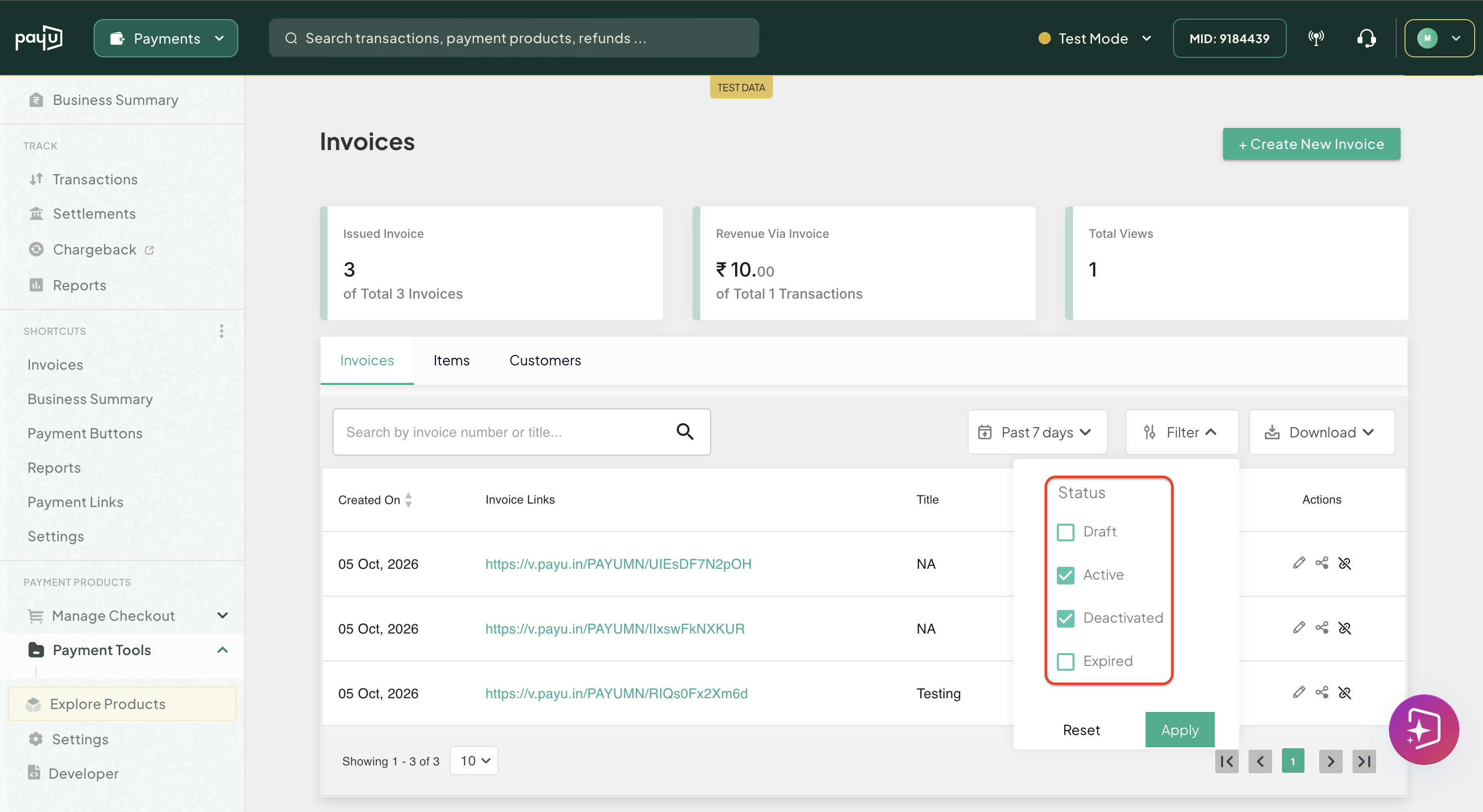
Filter the list of invoices
Filter by Date
To filter invoices by when they were created:
-
Log in to the PayU Dashboard and click Invoices under Payment Tools.
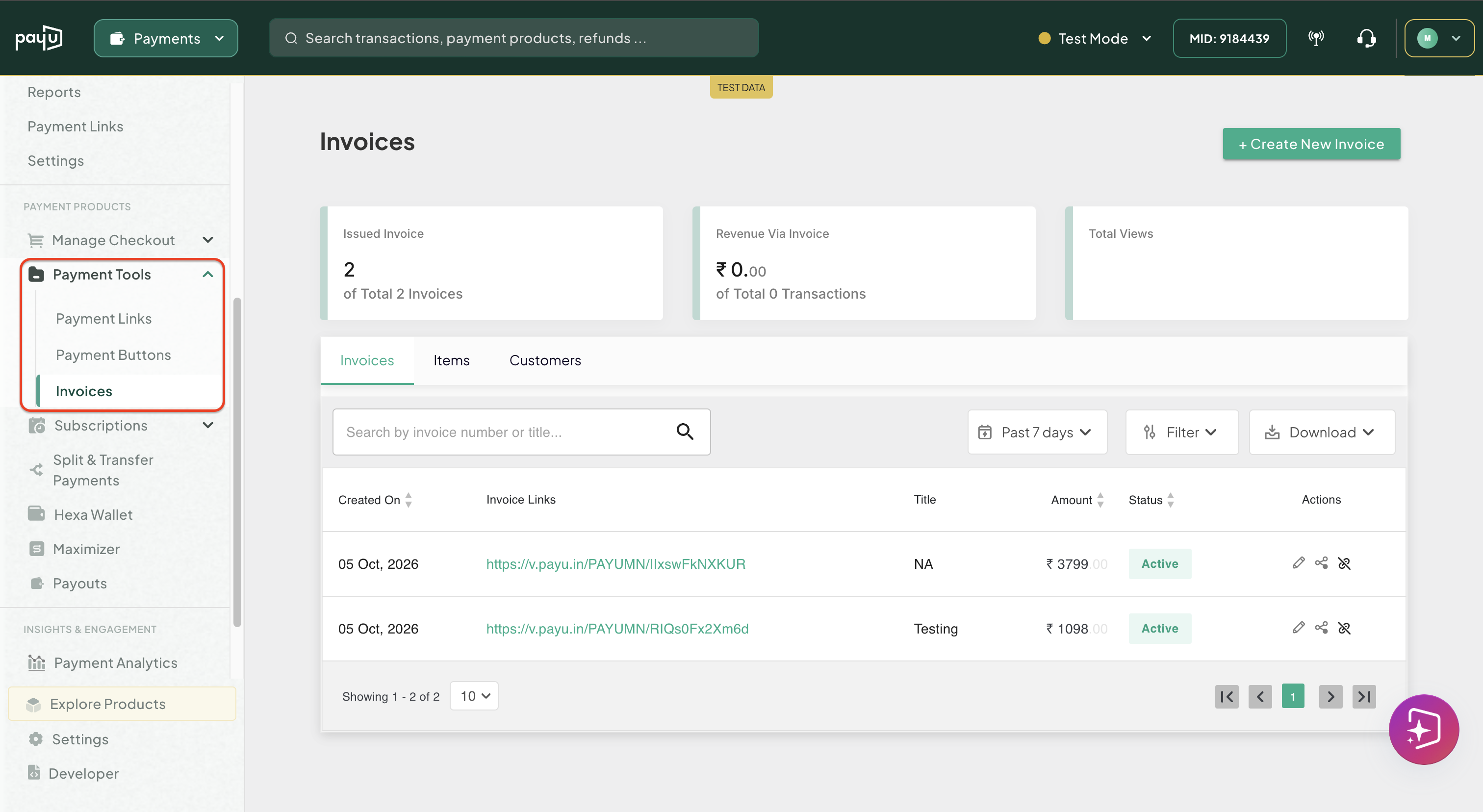
Access invoices
-
Click the Calendar icon at the top of the list and select a time period:
- Today
- Yesterday
- Past 7 days
- Past 30 days
- Custom Range
-
For a custom range, select a start and end date from the calendar and click Apply.
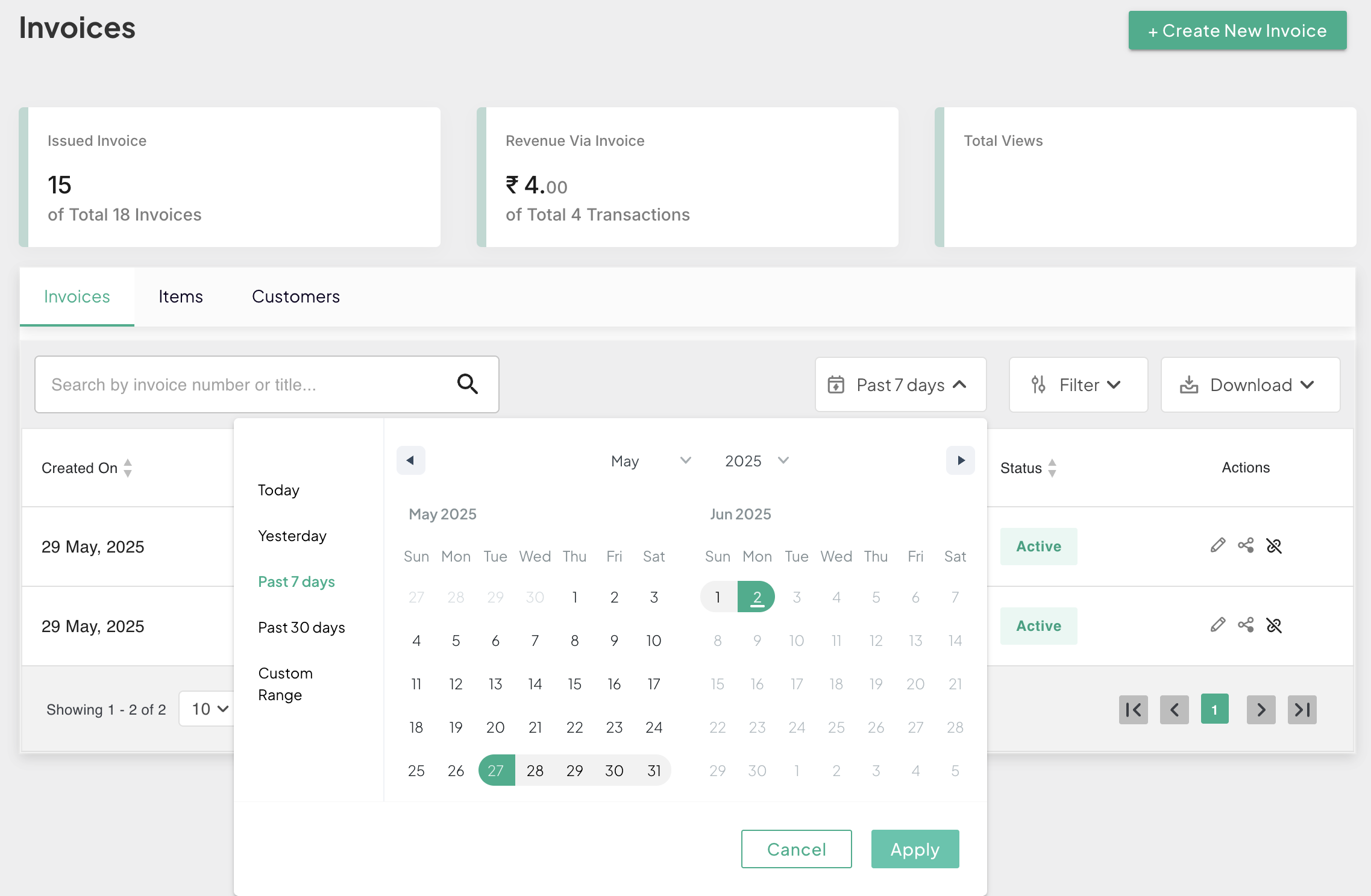
Filter by date range
How Do I Download My Invoice Records?
Export Invoice Records
To download invoice and transaction records:
-
Log in to the PayU Dashboard and click Invoices under Payment Tools.
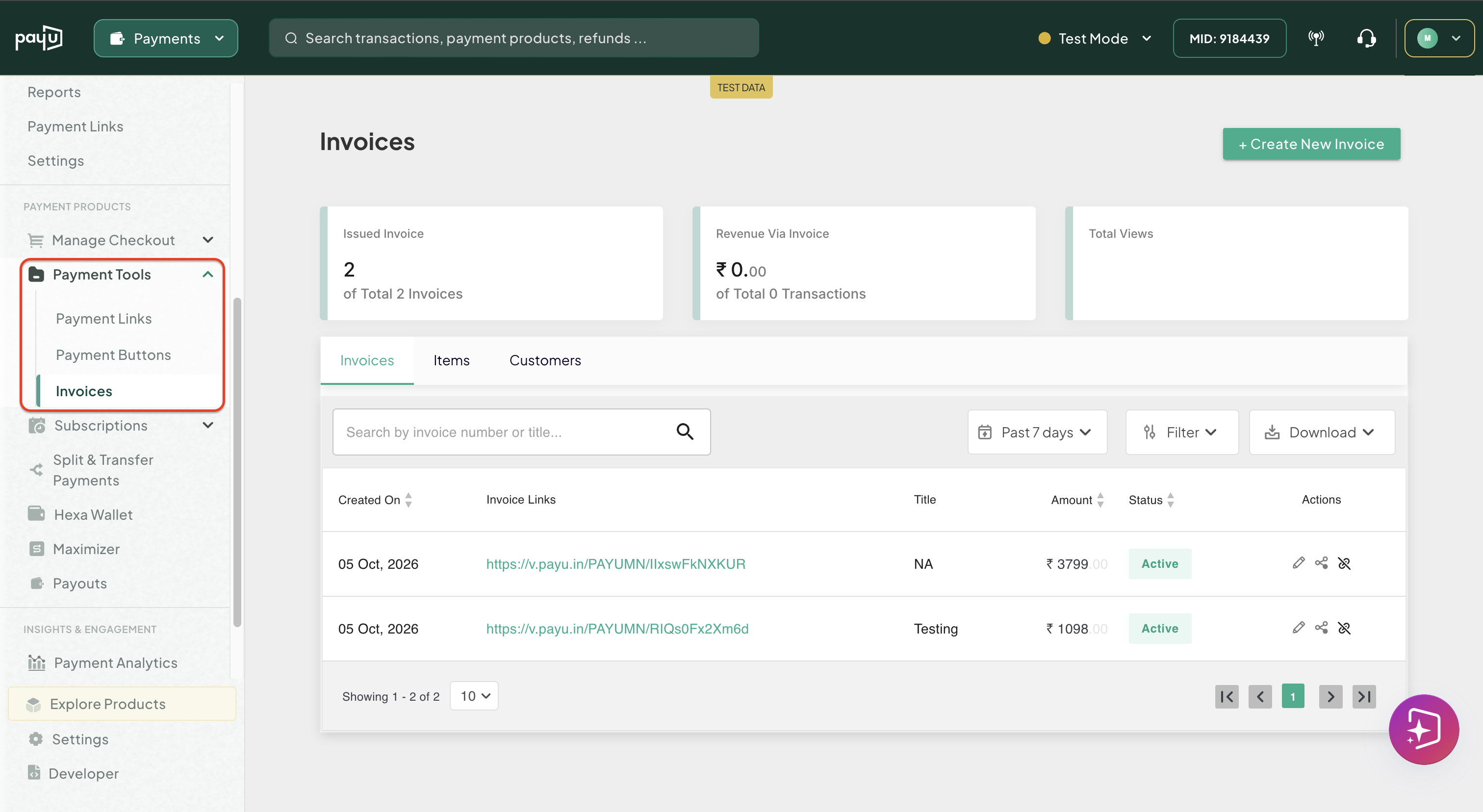
Access invoices
- Click the Download drop-down at the top of the list and select a format:
| Format | What it includes |
|---|---|
| CSV | Invoice records as a spreadsheet |
| XLSX | Invoice records in the Excel format |
| TXNS-CSV | Transaction records (individual payments) as a spreadsheet |
| TXNS-XLSX | Transaction records in the Excel format |
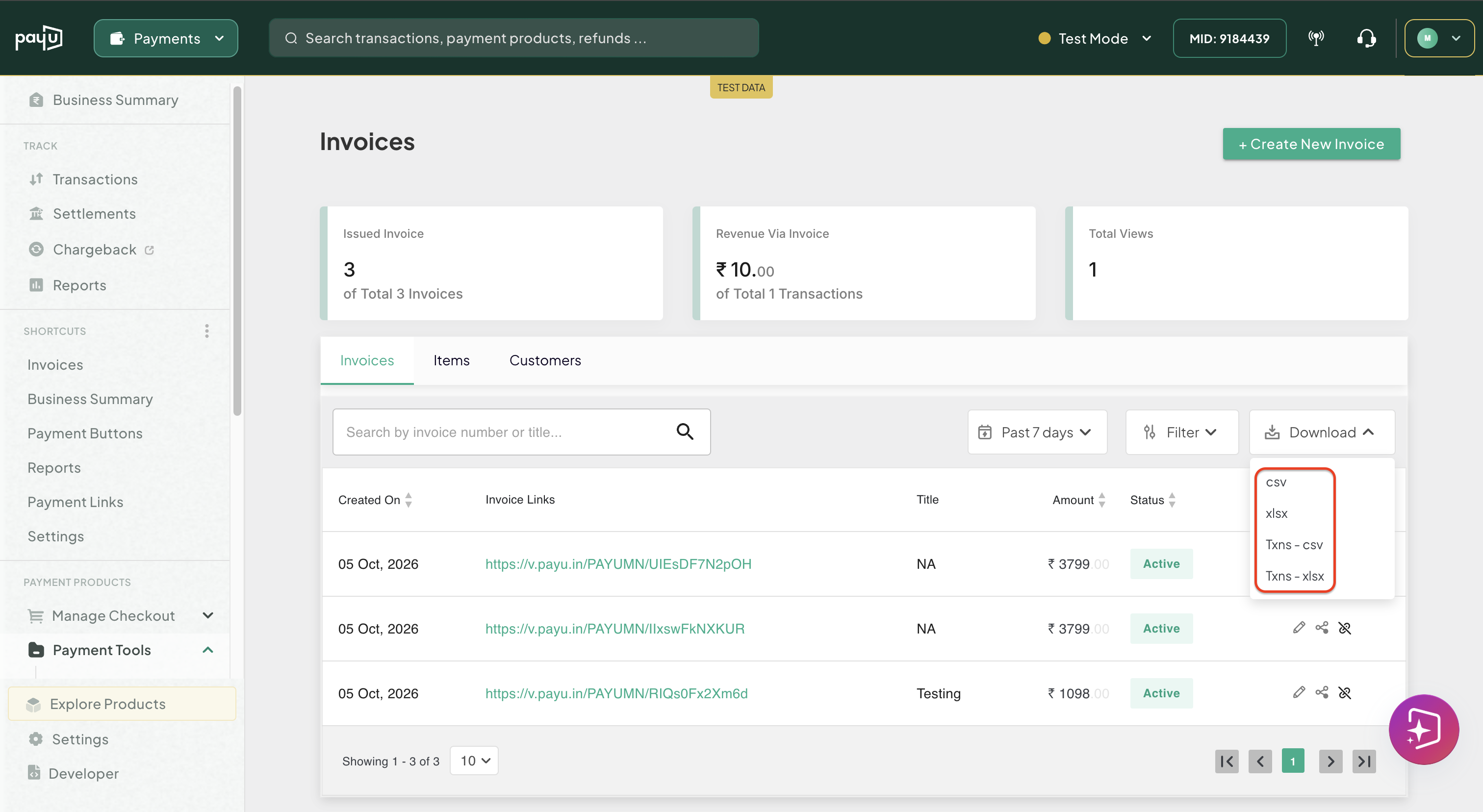
Download invoices and transaction details
- Click Download Report on the pop-up when your report is ready.
Tips:You can also share the report to one or more email addresses. In the pop-up, enter the email addresses separated by commas and click Share.
Next Steps
Create and send a new GST-compliant invoice to your customer.
Add, edit, and manage the products and services in your item catalog.
Fix issues with invoices not being received, payments not going through, or status not updating.
Common questions about PayU Invoices.Manage Invoices
Updated about 2 months ago
