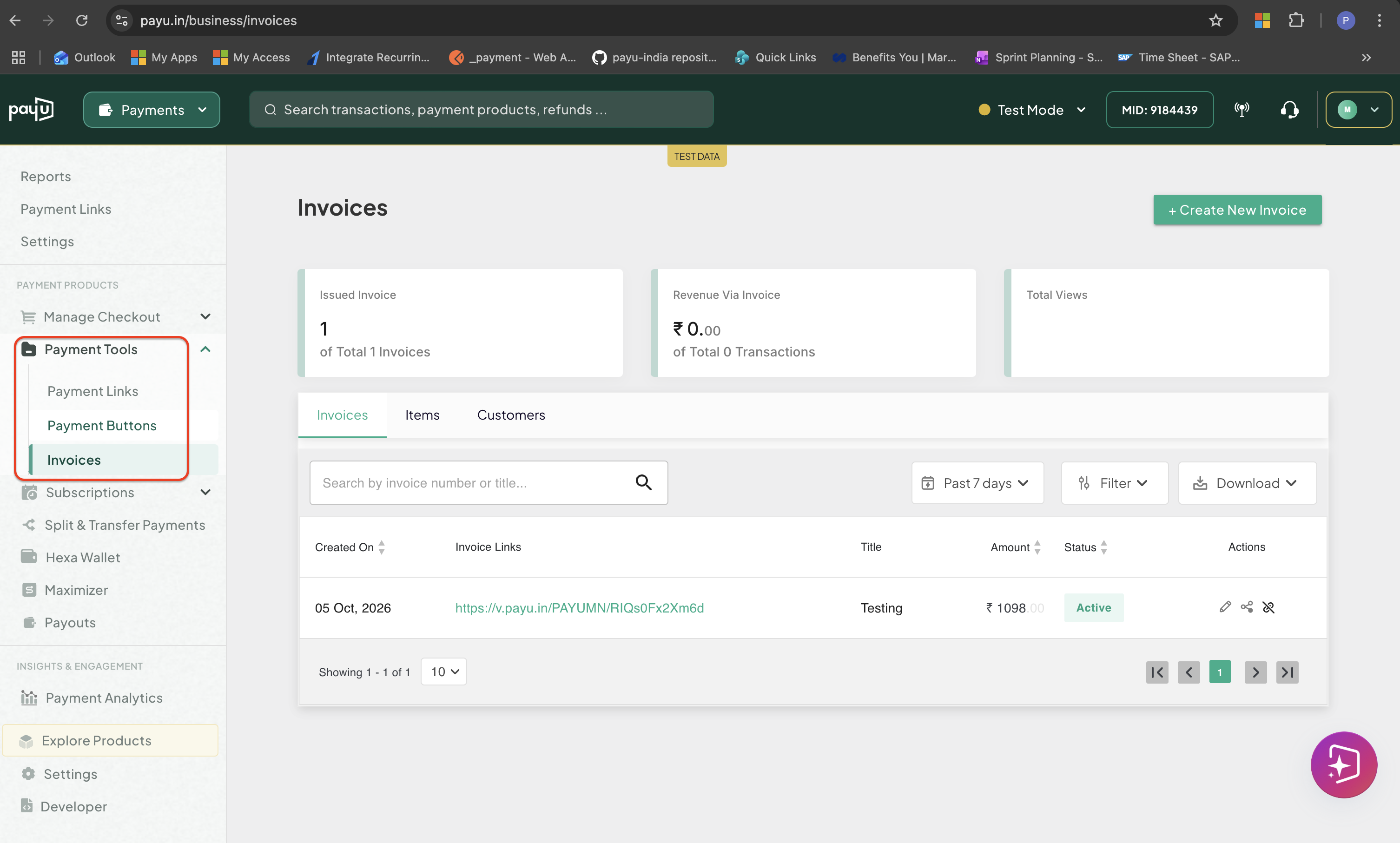
Expand Payment Tools and click Invoices from the left navigation bar.
Access Invoices
All your existing invoices are listed here, showing their status, due date, and amount.
2. Start a new invoice
Click Create New Invoice at the top-right corner of the page.
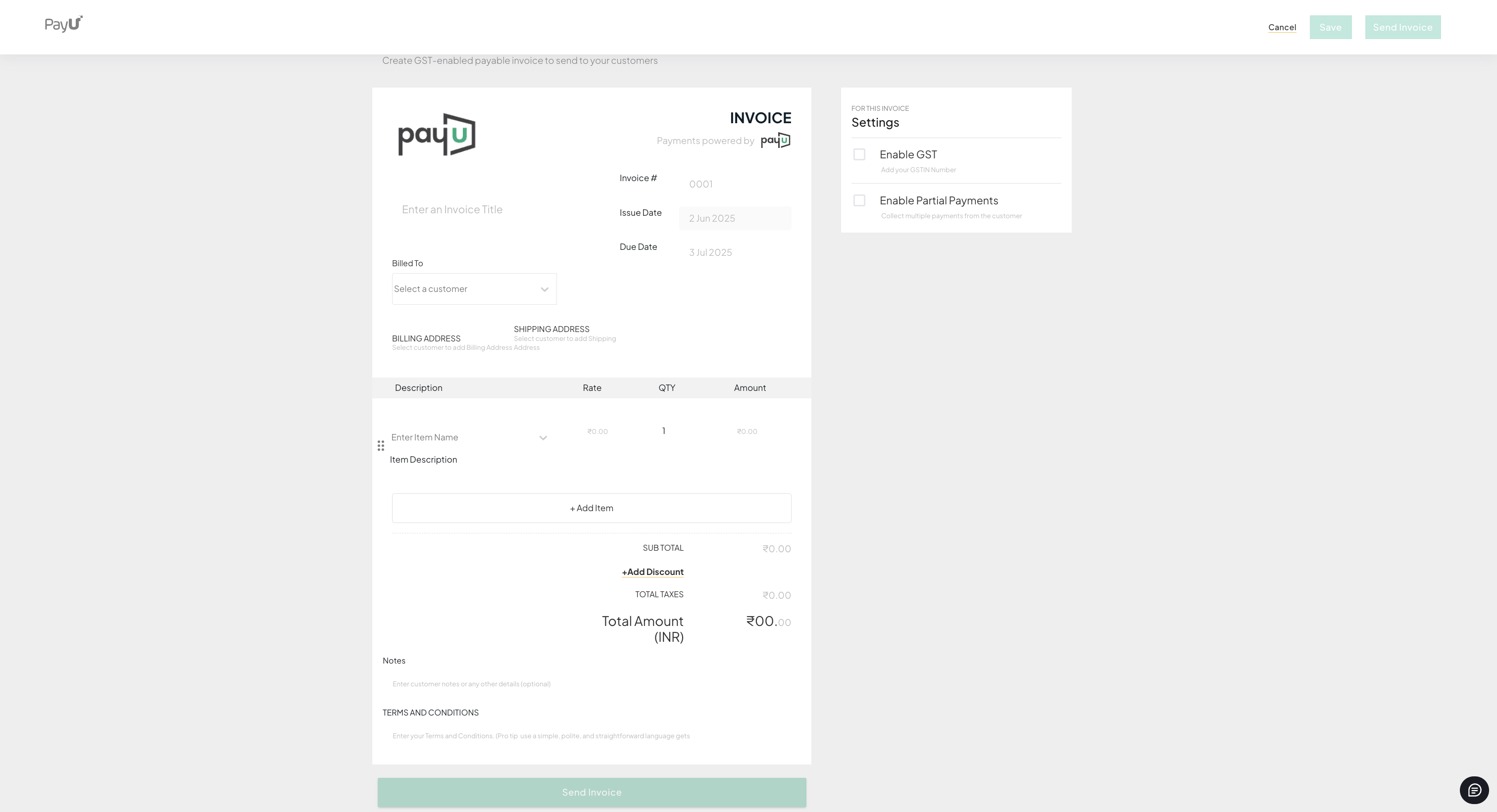
The Create New Invoice page opens.
Create New Invoice
Fill in the these invoice details:
Field
What To Enter
Invoice Title
A short description of the invoice. For example, "Consulting Services — July 2025"
Invoice #
A unique invoice number for your records
Issue Date
Filled automatically with today's date
Due Date
Click the calendar and select when payment is due
3. Select the customer
Click the Billed To drop-down and select the customer this invoice is for.
📘
Tips:
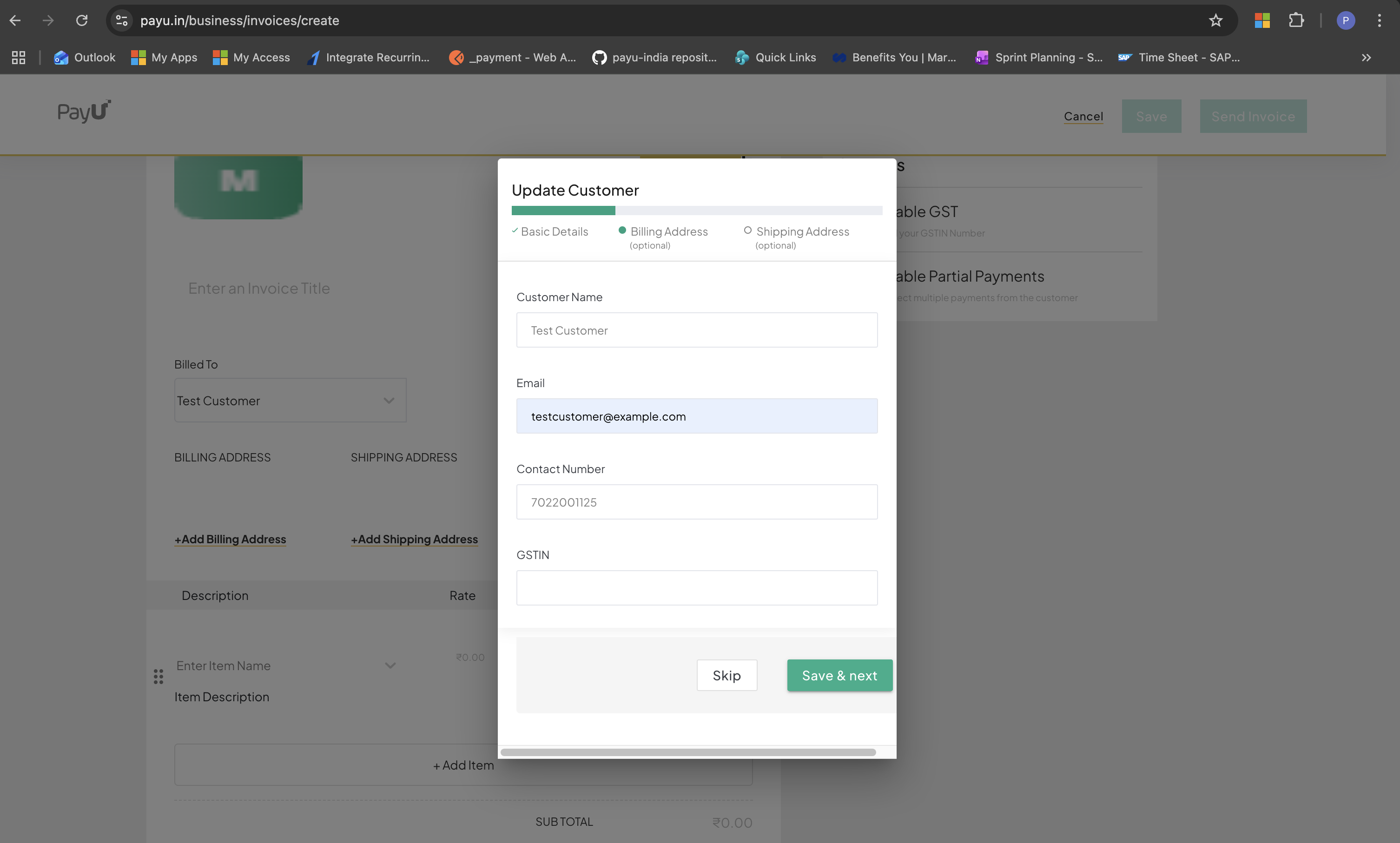
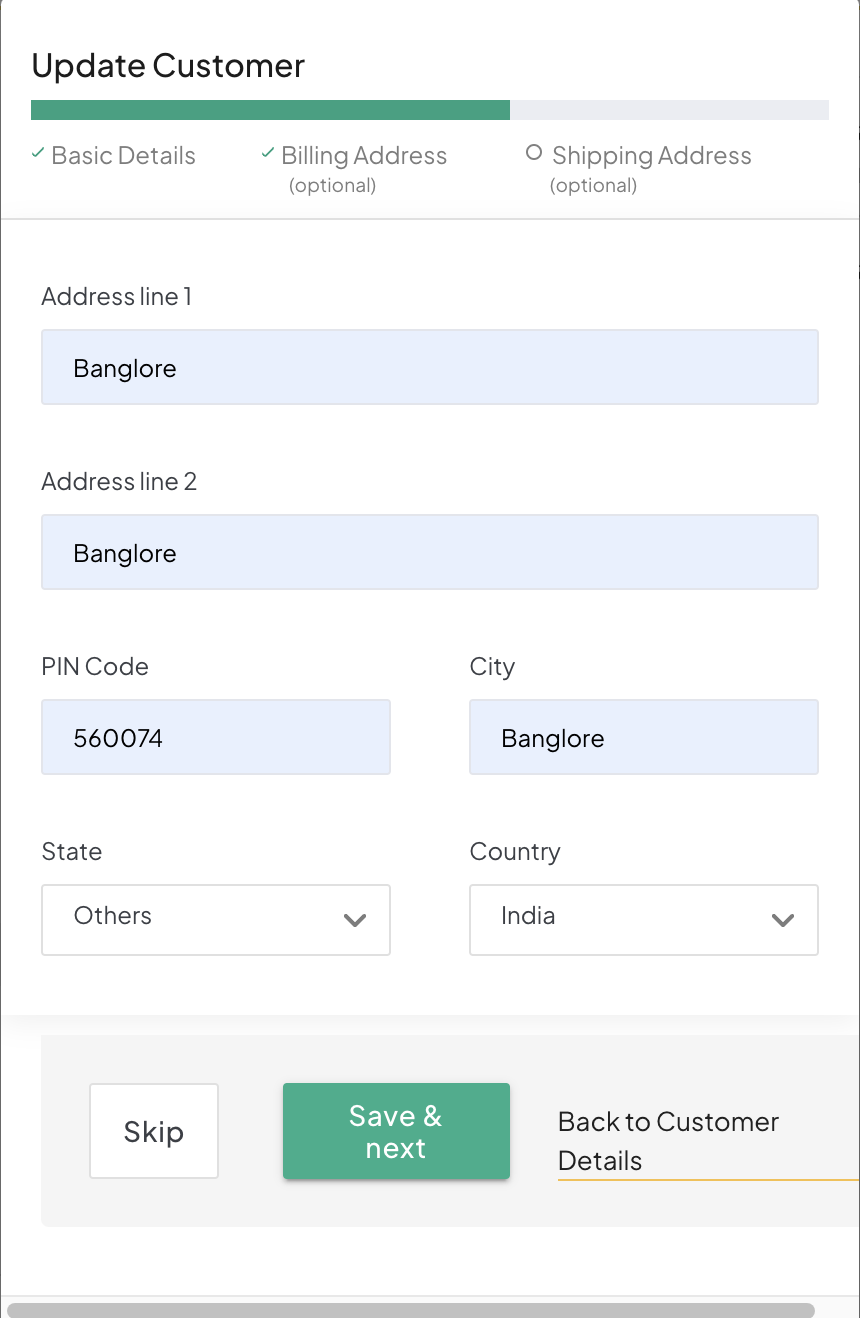
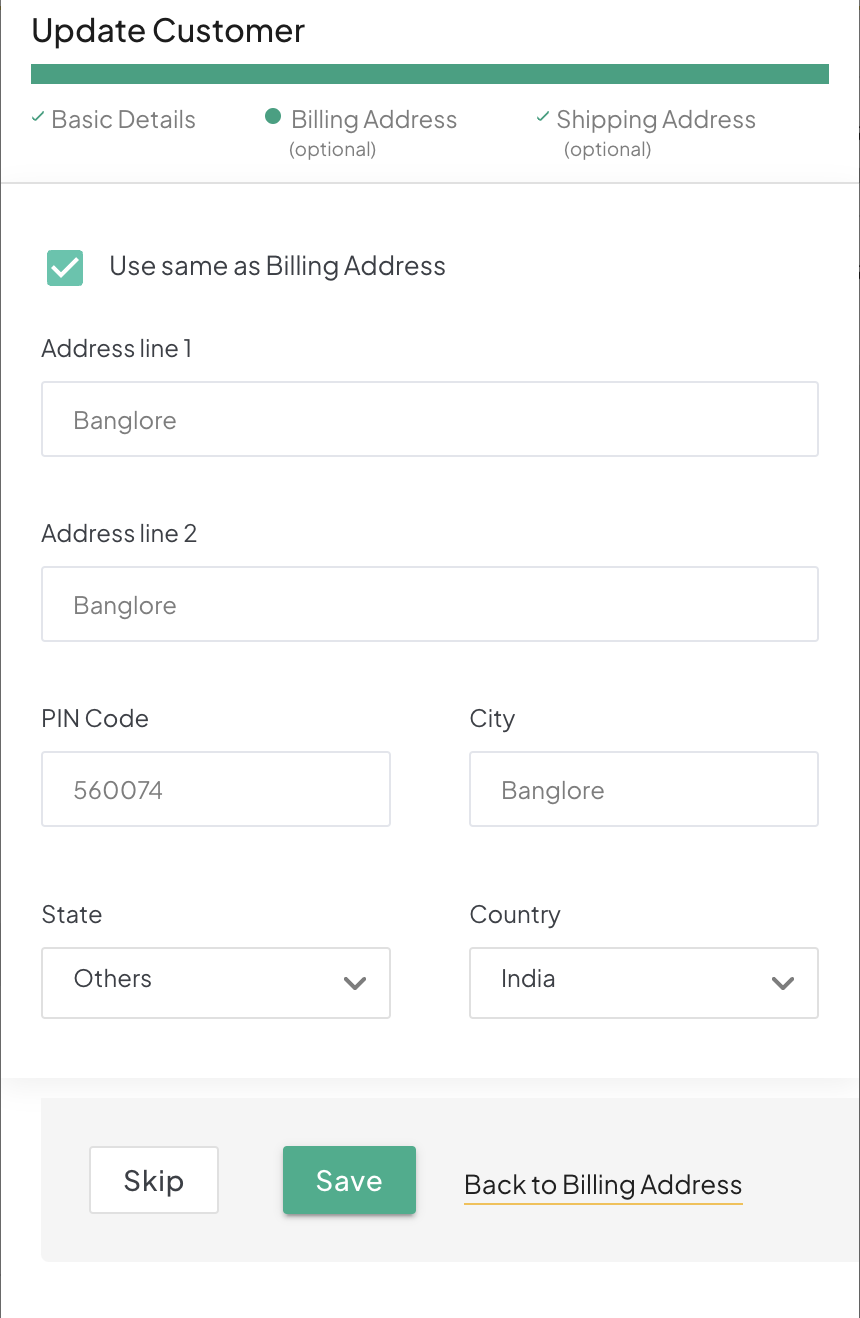
If the customer is not in the list yet, you can add them as a new customer from the drop-down. Enter these details of the customer:
Customer Name
Email
Contact Number
GSTIN
Address line 1
Address line 2
PIN Code
City
State
Country
Billing Address
Use same as Billing Address: Select this checkbox if your shiping address is as same as billing address. If not you can provide the shipping address.
Shipping Address
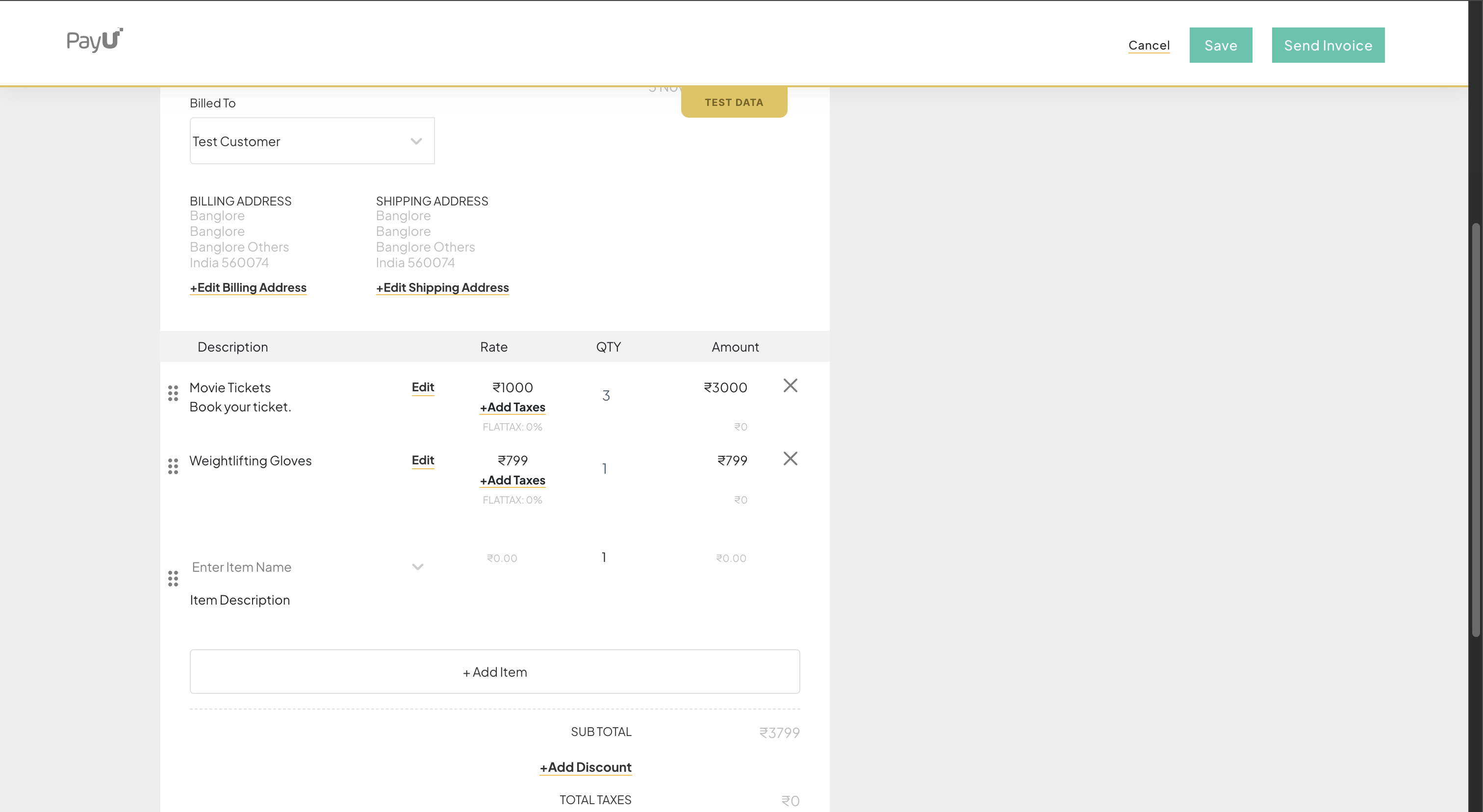
4. Add line items
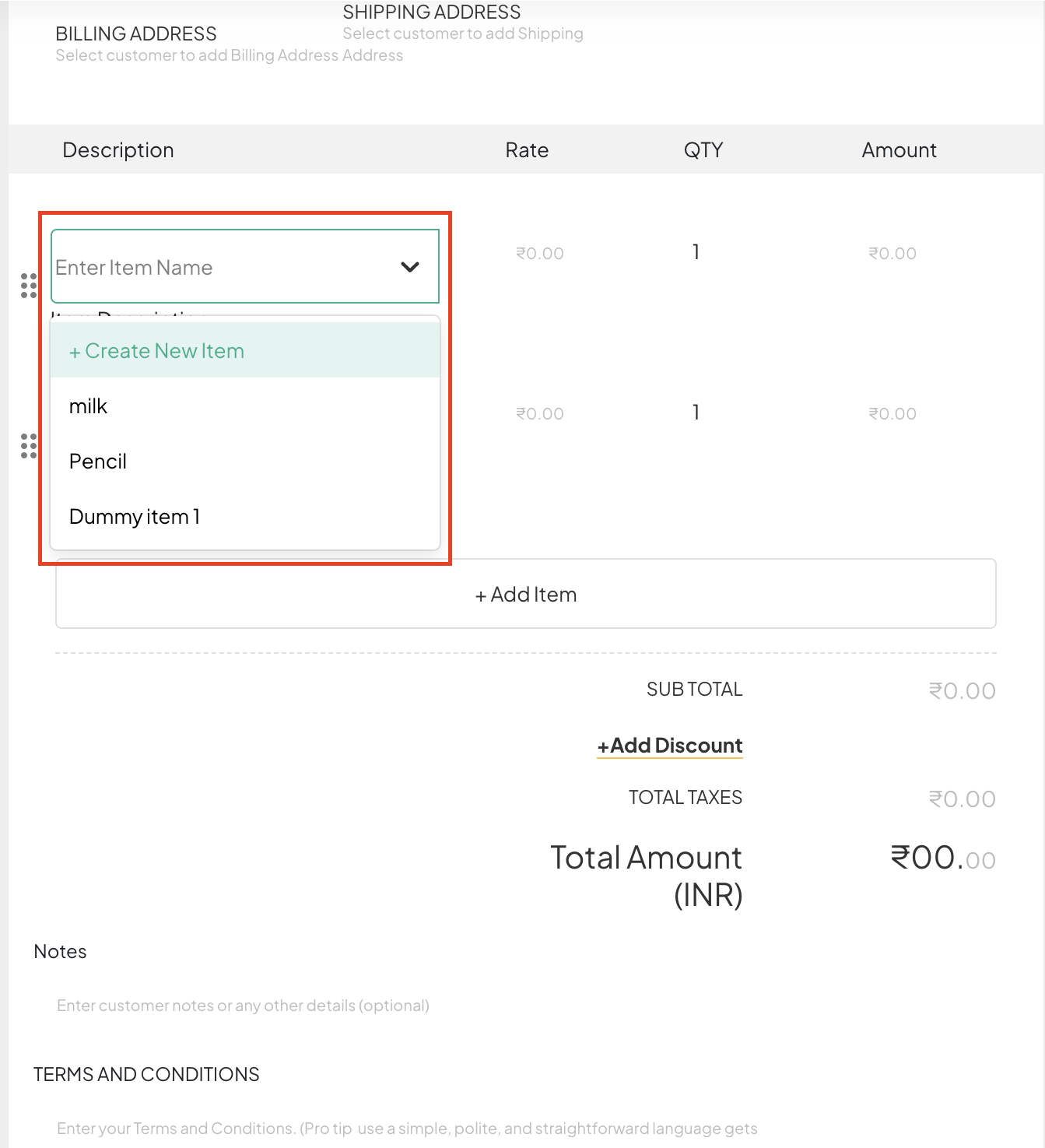
Slect items from the Enter Item Name drop-down or click Create New Item to add the first product or service to the invoice.
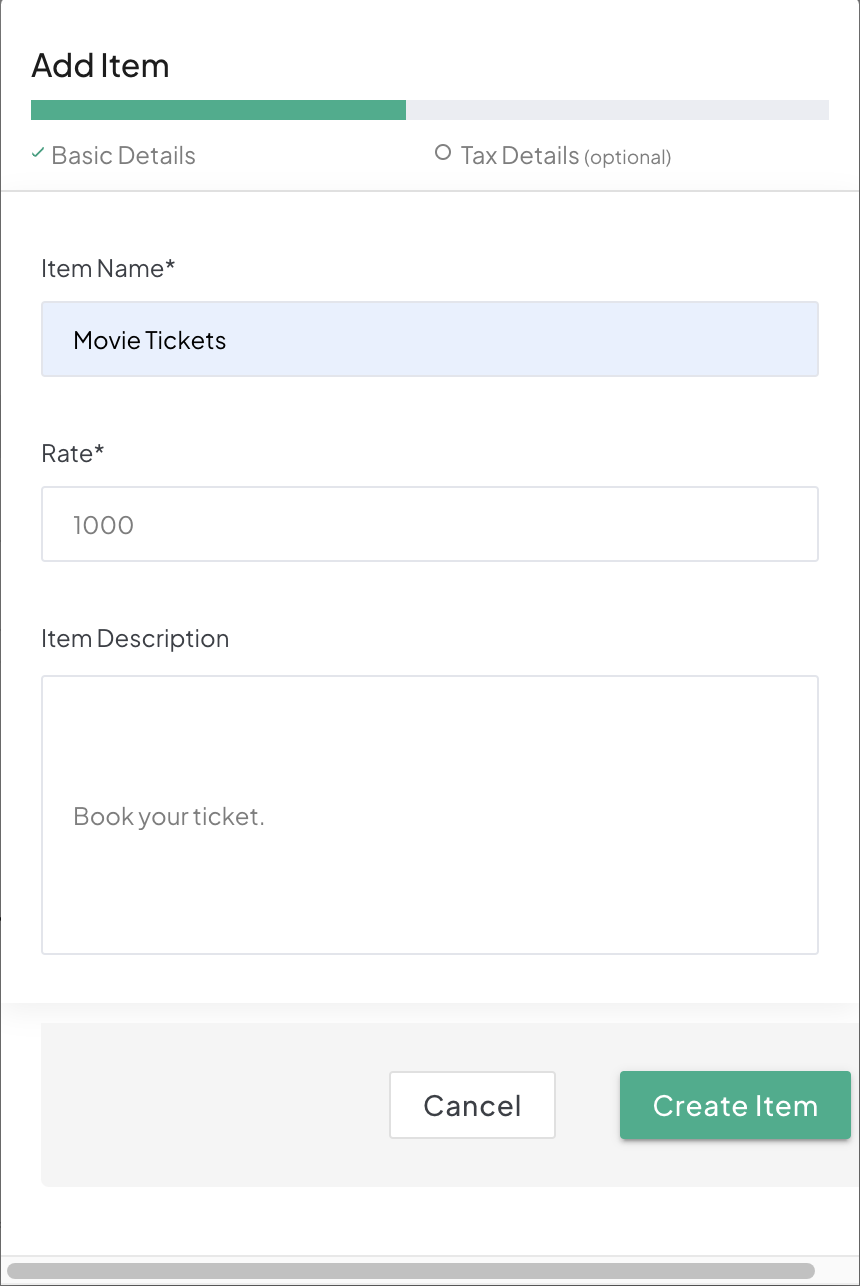
Enter these details in the Add Item pop-up menu and click Create Item:
Item Name
Rate: The cost of the item.
Item Description
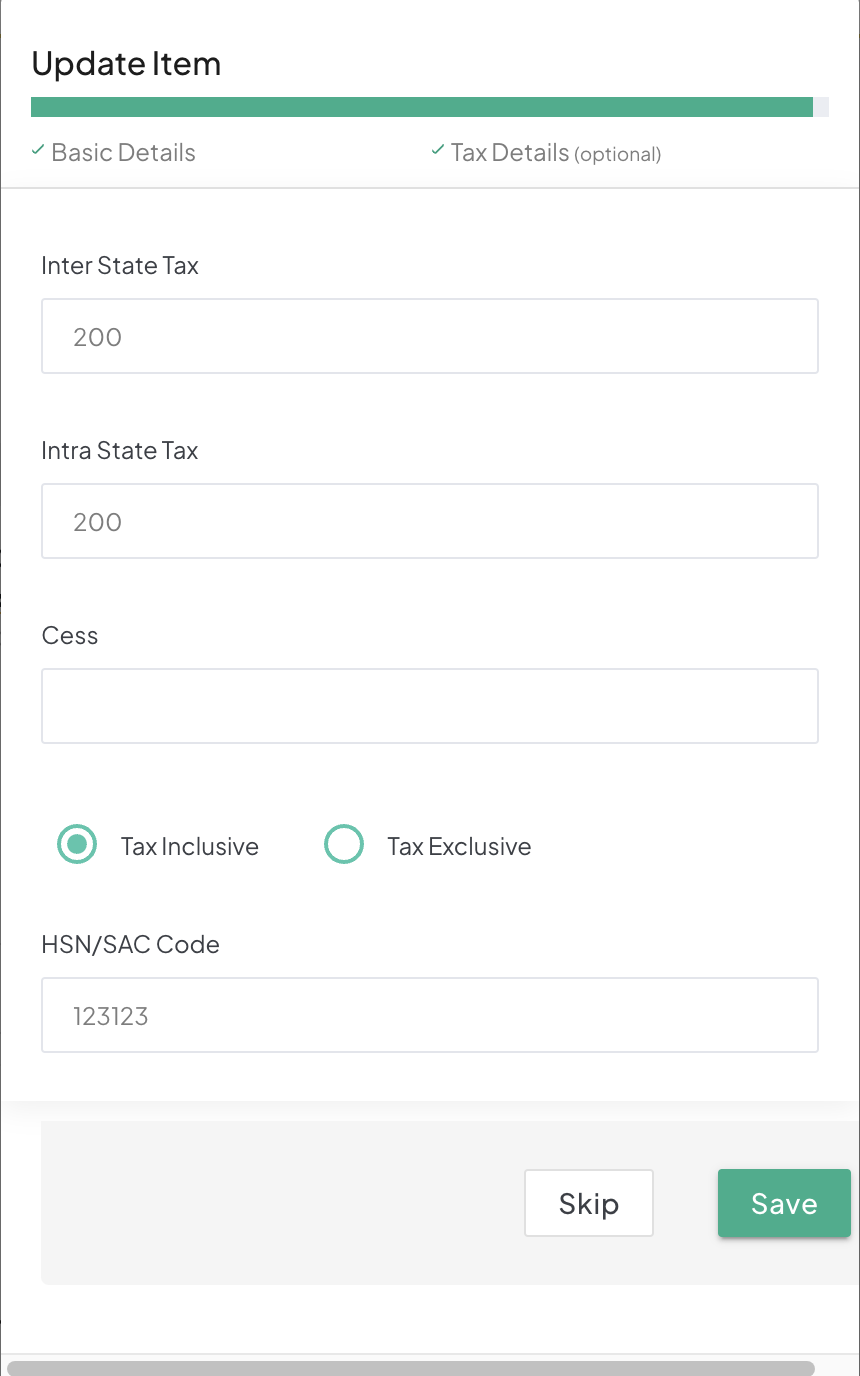
These are optional. You can add them later.
Inter State Tax
Intra State Tax
Cess
Tax Inclusive/Tax Exclusive
HSN/SAC Code
The item's rate is filled in automatically. You can adjust the quantity if needed. The total Amount updates automatically.
Line Items
Click Add Item again to add more items. You can add as many line items as required.
5. Configure settings (optional)
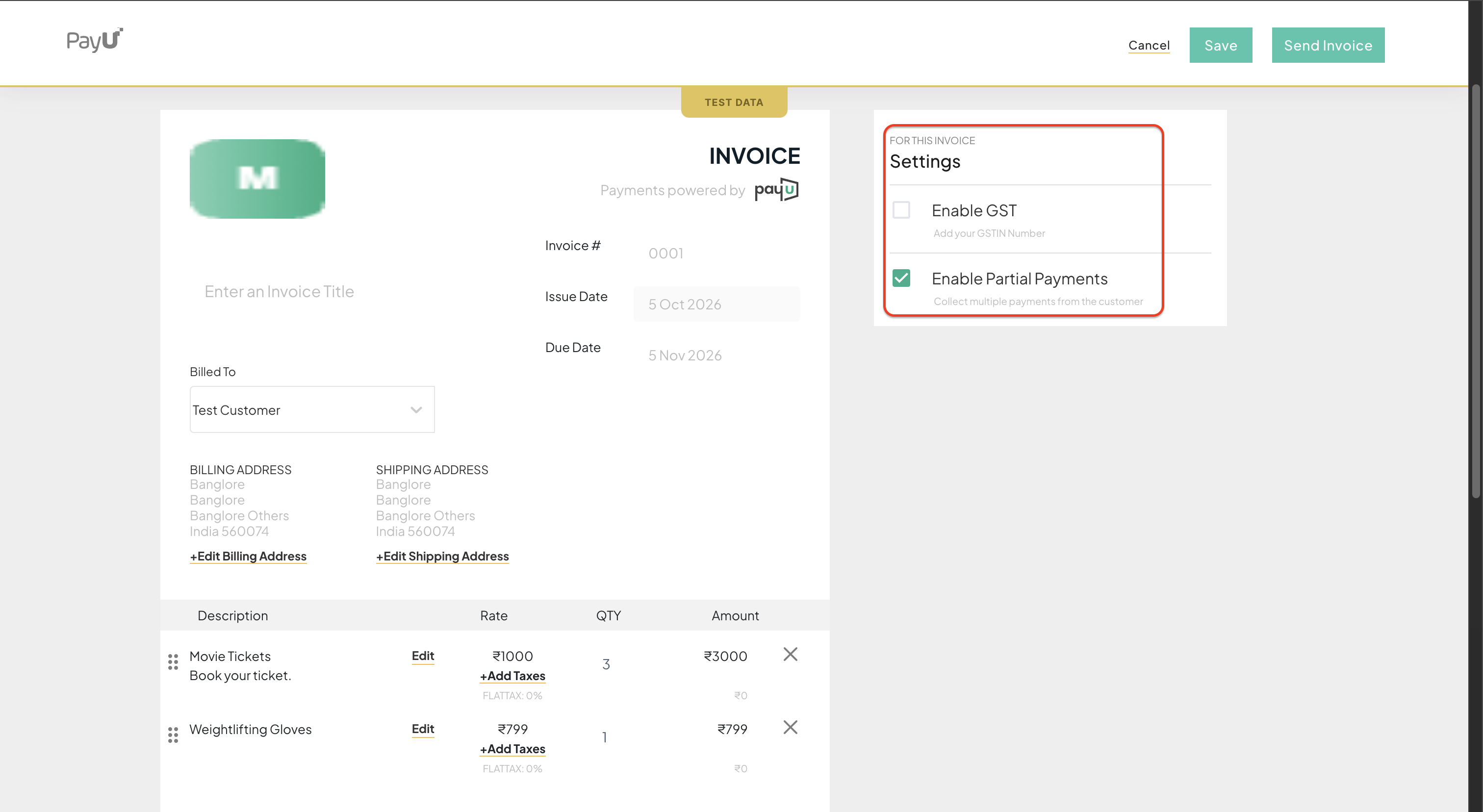
On the Settings panel on the right side of the page, you can turn on:
Setting
What it does
Enable GST
Calculates and adds GST to each line item automatically, based on the tax details set in the item catalog. Upon clicking, you should add the GSTIN in the Add your GST Details pop-up menu.
Enable Partial Payments
Lets your customer choose to pay a part of the invoice now and the rest later
📘
Tips:
GST details such as rate, HSN/SAC code, inter-state or intra-state tax, and cess are set at the item level in the Item Catalog.
6. Send the invoice
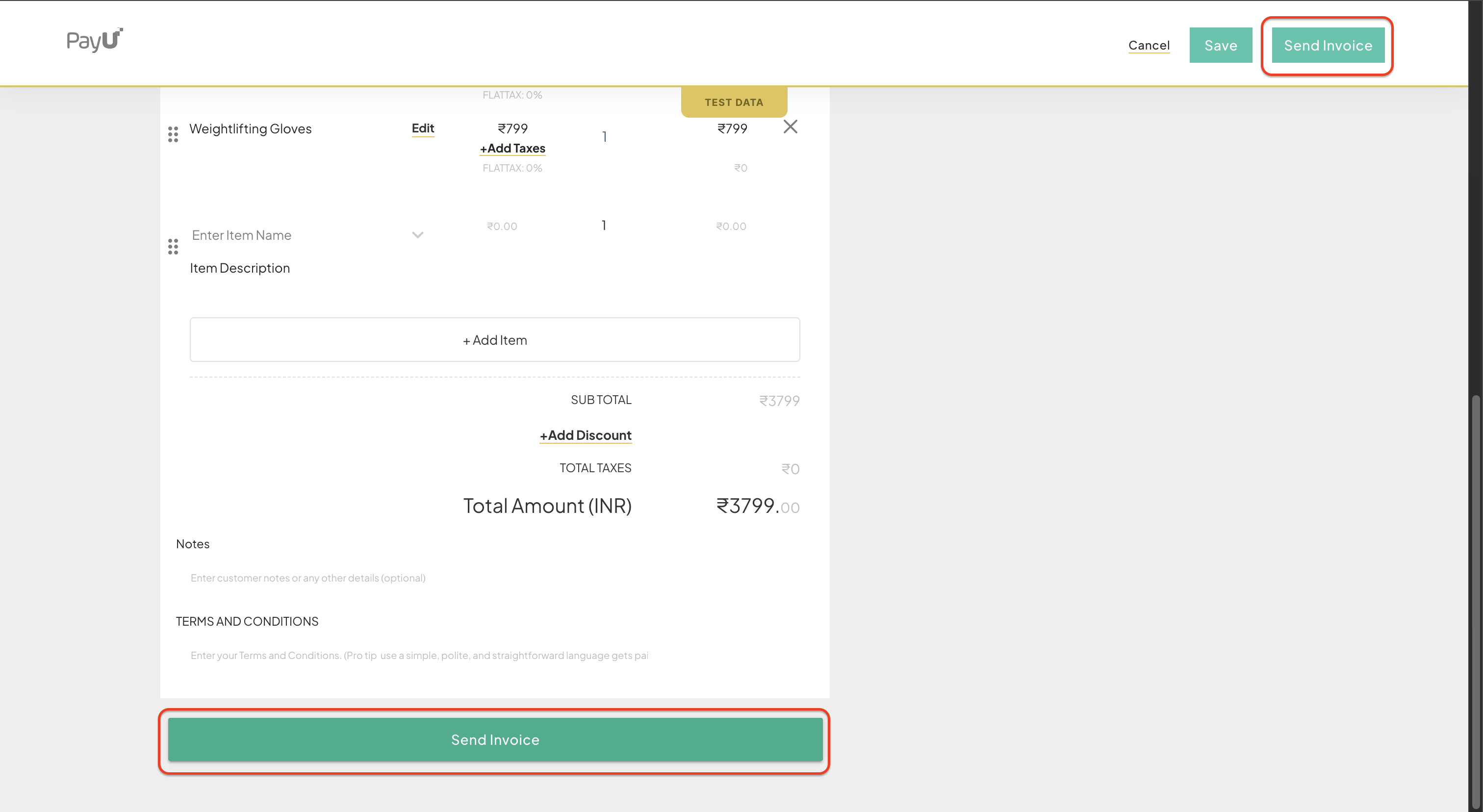
When the invoice is ready, click Send Invoice displayed on the bottom or top-right of the page.
Send the invoice
PayU sends the invoice to your customer by email or SMS. The message includes a link to view the invoice and a pay-now button.
📘
Tips:
You can also Save the invoice as a draft to send later, or Cancel to discard it. These options are in the top-right corner of the page.
What Happens After My Customer Pays?
After your customer receives the invoice and completes a payment:
The invoice status in your Dashboard updates to Paid immediately.
The payment appears in the Transactions tab in your PayU Dashboard.
If partial payments are enabled, the invoice shows how much has been paid and how much is still outstanding.
The money is settled to your bank account on the standard settlement cycle.
📘
Want to be notified after a payment?
Set up webhooks under Settings → Webhooks in the Dashboard. Webhooks are optional — your Dashboard always shows you the latest payment and invoice status whether or not you set them up.
What Do I Do If Something Goes Wrong?
Issue
Recommended Fix
Customer says they did not receive the invoice
Ask the customer to check their spam folder. If not received, resend it from the Dashboard. To resend, find the invoice, open it, and click Resend.
Wrong item, amount, or due date on the invoice
Invoices cannot be edited after they are sent. Cancel the invoice and create a new one with the correct details.
Customer paid but the invoice is still showing as unpaid
Wait a few minutes and refresh. If it does not update after 30 minutes, see Invoice Troubleshooting.
GST not showing on the invoice
Enable GST in the Settings panel when creating the invoice, and make sure tax details are set for each item in the Item Catalog.