Customer Journey
This section describes the payment experience for the customers after you integrate PayUs offerings with WhatsApp.
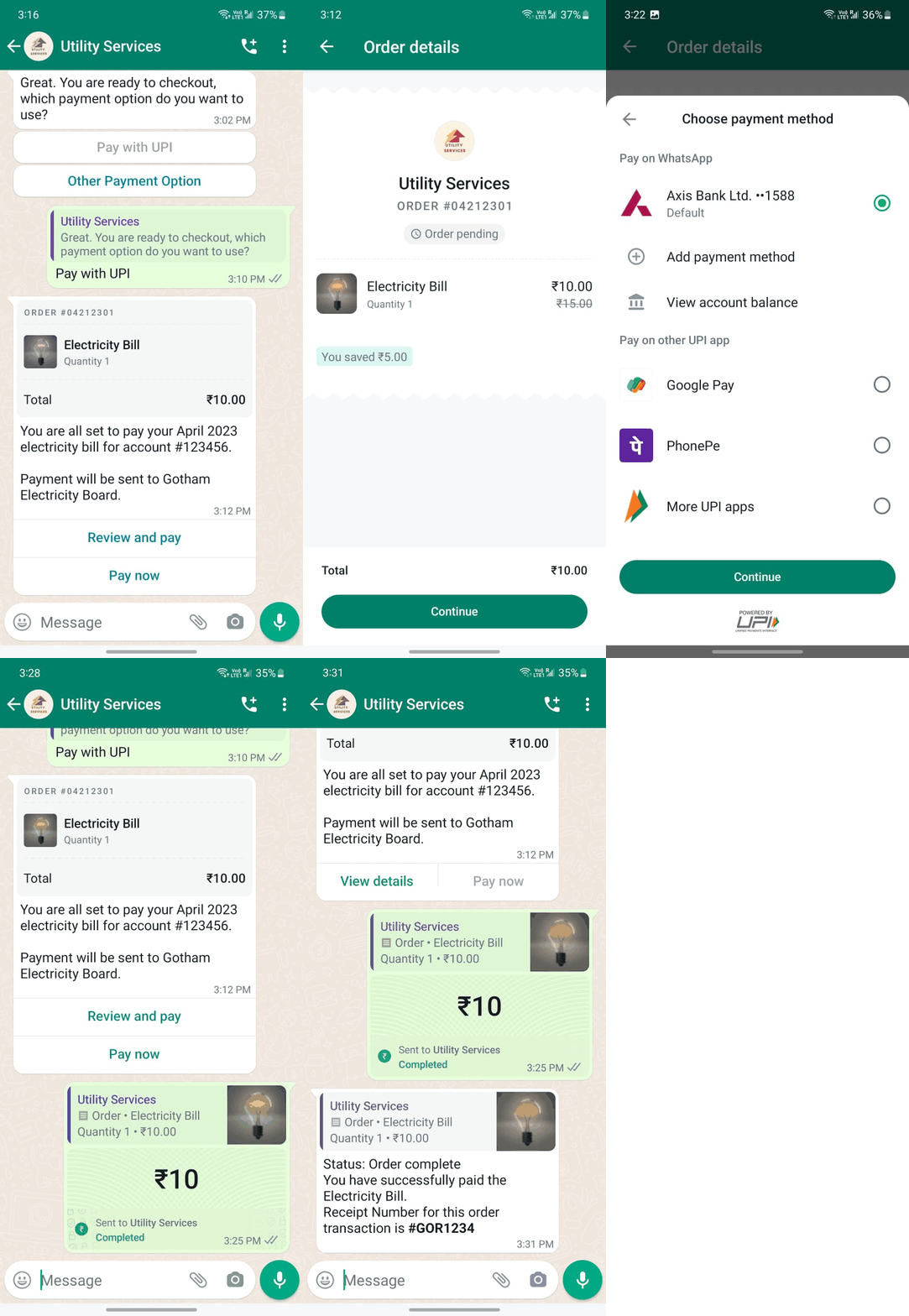
Payment Experience with UPI Intent URL
In a live integration, your backend creates the UPI Intent via PayU and sends POST /messages with type: order_details and payment_type: "upi" (per your programme spec).
Step 1: Choose payment path and receive the order card
In the chat, the business asks how the customer wants to pay (for example Pay with UPI vs Other payment option). After the customer selects Pay with UPI, the business sends an order-style message: order reference, line item (for example Electricity bill), amount, short narrative, and actions such as Review and pay and Pay now.
Step 2: Review native order details (pending)
The customer opens the Order details view: merchant branding, ORDER reference, Order pending state, line items and pricing (including any discount), Total, and Continue to move toward payment.
Step 3: Choose UPI payment method
The Choose payment method sheet lists Pay on WhatsApp (linked bank as Default), options to Add payment method or View account balance, and Pay on other UPI app (for example Google Pay, PhonePe, More UPI apps). The customer selects an option and taps Continue (POWERED BY UPI).
Step 4: In-chat payment confirmation
In the thread, the customer sees the order summary alongside a completed payment bubble (amount, Sent to the business, Completed with read receipts). This corresponds to a successful UPI authorisation after the customer confirms on their bank or TPAP flow.
Step 5: Receipt and order complete
The business sends a closing message: Order complete, paid line item, and a receipt (or reference) number for the customer’s records. Your systems should already have received the PayU PG webhook for reconciliation.
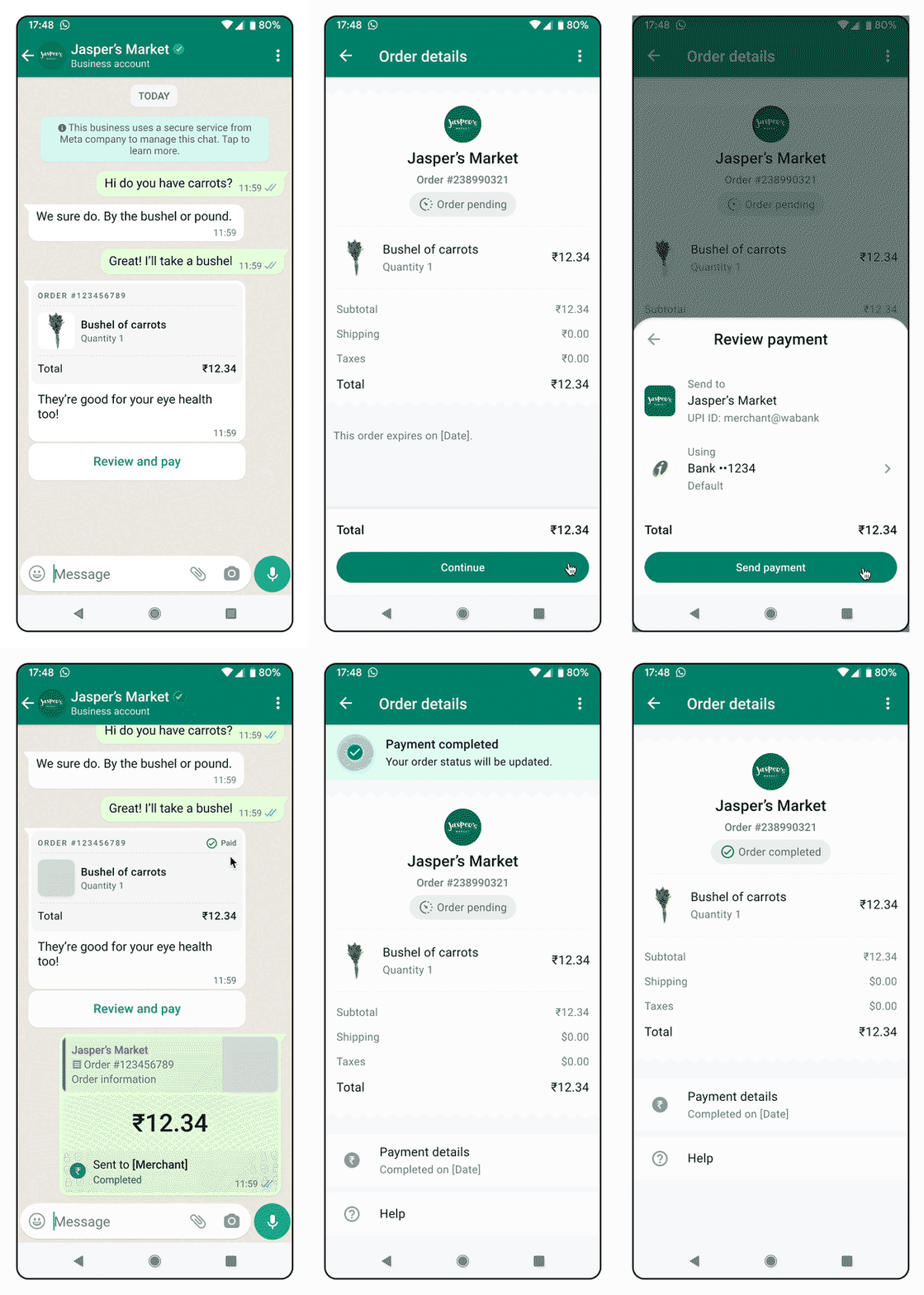
P2M / PG Deep Integration on WhatsApp Flow
Step 1: Business sends catalogue or order in WhatsApp
The merchant (or automation) sends a structured order or catalogue message in the conversation—line items, amounts, and context the customer needs before paying. This is typically an order_details-style interactive message initiated over the WhatsApp Cloud API once your PG and Meta payment_configuration are in place.
Step 2: Customer taps Review & Pay in the chat
From the order bubble or card, the customer taps Review & Pay (or the equivalent CTA Meta renders for your template). The UI stays inside WhatsApp; there is no hand-off to an external merchant web checkout for the core native flow.
Step 3: Native payment sheet opens
WhatsApp opens the native payment sheet so the customer can choose UPI (including linked bank / TPAP where offered), cards, net banking, wallets, and EMI when your programme supports it.
Step 4: Customer completes payment without leaving WhatsApp
The customer enters OTP, UPI PIN, or other authentication required by the selected method. Authorisation completes without leaving WhatsApp for the native P2M path (contrast with EPL, where checkout opens in a browser, and contrast with UPI Intent–only flows that lean on UPI apps).
Step 5: Instant confirmation and order update in the chat
On success, the customer sees payment confirmation and order status updates in the same thread (for example paid / processing / complete, depending on your implementation). Your backend should consume WhatsApp payment / order webhooks where configured, and continue to handle the PayU PG webhook for reconciliation—PG Deep Integration uses both channels versus EPL or UPI Intent alone.